
Inbound Overview
Setting up Gail as your receptionist will transform your inbound call handling. With Gail as your AI receptionist, your agency, bank, or lending institution can provide seamless, intelligent, and always-available support for every inbound call. This guide walks you through the current Inbound workspace so you can configure Gail to handle calls, direct inquiries, and provide information just like a human team member, 24/7.
Inbound now lives under Communications in the left menu. There is no Agents tab. Your receptionist setup is on the Scripts tab, with Actions, Directory, and Data Extraction next to it.
Open Inbound
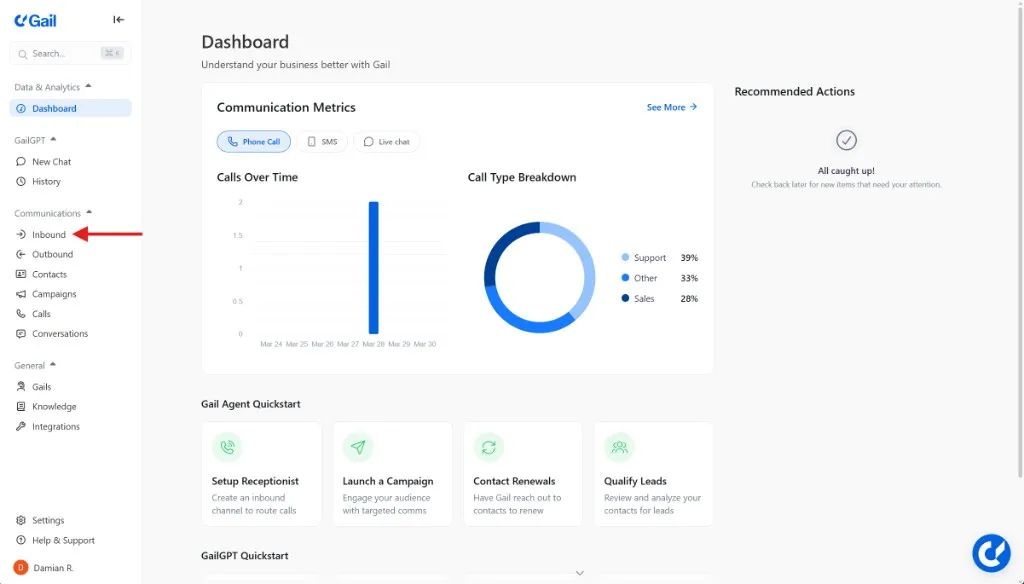
- In the left-hand menu, expand Communications and click Inbound
- You land on the Scripts tab. The other tabs on this page are Actions, Directory, and Data Extraction
The Scripts tab is your inbound command center. You will see total inbound calls, average call time, your script list, and a weekly Schedule overview.
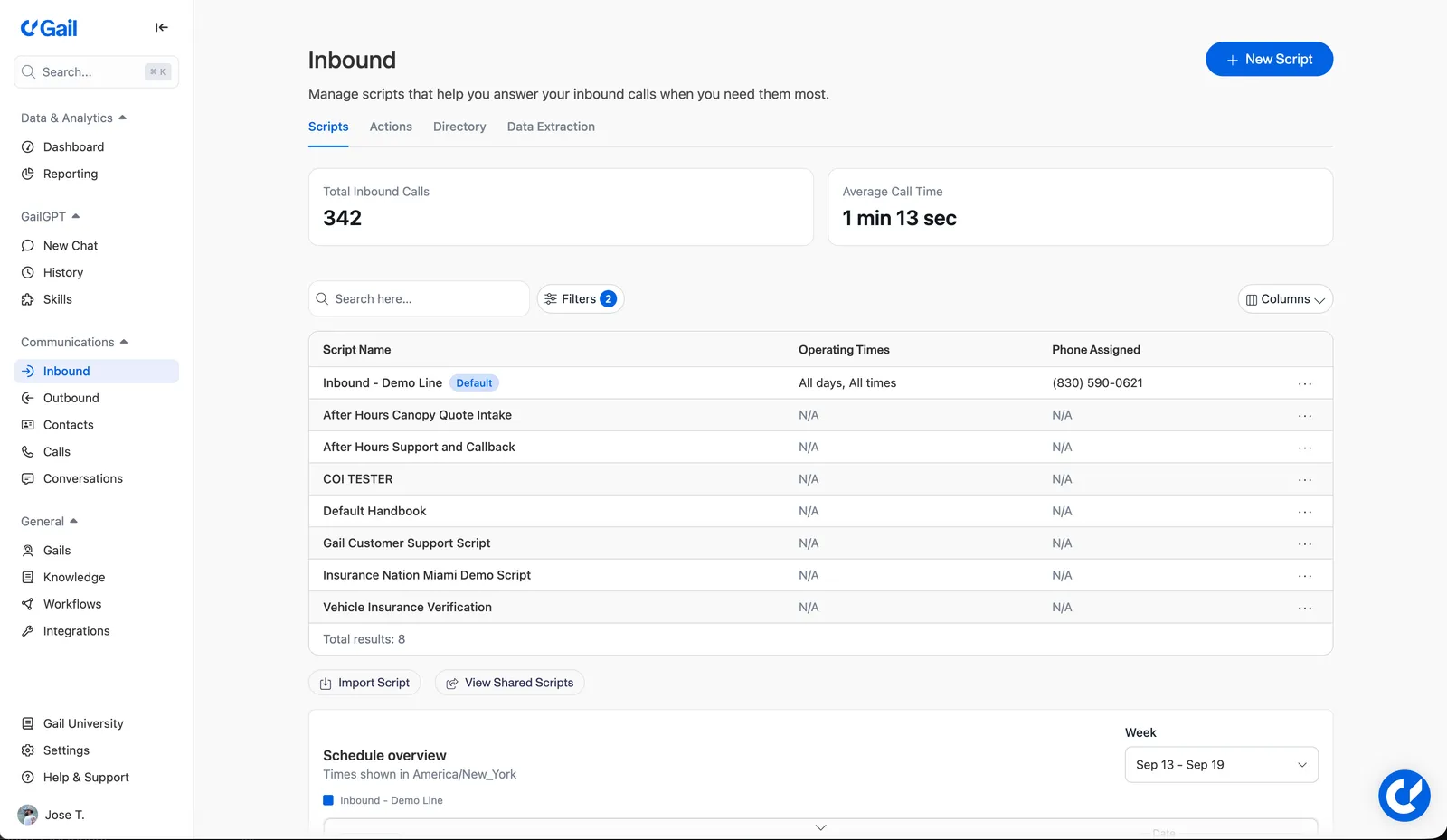
Each script row shows:
- Script Name, including a Default badge on the primary inbound script
- Operating Times, such as
All days, All times, orN/Aif hours are not set yet - Phone Assigned, the number currently using that script
From here you can also Import Script or View Shared Scripts.
Create a Script
- On the Scripts tab, click + New Script
- Gail opens Describe the script, where you tell it what this inbound receptionist should accomplish. You can review and edit everything before saving.
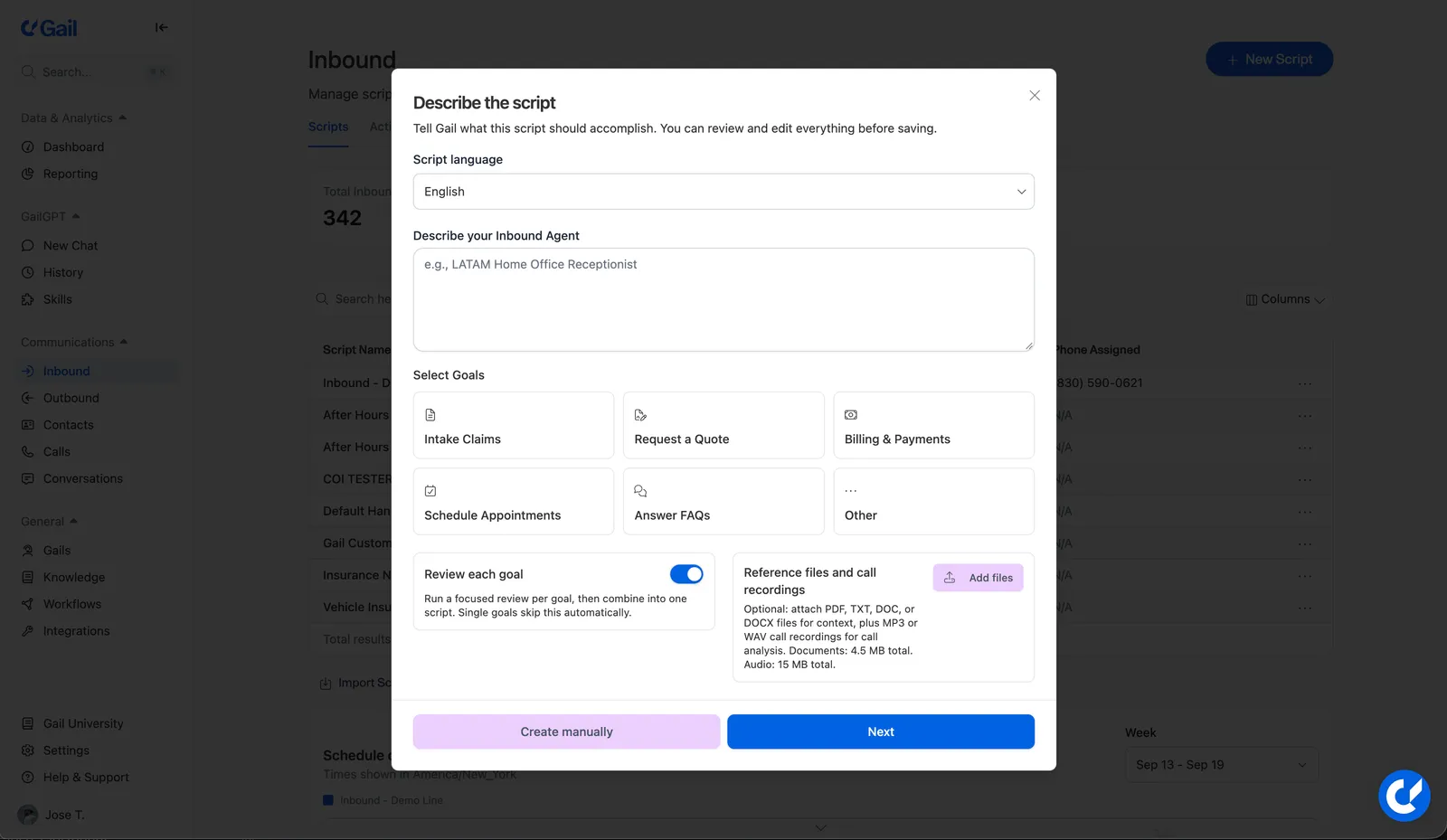
In this dialog:
- Script language: Choose the language this script should speak (for example, English)
- Describe your script: In the dialog this field is labeled Describe your Inbound Agent. Write a short description, such as
LATAM Home Office Receptionist - Select Goals: Pick what this script should handle, such as Intake Claims, Request a Quote, Billing & Payments, Schedule Appointments, Answer FAQs, or Other
- Review each goal: When this is on, Gail runs a focused review per goal, then combines them into one script. Single-goal scripts skip this automatically
- Reference files and call recordings: Optionally attach PDF, TXT, DOC, or DOCX files for context, plus MP3 or WAV recordings for call analysis
Click Next to let Gail draft the script from your description and goals, or Create manually if you want to build it yourself.
Most teams create at least two scripts:
- Business hours: For when your office is open and actively taking calls
- After hours / holiday: For when your office is closed, with next steps such as taking a message, sharing a website, or offering an emergency contact
Build the Script
After you create a script, Gail opens a four-step editor:
- Script & Actions
- FAQs & Knowledge
- Agent & Voice
- Test & Launch
Use Save draft as you work. Use Publish when you want to save a revision, then finish on Test & Launch when the script should take live calls.
1. Script & Actions
This is where you teach Gail what to say and what to do during a call.
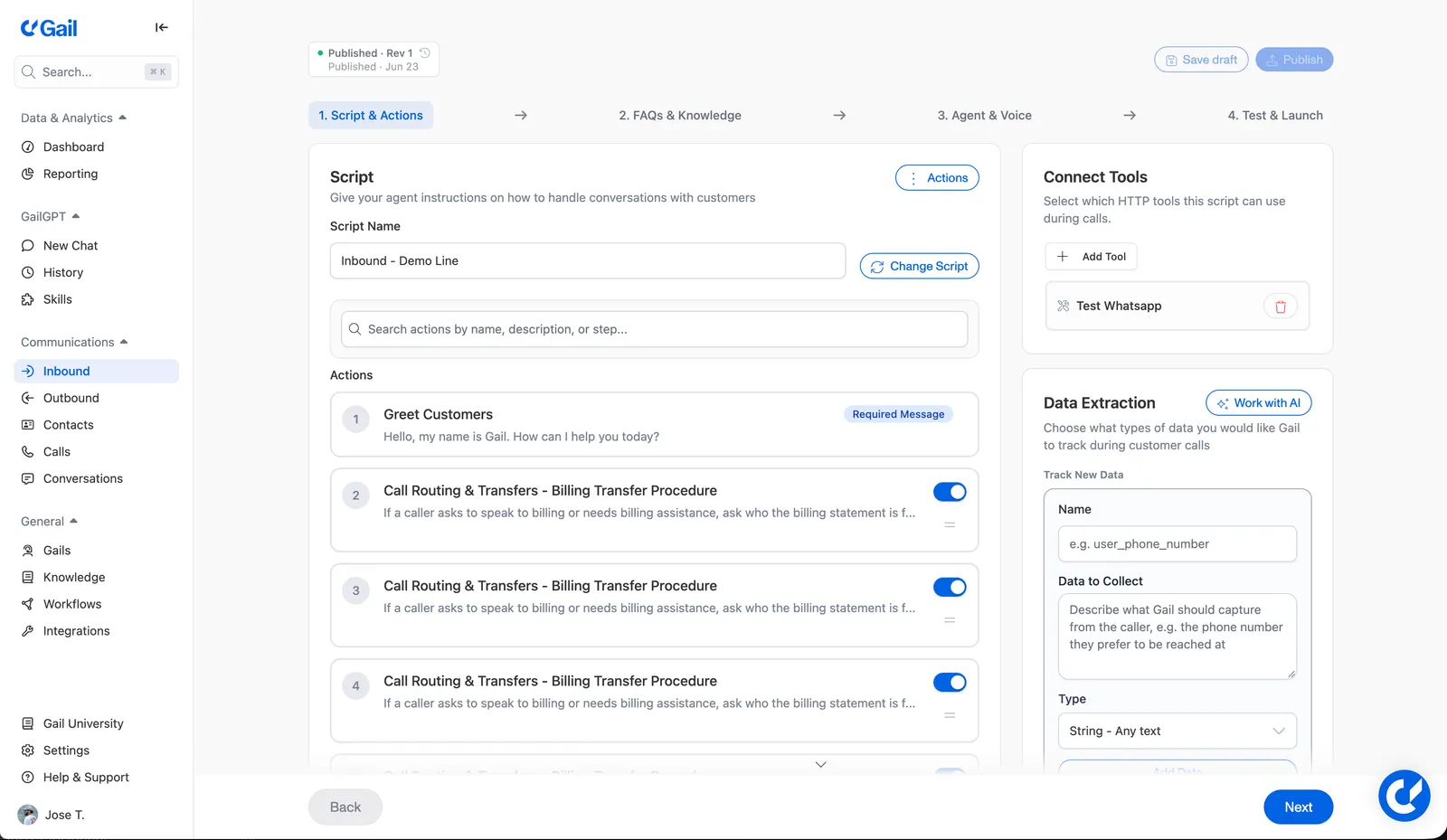
- Set the Script Name, or use Change Script to swap in a different script
- Search existing actions by name, description, or step, then turn each action on or off for this script
- The first action is often a required greeting, such as Greet Customers
- Use Actions to attach more conversation flows
- Connect Tools lets this script call HTTP tools during the conversation
- Data Extraction on the right tells Gail what to capture from the caller. You can add fields here or manage them on the Inbound Data Extraction tab. Work with AI can help you define what to collect
Example actions for a receptionist:
- Take a Message: For when a caller wants to leave a voicemail or have a message forwarded
- Schedule an Appointment: If you want Gail to book meetings directly into your calendar
- Get Quote Information: For gathering common information needed to process quotes
- Transfer Call: To connect callers with specific internal contacts or departments
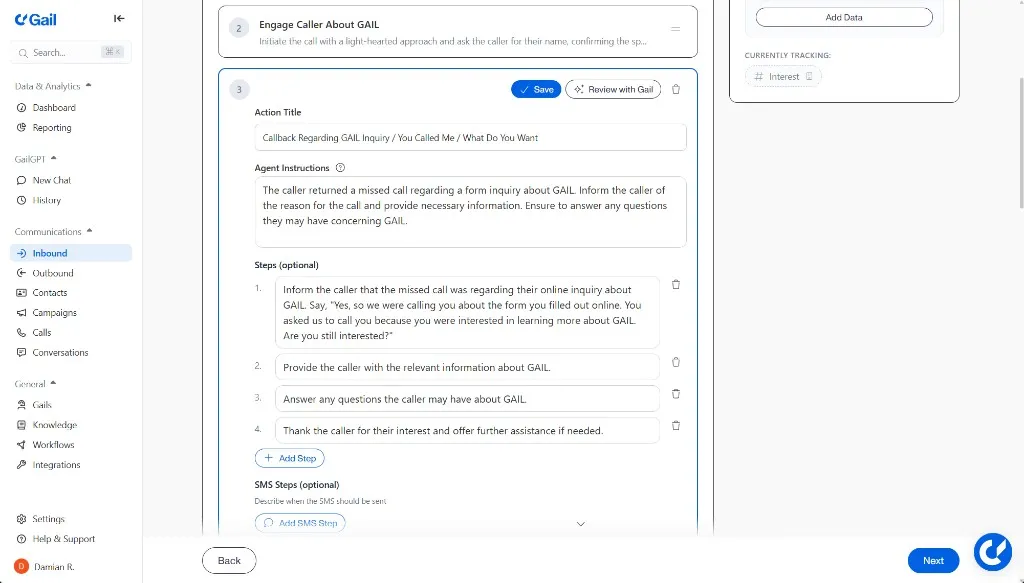
By adding these actions, you give Gail the context for different conversational scenarios so it knows how to handle various caller needs.
2. FAQs & Knowledge
Open FAQs & Knowledge to give this script the answers and documents it should use on calls.
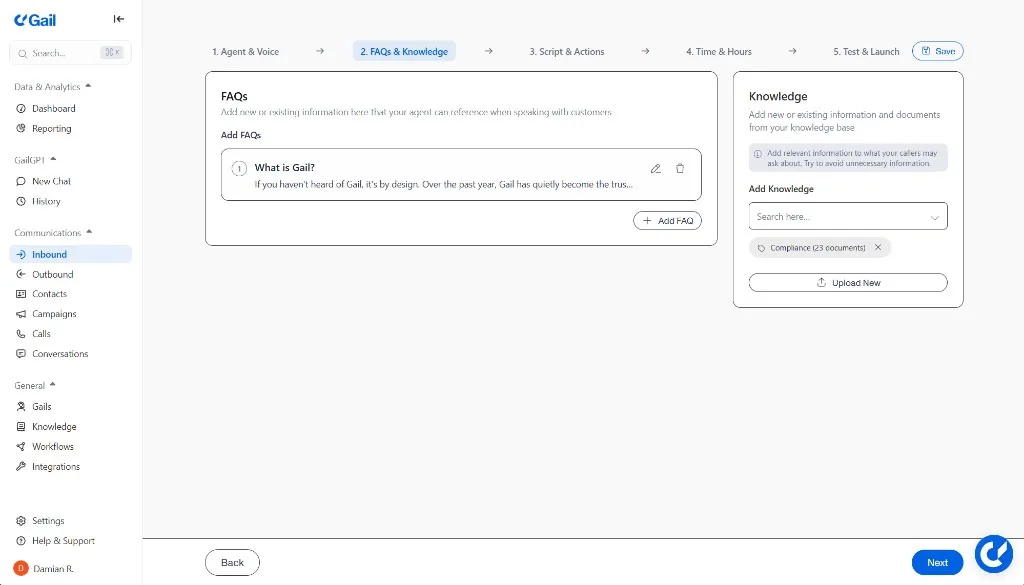
- FAQs: Add concise answers to common questions this script should handle, such as business hours, how to file a claim, or what types of insurance you offer
- Knowledge: Attach company documents such as policy overviews, service guides, or SOPs. Gail can reference these to give accurate answers
3. Agent & Voice
Choose how Gail should sound on this script.
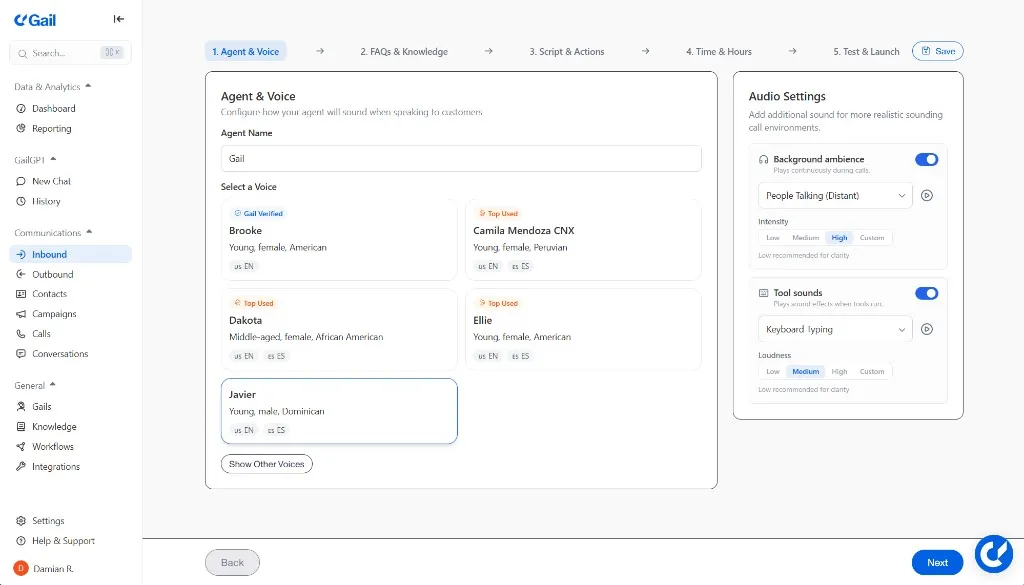
- Pick a Voice: Browse the available voices and preview them to find the one that sounds most professional, friendly, or authoritative for your callers
- Match the voice to the script language you chose when creating the script
- Optional audio settings, such as background ambience or tool sounds, can make the call feel more natural
4. Test & Launch
The last step is where you confirm transfers, test the script, and put it live.
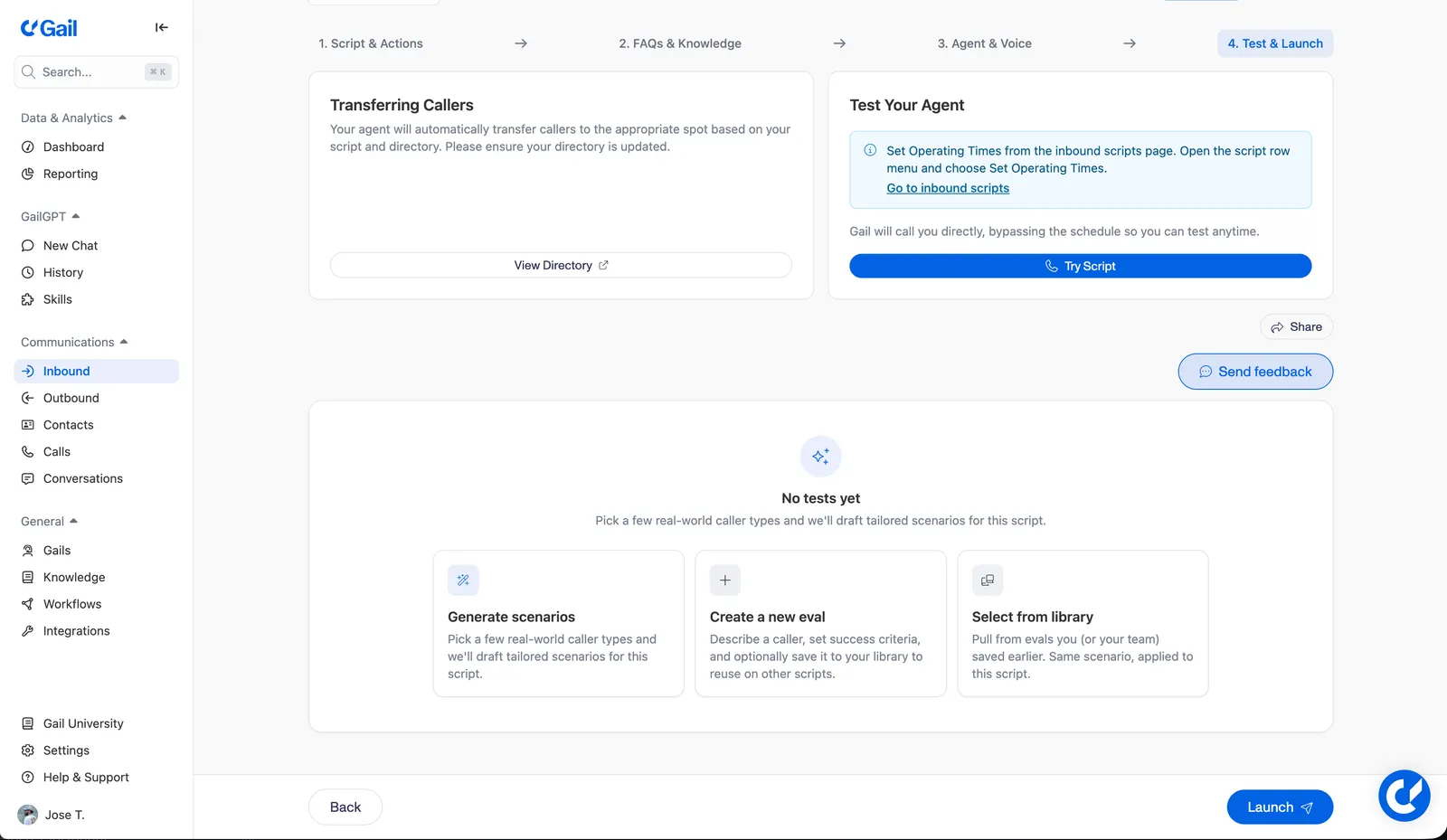
- Transferring Callers: Gail uses your Directory to route callers. Open View Directory if you still need to add people or departments
- Test Your Agent: Click Try Script to have Gail call you directly. This bypasses the schedule so you can test anytime
- Set Operating Times from the Scripts list, not inside this wizard. Open the script row menu (
...) and choose Set Operating Times - If you do not have tests yet, you can Generate scenarios, Create a new eval, or Select from library
- When you are ready for Gail to answer live calls, click Launch
Operating times and phone assignment are managed from the Scripts tab. A script with N/A operating times or no phone assigned will not answer production calls, even if you have launched it.
Directory
Gail cannot transfer calls if it does not know who to transfer them to. The Directory tab is where you add those contacts.
- Open the Directory tab on the Inbound page
- Add Internal Contacts: Enter names and phone numbers for team members, departments, or extensions
- Include Third-Party Contacts: Add carrier claims lines or trusted partners, and label them clearly so Gail knows who is who
- Review the Directory Library: Check whether we already have third-party carriers you work with so you can add them quickly
- Double-check every phone number. An incorrect digit means a failed transfer
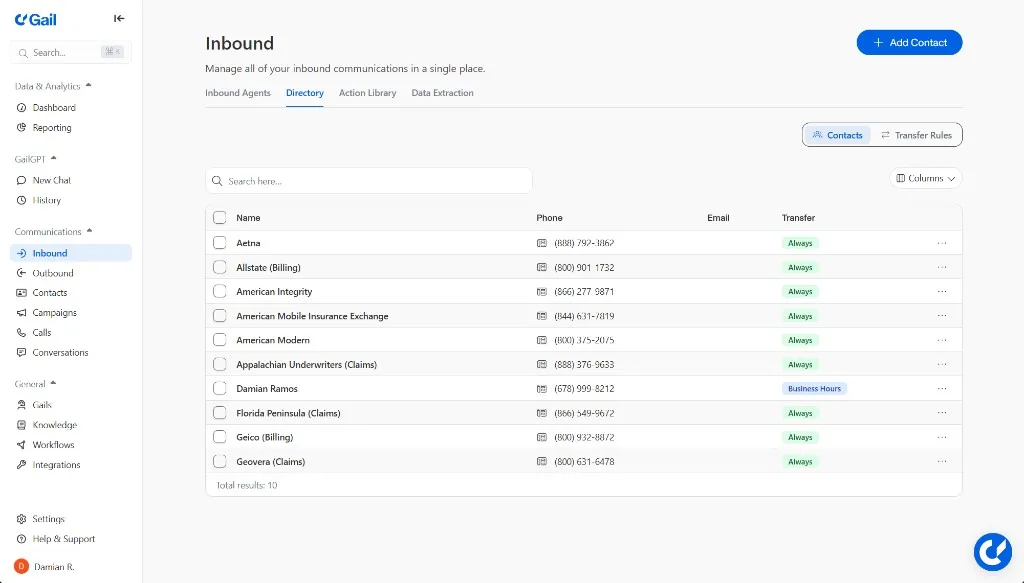
For contact types, transfer logic, and time-based routing, see Directory.
Actions
The Actions tab is the library of conversation flows you can reuse across scripts. Create actions for claims intake, quoting, billing, scheduling, FAQs, and other caller needs, then enable the right ones on each script.
See Actions for how to write clear objectives and steps.
Data Extraction
Use the Data Extraction tab (and the Data Extraction panel on Script & Actions) to tell Gail what to capture from every inbound call, such as a callback number, policy type, or quote interest.
See Data Extraction for field types and examples.
Next Steps
Follow these steps and Gail becomes a reliable member of your front-office team, with intelligent call handling around the clock.