
Calls
The Calls page in GAIL allows you to view, manage, and interact with all calls made or received by your organization. This includes both inbound and outbound calls across Support and Sales teams. This guide walks you through how to effectively use this page.
Navigation Overview
Top Filters
At the top of the call list, you can apply filters to refine your view:
- Inbound / Outbound - View only incoming or outgoing calls
- Sales / Support - View calls based on the call category
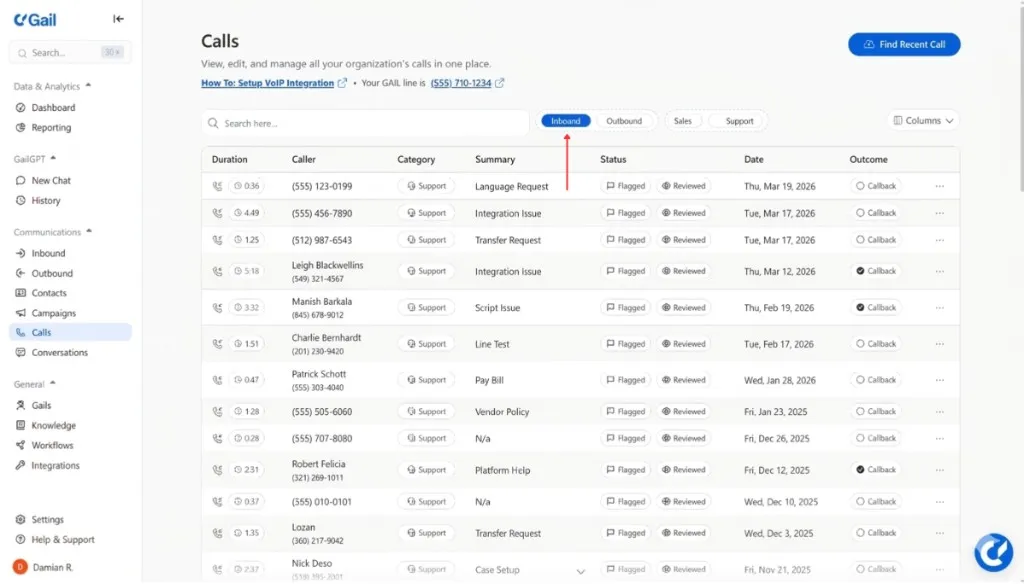
These filters can be used in combination to narrow down specific types of call activity.
Column Details
Each row in the table represents a single call and contains the following columns:
📞 Duration
Shows how long the call lasted. Includes an icon to indicate whether it was inbound or outbound.
👤 Caller
Displays the caller’s name and phone number, or just their number if no name is available.
🏷 Category
Indicates whether the call was related to Sales or Support.
📝 Summary
A brief description of the call’s topic (e.g., Schedule Appointment, Insurance Contact).
🚩 Status
Shows whether the call has been:
- Flagged for attention
- Reviewed after completion
📅 Date
Displays when the call was placed, either as a timestamp (e.g., 20 hours ago) or a calendar date.
✅ Outcome
Indicates post-call actions:
- If the user requested a Callback, this is noted
- A blue dot next to “Callback” means the callback request is confirmed
Page Tools
Search Bar
Located at the top left above the table, use this to search for calls by name or phone number.
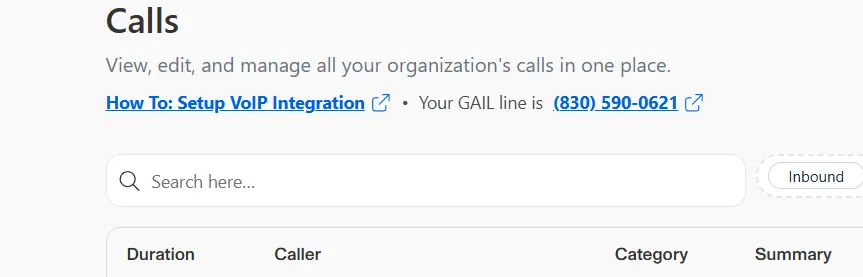
Columns Button
Click the Columns button in the top right to customize which columns are displayed.
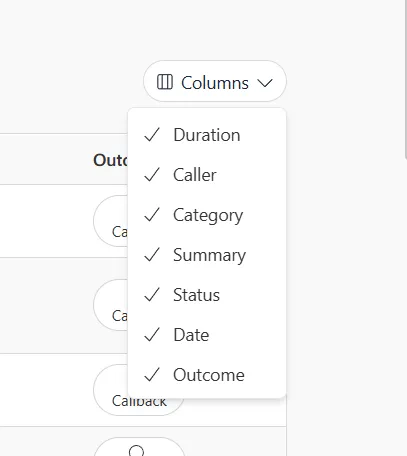
- Check or uncheck column names to show or hide them in your view
- Customize your table layout to focus on the information most relevant to you
More Options Menu
Hover over any call row and click the three-dot menu (⋯) to access additional actions:
- ↗️ View Call - View the selected call
- 📞 Call Contact - Initiate a new call to the contact
- 🚩 Flag Call - Mark the call for follow-up or attention
- 👁 Review Call - Mark the call as reviewed
Use Case Example
Let’s say you’re looking for Support calls from 310 9976116 that were inbound and lasted more than 1 minute:
- Apply the Inbound and Support filters from the top filter bar
- Use the search bar to search for
310 9976116 - Review the Duration column to find the longer calls
- Click the three dots if you want to follow up, flag, or review the call
The Calls page provides a comprehensive view of all your call activity, making it easy to track, manage, and follow up on customer interactions.
Related Resources
- Call Logs - Detailed call analytics and reporting
- Inbound Calls Overview - Learn about handling inbound calls
- Outbound Campaigns - Create and manage outbound campaigns