
Holiday Hours
Overview
Setting up holiday hours ensures Gail knows when your agency is closed and can handle calls accordingly. This guide walks you through configuring holiday schedules and activating the appropriate scripts for holiday periods.
Critical Reminder: Gail does not automatically switch to your holiday script based on the holiday hours you set. You must manually activate your holiday script from Inbound > Scripts before each holiday period and switch it back afterward.
How Holiday Hours Work
Understanding Gail’s holiday configuration will help you avoid common mistakes:
Date Range Configuration
- Start Date: The first calendar day Gail should operate in holiday mode
- End Date: Automatically calculated as 12:00 AM on the calendar day after your Days Off period ends
Manual Script Activation Required
While you set holiday dates in the Business Hours section, Gail does not automatically switch scripts. You must:
- Set the holiday dates in the Business Hours section (covered below)
- Manually activate your holiday script on Inbound > Scripts before the holiday begins
- Switch back to your regular business hours script after the holiday ends
Think of the holiday settings as setting your “out of office” dates, while the Inbound Scripts tab controls which script is active. Both must be configured properly for holiday handling to work.
Setting Holiday Dates
Step 1: Access the Holiday Settings
- Log into your Gail portal
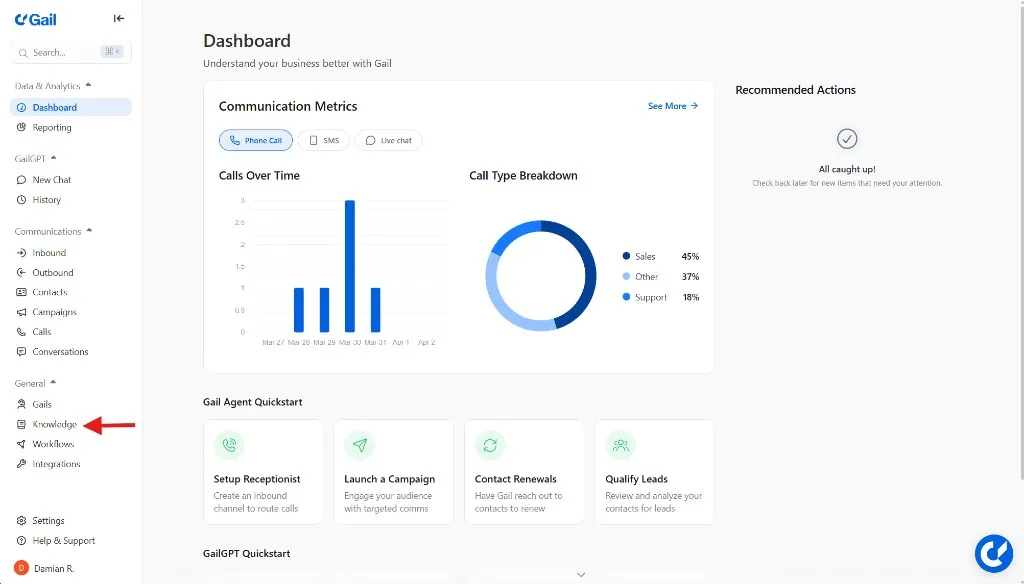
- Navigate to Knowledge in the left-hand menu
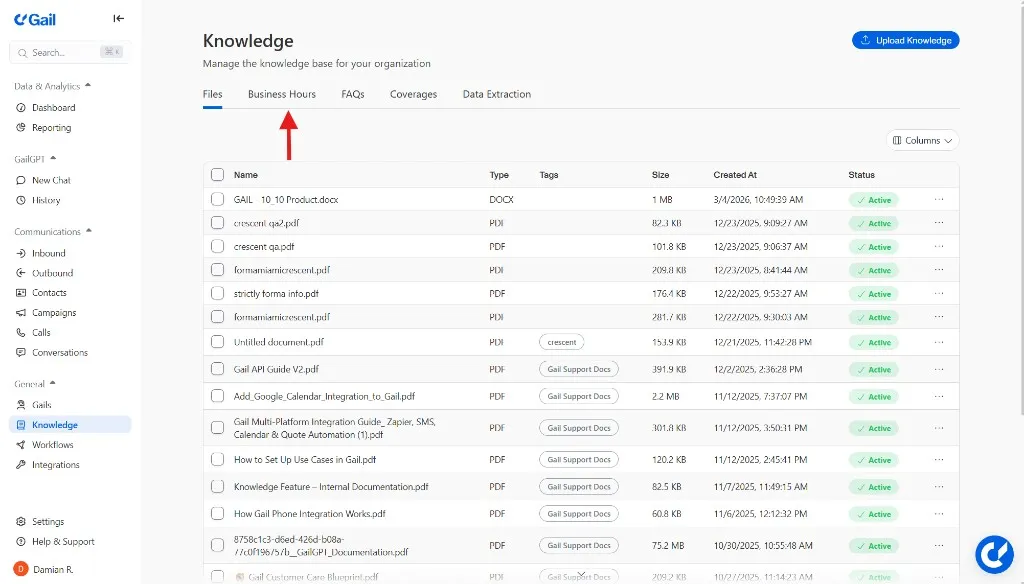
- Go to the Business Hours tab
- Scroll to the bottom of the Business Hours page
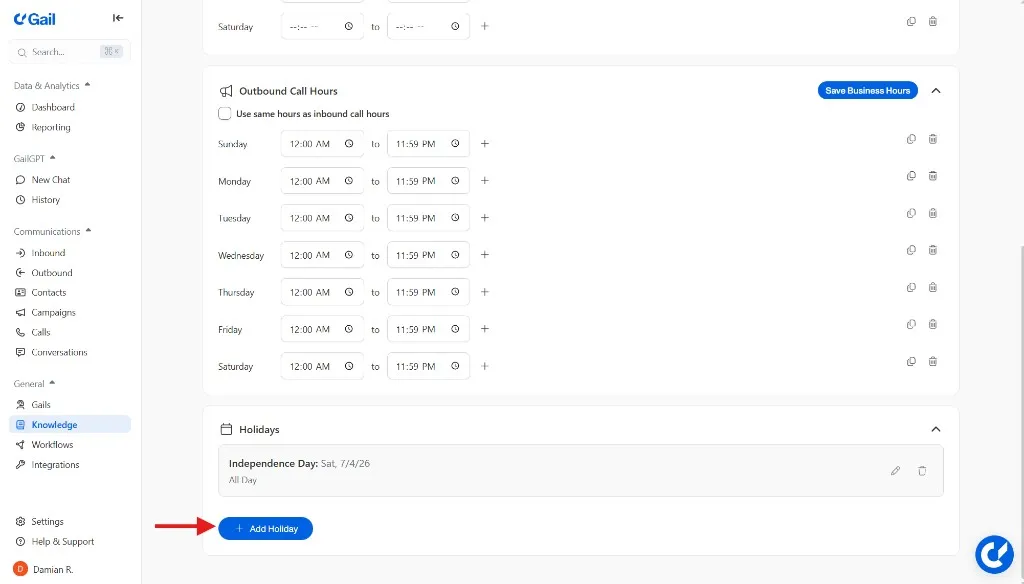
- You’ll find the holiday configuration section here
Step 2: Enter Your Start Date
Select the Start Date, the very first calendar day you want Gail to begin operating under holiday rules.
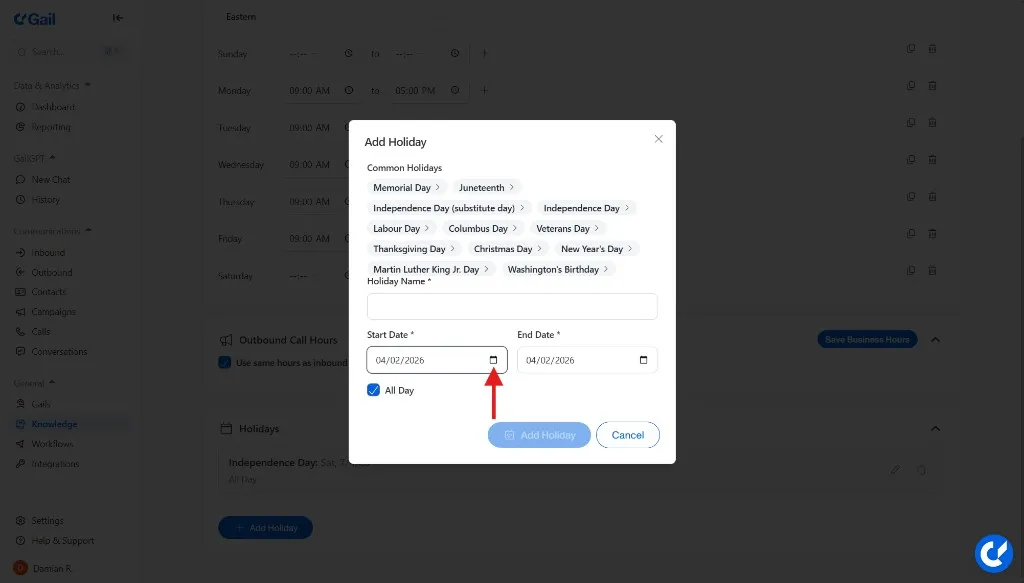
Example: For Thanksgiving starting Thursday, November 28th, select November 28th as your Start Date.
Step 3: Enter Your End Date
Select the End Date, the very last calendar day you want Gail to end operating under holiday rules.
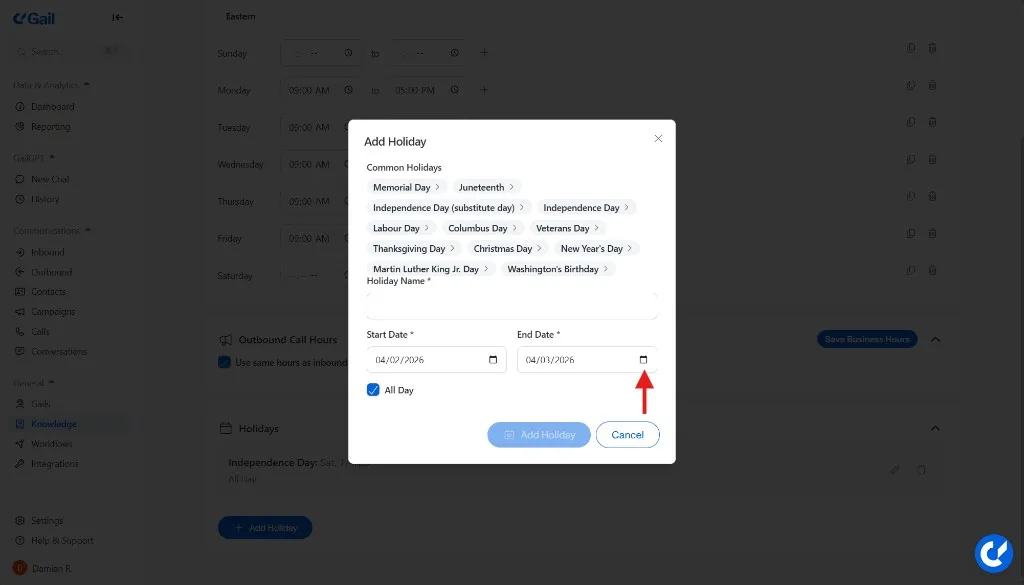
Example: For Thanksgiving ending Monday, December 2nd, select December 2nd as your End Date.
Step 4: Review and Confirm
The holiday configuration will display the complete closure period based on your input.
Double-check:
- The displayed date range matches your intended closure period
- The resume date is correct
- Gail will switch back to normal operations at 12:00 AM on the resume date
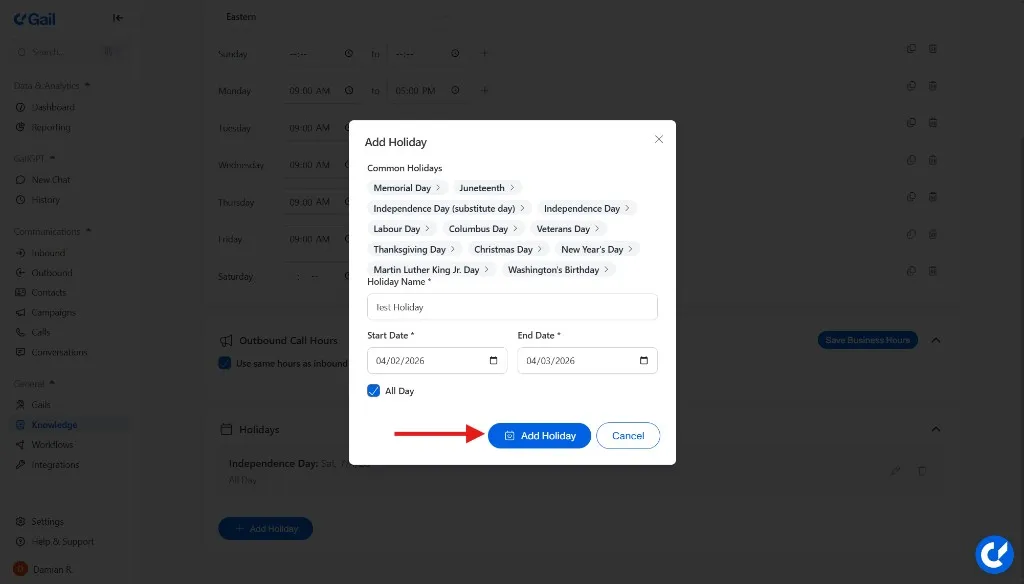
Step 5: Save Your Holiday Entry
Once you’ve verified the dates are correct, click Add Holiday to apply the holiday hours.
Activating Your Holiday Script
This is the most commonly missed step! Setting holiday dates alone will not change Gail’s behavior. You must manually activate your holiday script.
Before Your Holiday Begins
Follow these steps to activate your holiday script:
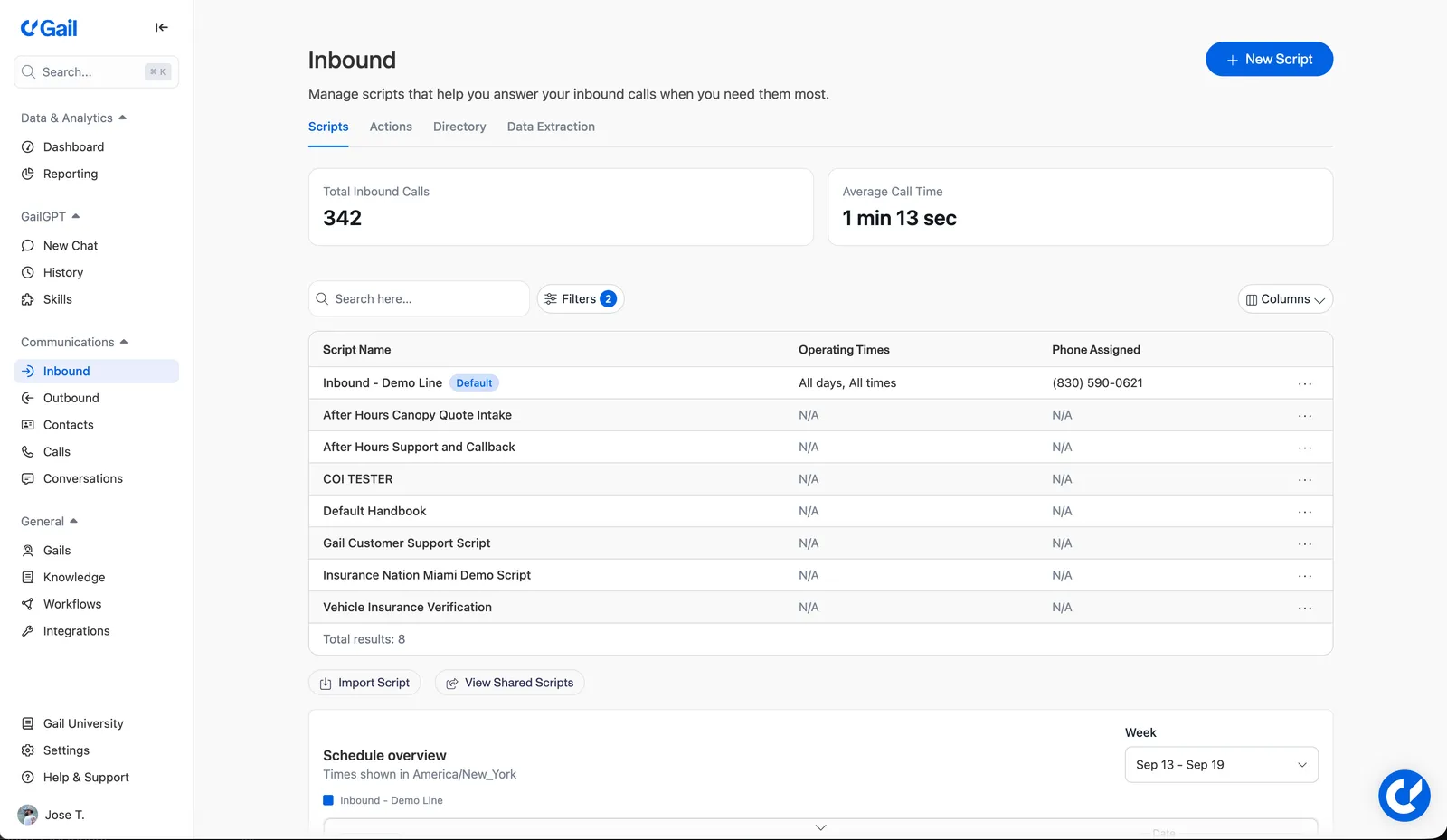
Open Inbound Scripts
Go to Communications > Inbound in your Gail portal. The Scripts tab opens by default.
Find the script you will use for holiday hours
Locate the script you want Gail to use while your office is closed.
Set Operating Times
On the Scripts list, open the script row menu (...) and choose Set Operating Times. Set the days and times this script should answer calls. For a full holiday takeover, use All days and All times.
After Your Holiday Ends
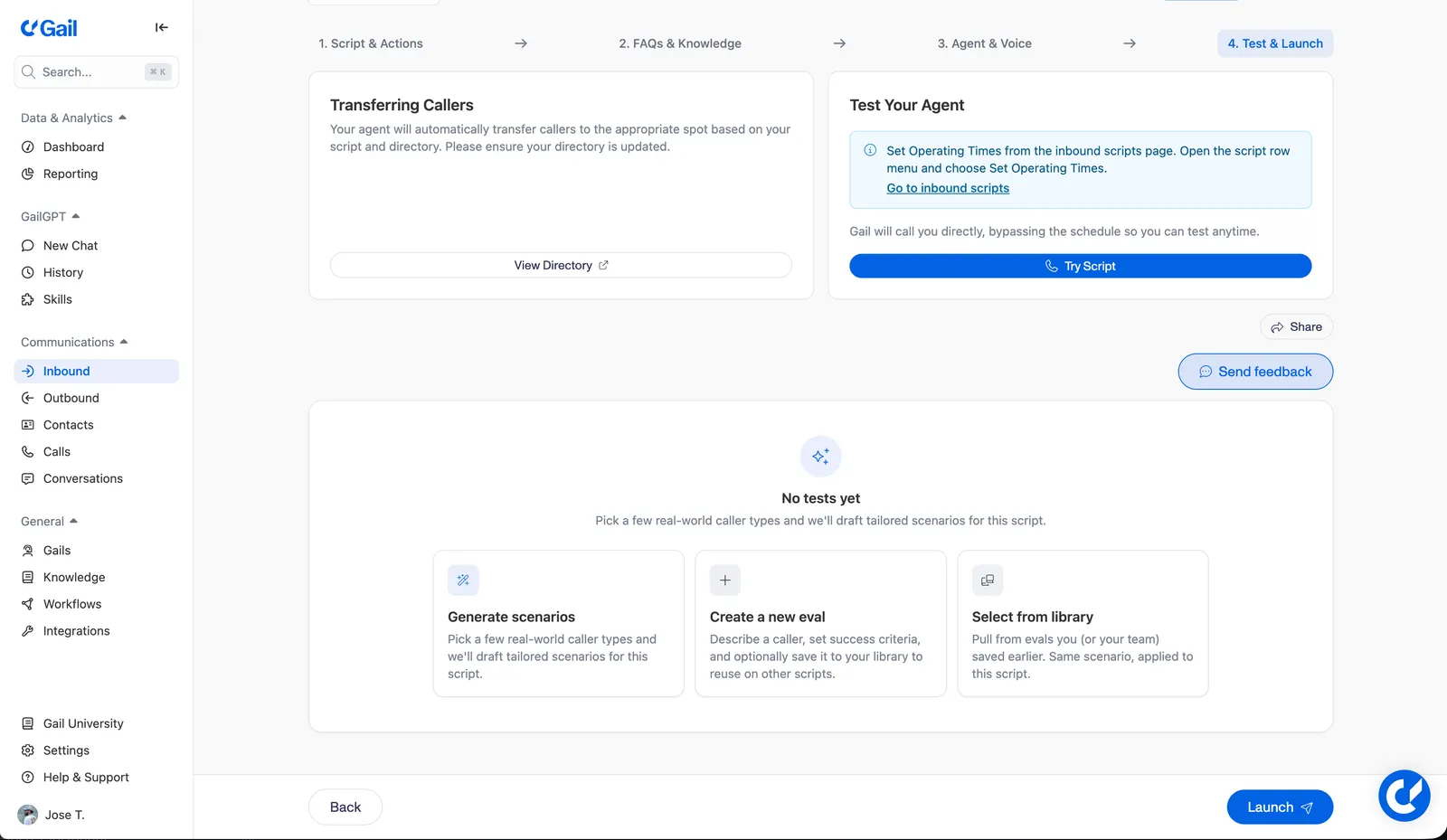
Remember to switch back! Once the holiday period is over, repeat the steps above to reactivate your regular business hours script.
Advanced: Time-Based Transfer Logic
The holiday settings define when your agency is closed but don’t support granular time-based transfer logic (e.g., “transfer to John until 2 PM, then transfer to Sarah”).
For more complex time-based routing requirements, see the Advanced Time-Based Transfers section in the Directory guide.
Common Holiday Scenarios
Single-Day Holiday
Example: New Year’s Day
Long Weekend
Example: Thanksgiving weekend
Extended Holiday Break
Example: Christmas/New Year’s break
Troubleshooting
Gail is using the wrong script during the holiday
Solution: Check that you’ve manually activated your holiday script on Inbound > Scripts. Setting holiday dates alone doesn’t change the active script.
The resume date is wrong
Solution: Ensure that you’ve selected the correct end date for the holiday period.
Need to change holiday dates after saving
Solution: Return to the Business Hours tab in the Knowledge section and update the Start Date or Days Off as needed.
Forgot to switch back after the holiday
Solution: Go to Communications > Inbound > Scripts, open the row menu for your regular business hours script, choose Set Operating Times, then open the script and click Launch on Test & Launch. Consider setting a calendar reminder for the day after holidays to switch scripts back.
Best Practices
📅 Plan Ahead
Set holiday dates well in advance so you don’t forget to activate the correct script when the time comes.
⏰ Set Reminders
Create calendar reminders for:
- The day before the holiday: Activate holiday script
- The first day back: Switch back to business hours script
🧪 Test Your Holiday Script
Before the holiday, call your Gail number to verify:
- The holiday script is active
- The messaging is appropriate
- Any transfers work as expected
📝 Document Your Scripts
Keep notes about which script to use for different holidays (for example, “Use Holiday Closed Script for Thanksgiving, Christmas, and New Year’s”)
🔄 Review Annually
At the start of each year, review your holiday schedule and update dates accordingly.
Next Steps
- Learn how to set up your first Gail in First Gail
- Set up Actions for holiday-specific call handling
- Configure Directory contacts for holiday on-call staff