
Session Timeouts
Session timeout settings control how long users can remain logged into Gail before being automatically signed out. These settings help protect accounts from unauthorized access and ensure compliance with organizational security policies.
Overview
Gail provides two types of session timeout controls:
- Inactivity Timeout - Automatically logs out users after a period of inactivity
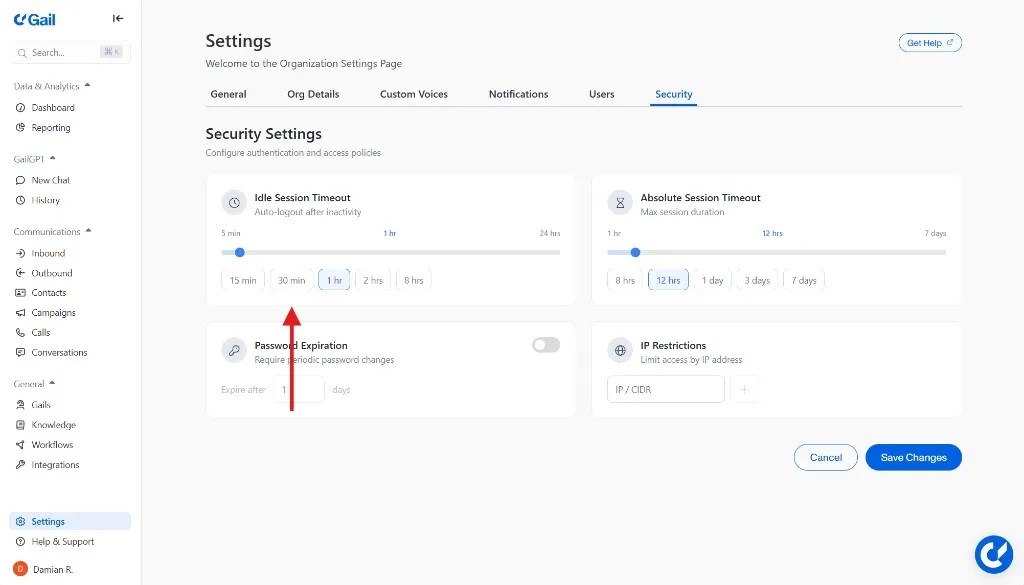
- Maximum Session Duration - Requires re-authentication after a set time, regardless of activity
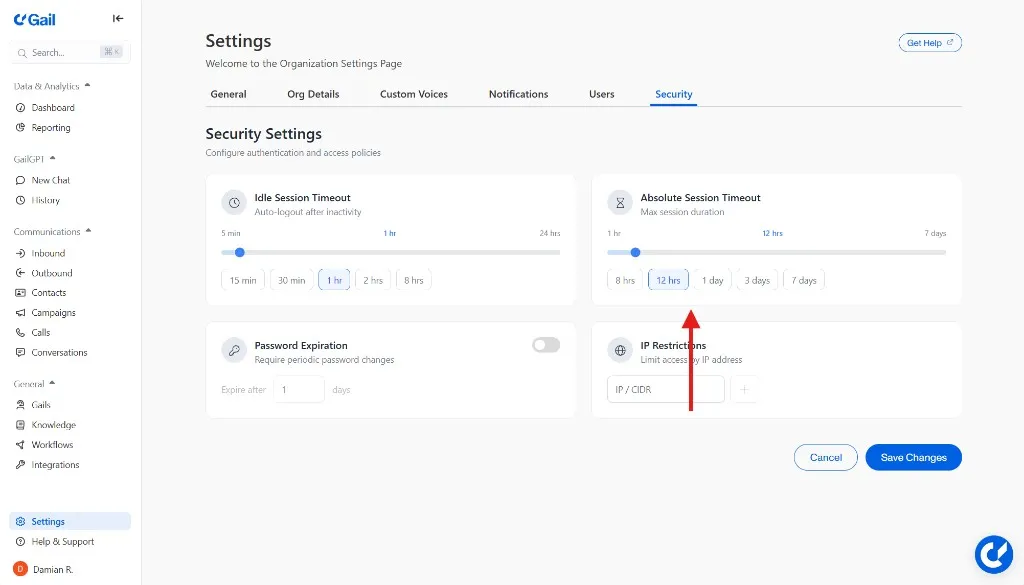
Both settings work independently to provide comprehensive session security.
Accessing Session Timeout Settings
To configure session timeout settings:
- Navigate to Settings in your Gail dashboard
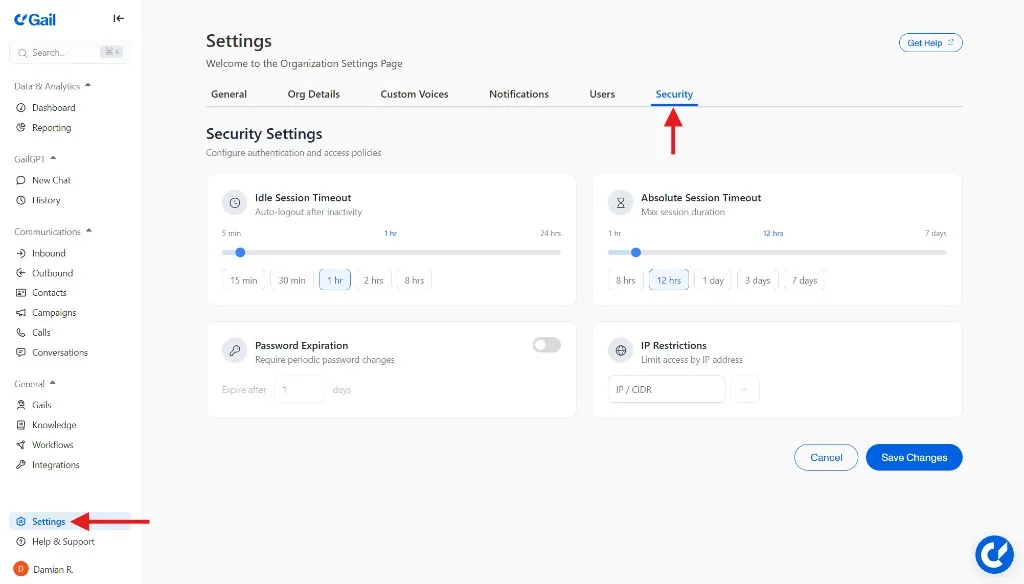
- Select the Security tab
- Locate the Idle Session Timeout and Absolute Session Timeout sections
Only administrators have access to security settings. Contact your workspace admin if you need to adjust these settings.
Inactivity Timeout
What It Does
The inactivity timeout automatically signs out users who have been idle for a specified duration. This protects accounts when users step away from their devices without manually logging out.
How It Works
- Gail monitors user activity (clicks, keystrokes, page navigation)
- When no activity is detected for the configured period, a warning appears
- If the user doesn’t respond to the warning, they’re automatically logged out
- Users must log back in to resume their session
Configuring Inactivity Timeout
- Go to Admin Settings → Security
- Locate the Idle Session Timeout setting
- Enter the desired timeout duration (in minutes)
- Click Save Changes
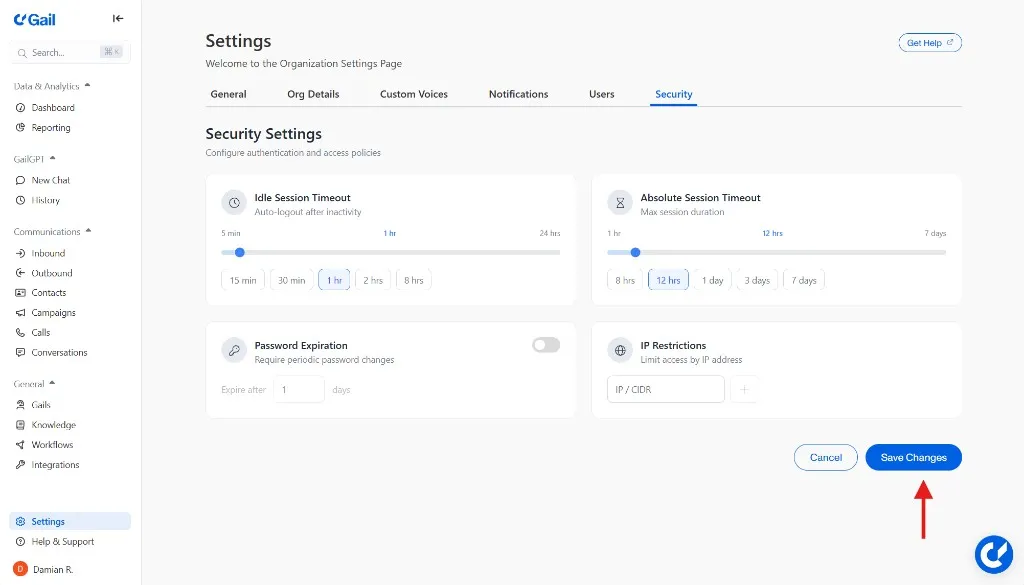
Common Settings:
- 15 minutes - High security environments (financial services, banking)
- 30 minutes - Standard business settings
- 60 minutes - Relaxed environments with lower security requirements
- Disabled - No automatic logout based on inactivity (not recommended)
Best Practices
- Set shorter timeouts (15-30 minutes) for workspaces handling sensitive data
- Consider your team’s workflow patterns - shorter timeouts may interrupt long tasks
- Balance security needs with user productivity
- Notify your team before implementing stricter timeout policies
Example Use Cases
Banking Institution:
Insurance Agency:
Financial Advisory Firm:
Maximum Session Duration
What It Does
Maximum session duration enforces periodic re-authentication, even if users remain actively using Gail. This ensures credentials are re-verified at regular intervals, reducing the risk of compromised sessions.
How It Works
- A timer starts when a user logs in
- When the maximum session duration is reached, the user is automatically logged out
- This happens regardless of whether the user is actively using Gail
- Users must re-authenticate with their credentials to continue
Configuring Maximum Session Duration
- Go to Settings → Security
- Locate the Absolute Session Timeout setting
- Enter the desired duration (in hours)
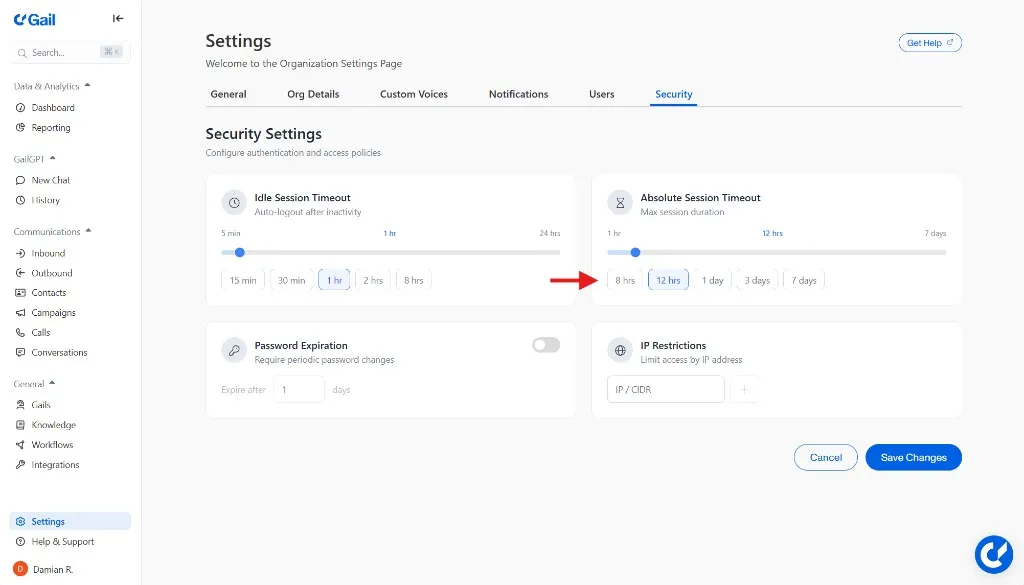
- Click Save Changes
Common Settings:
- 4 hours - Very high security environments
- 8 hours - Standard business day security
- 12 hours - Extended work sessions
- 24 hours - Minimal forced re-authentication
Best Practices
- Align maximum session duration with your typical workday
- Consider time zones if your team is distributed globally
- Set to 8 hours for standard business day alignment
- Communicate the policy to avoid user frustration
Example Use Cases
Financial Services Firm:
24/7 Call Center:
Small Business:
Combining Both Settings
For optimal security, use both inactivity timeout and maximum session duration together. They address different security scenarios:
Recommended Combinations
High Security Environment:
This configuration protects against both unattended devices and prolonged session exposure.
Standard Business Environment:
Balances security with user convenience for typical business operations.
Relaxed Environment:
Minimal interruption while still maintaining basic session security.
User Experience
Warning Messages
Before automatic logout, users see a warning:
- Inactivity Warning: “You’ve been inactive for [X] minutes. You’ll be logged out in 2 minutes unless you interact with the page.”
- Session Expiration Warning: “Your session will expire in 5 minutes. Please save your work.”
What Happens on Timeout
When a timeout occurs:
- User is immediately logged out
- Any unsaved changes may be lost
- User is redirected to the login page
- A message explains why they were logged out
Remind users to save their work regularly, especially when configuring shorter timeout periods.
Implementation Best Practices
Planning Your Rollout
- Review Requirements - Check if your industry or compliance framework mandates specific timeout settings
- Pilot Test - Test settings with a small group before rolling out organization-wide
- Document Policies - Create internal documentation explaining timeout policies
- Communicate Changes - Notify your team before implementing new timeout settings
- Monitor Feedback - Gather user feedback and adjust if settings are too disruptive
Avoiding Common Pitfalls
Too Aggressive Settings:
- Inactivity timeout under 10 minutes may interrupt legitimate work
- Can cause user frustration and productivity loss
- Users may develop workarounds (auto-clickers) that defeat the security purpose
Too Lenient Settings:
- Timeouts over 2 hours may not adequately protect against unauthorized access
- May not satisfy compliance requirements
- Increases risk window for compromised sessions
Not Testing Before Deployment:
- Can log out users unexpectedly
- May not account for specific workflows
- Can cause support tickets and productivity loss
Compliance Considerations
Different compliance frameworks have specific session timeout requirements:
SOC 2
- Requires documented session timeout policies
- Timeout settings must align with stated security policies
- Regular review of timeout effectiveness
GDPR (Data Protection)
- No specific timeout requirements
- Timeouts should be part of “appropriate technical measures”
- Document as part of data protection impact assessment
GLBA (Financial Services)
- Requires safeguards to protect customer information
- Session timeouts are part of access control requirements
- Must implement automatic logout for unattended sessions
- Document timeout policies in security program
FINRA (Securities)
- No explicit timeout requirements, but expects reasonable security measures
- Timeout settings should align with firm’s cybersecurity policies
- Document as part of Written Supervisory Procedures (WSP)
Consult with your compliance team to determine the appropriate timeout settings for your organization’s specific requirements.
Troubleshooting
Users Complaining About Frequent Logouts
Check:
- Is inactivity timeout too aggressive? Consider increasing by 15-minute increments
- Are users working across multiple tabs? Activity in one tab may not count toward all sessions
- Do workflows involve long periods without interaction? (e.g., reviewing documents, phone calls)
Solutions:
- Increase inactivity timeout if security requirements allow
- Train users to periodically click or move mouse during long tasks
- Consider specific exceptions for certain user roles
Users Not Being Logged Out as Expected
Check:
- Settings have been saved correctly
- No conflicting session management from SSO provider
- Browser extensions that may simulate activity
Solutions:
- Review and re-save timeout settings
- Check SSO provider session settings if applicable
- Test in incognito/private browsing mode
Session Timeouts Not Working with SSO
When using Single Sign-On (SSO), timeout behavior may be controlled by your identity provider:
- Gail timeout settings apply to the Gail session only
- Identity provider may have its own session management
- Coordinate timeout policies between Gail and your IDP
Related Settings
Session timeout settings work alongside other security features:
- Multi-Factor Authentication (MFA) - Adds verification step at login
- IP Address Restrictions - Limits access by location
- Password Policies - Controls password strength and rotation
FAQ
What happens to unsaved work when I’m logged out?
Unsaved changes may be lost when a session times out. Gail attempts to auto-save certain data, but we recommend saving your work regularly.
Can I set different timeout settings for different users?
Currently, timeout settings apply organization-wide. Role-based timeout settings are planned for a future release.
Will API sessions also timeout?
API authentication tokens have separate expiration settings. Session timeouts only affect browser-based sessions.
Can users override timeout settings?
No, timeout settings are controlled by administrators and cannot be overridden by individual users.
Does activity in one browser tab extend my session in another tab?
Activity in any Gail tab will reset the inactivity timer across all tabs in the same browser session.
Need Help?
If you have questions about configuring session timeout settings or need assistance determining appropriate policies for your organization, please contact our support team at support@meetgail.com.
Next Steps
- Security Settings - Configure additional security controls
- Team Management - Manage user access and roles
- Audit Logging - Review security events and session activity