Team Management

View as Markdown

Team Management

Invite team members and manage who has access to your Gail workspace.

Inviting Team Members

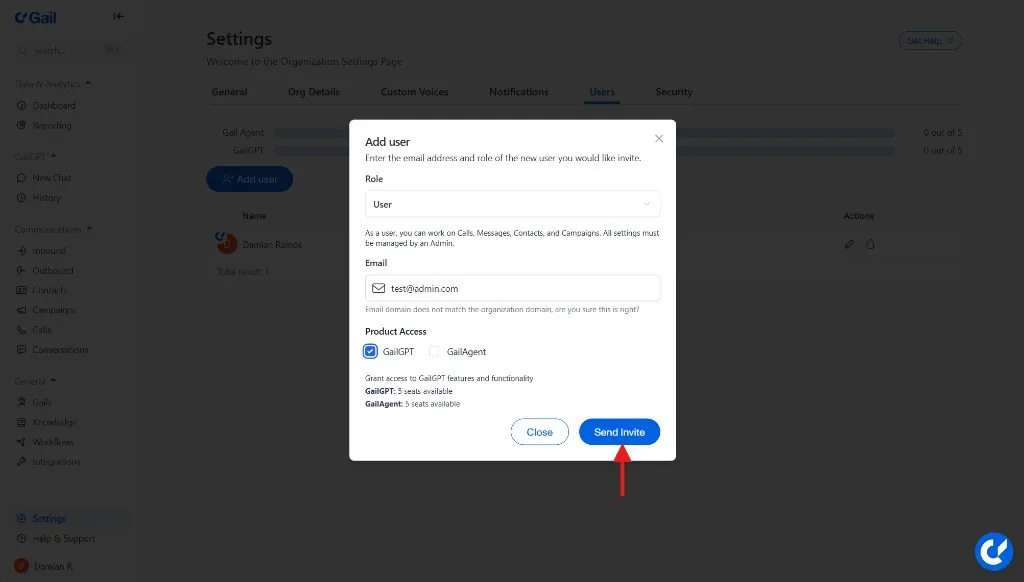
Send an Invitation

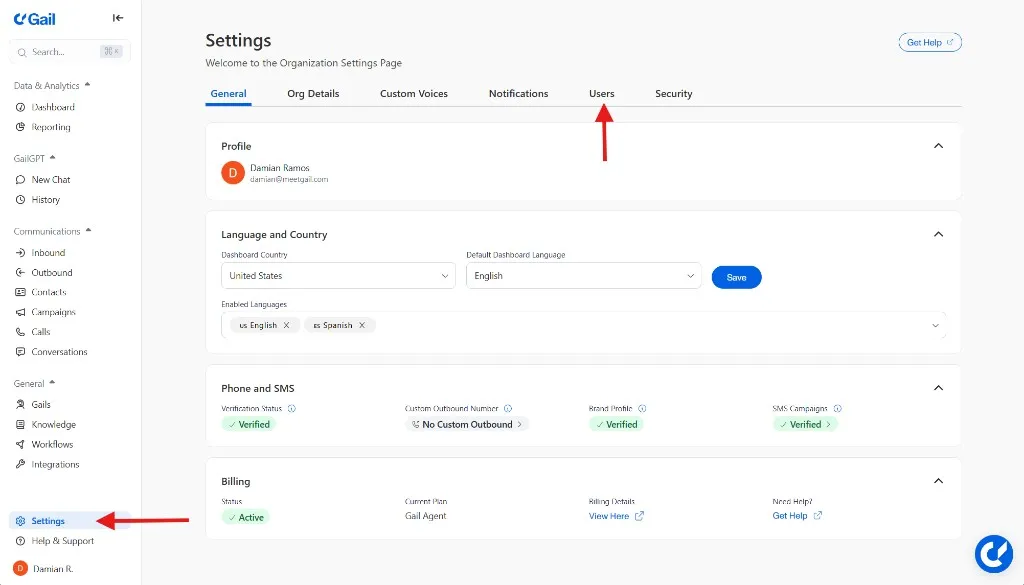
  1. Go to SettingsTeam
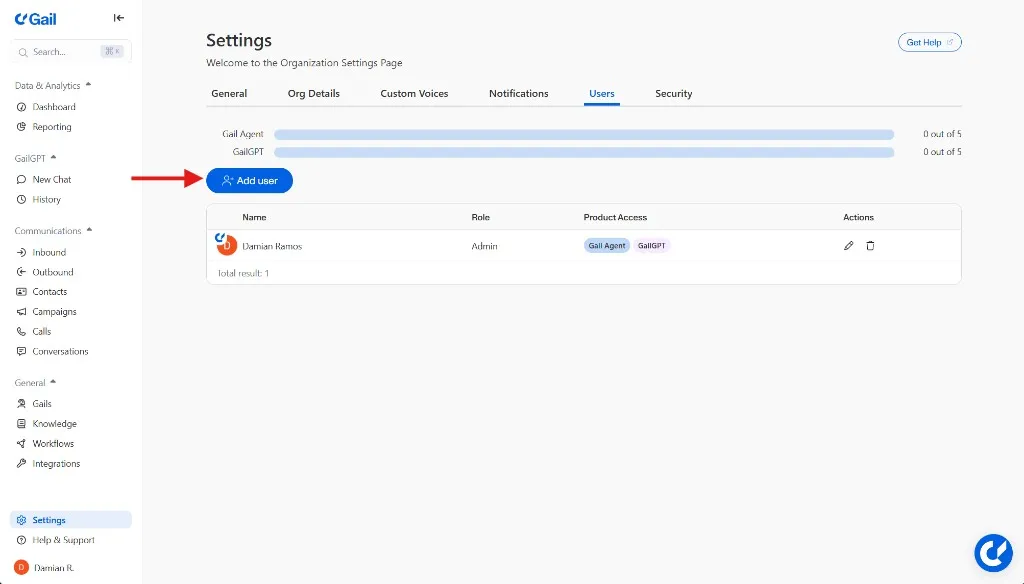
  2. Click Invite Member
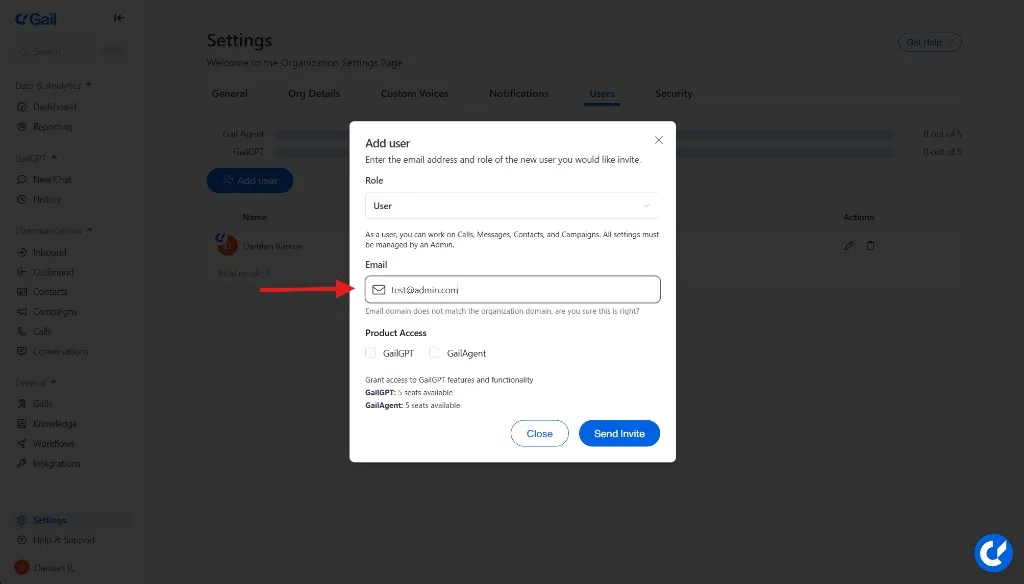
  3. Enter their email address
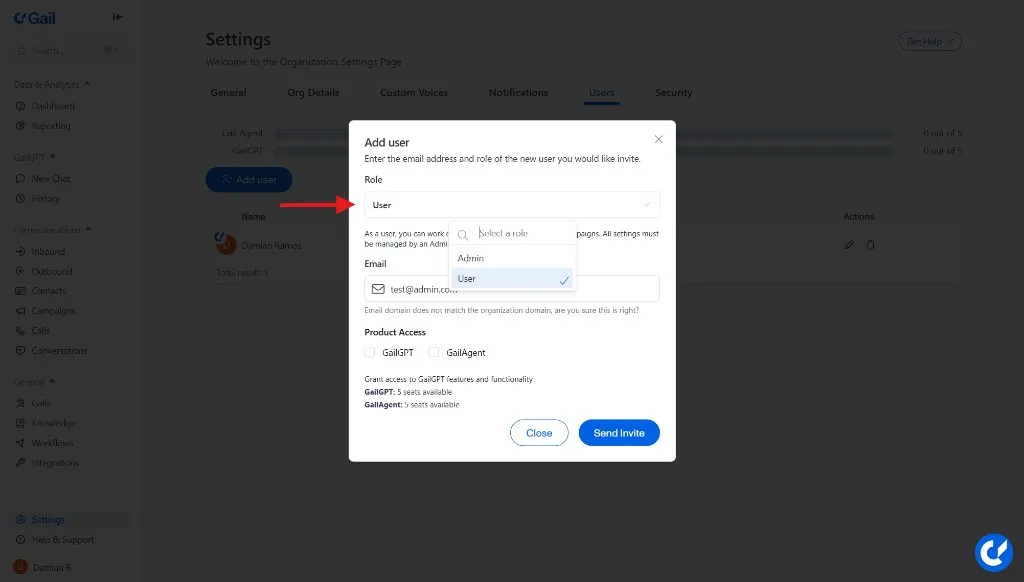
  4. Select a role
  5. Click Send Invite

The invitee receives an email with a link to join your workspace.

Pending Invitations

View and manage pending invites:

  • Resend invitation
  • Revoke invitation
  • See when it was sent

Roles & Permissions

Available Roles

RoleDescription
OwnerFull access, can delete workspace
AdminFull access, cannot delete workspace
EditorCreate and edit agents, knowledge, numbers
AnalystView analytics and call logs only
ViewerRead-only access to all areas

Permission Matrix

PermissionOwnerAdminEditorAnalystViewer
Manage team---
Manage billing---
Create agents--
Edit agents--
Delete agents---
View analytics
Export data-
View call logs
Listen to recordings-

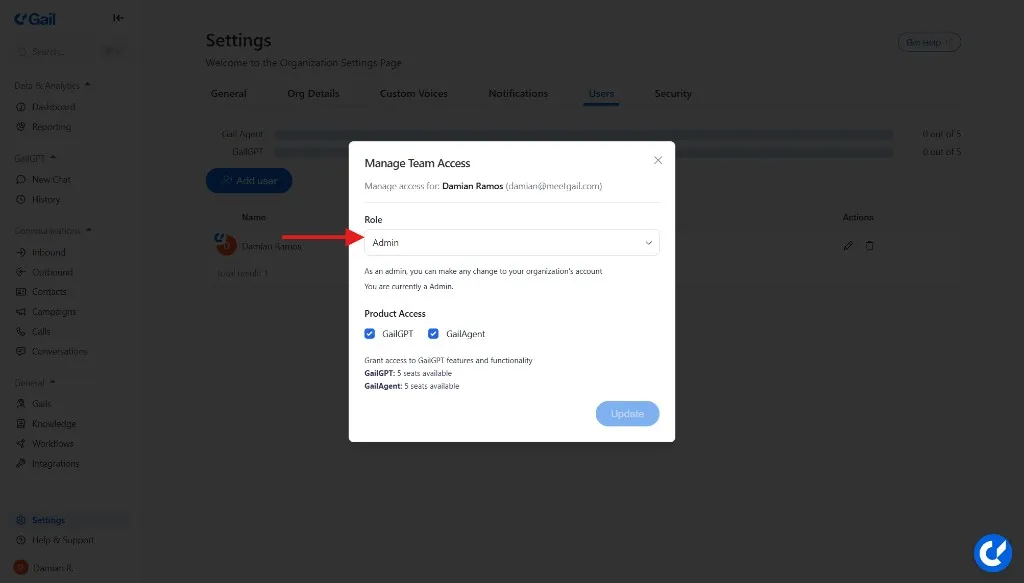
Changing Roles

  1. Go to SettingsTeam
  2. Find the team member
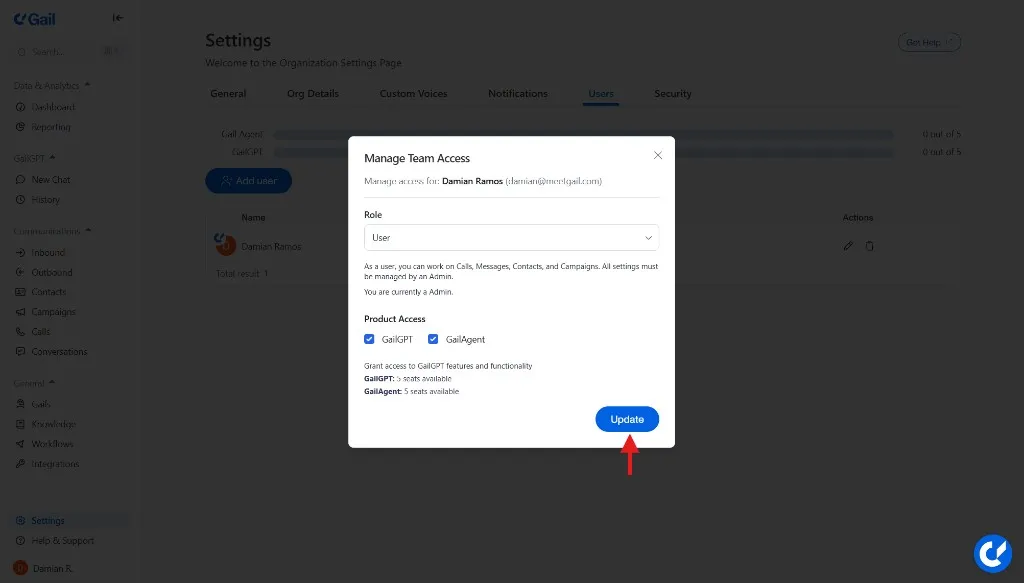
  3. Click the role dropdown
  4. Select the new role
  5. Confirm the change

Managing Team Members

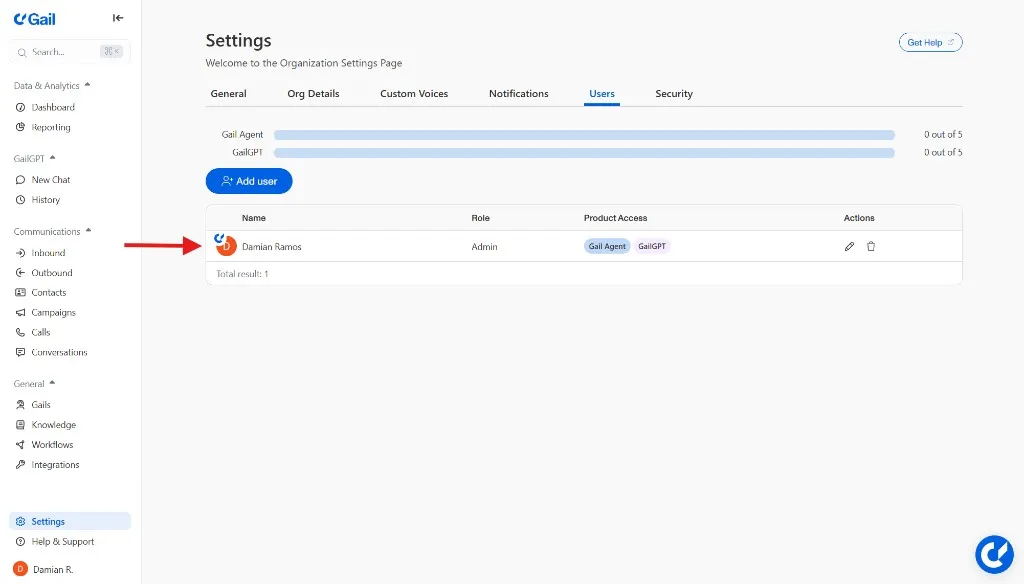
Viewing Team

See all team members with:

  • Name and email
  • Role
  • Last active
  • Date joined

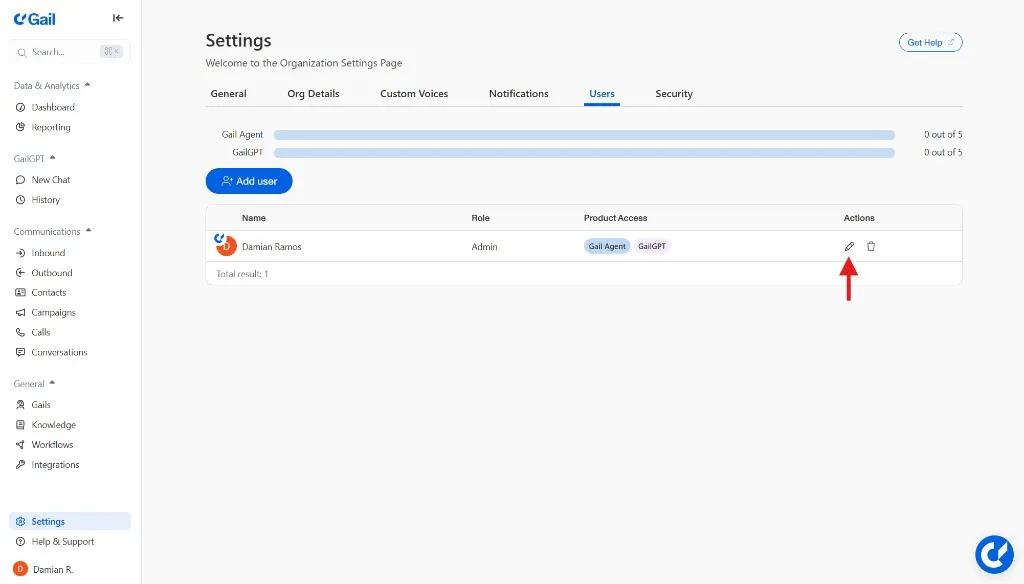
Removing Members

  1. Find the team member
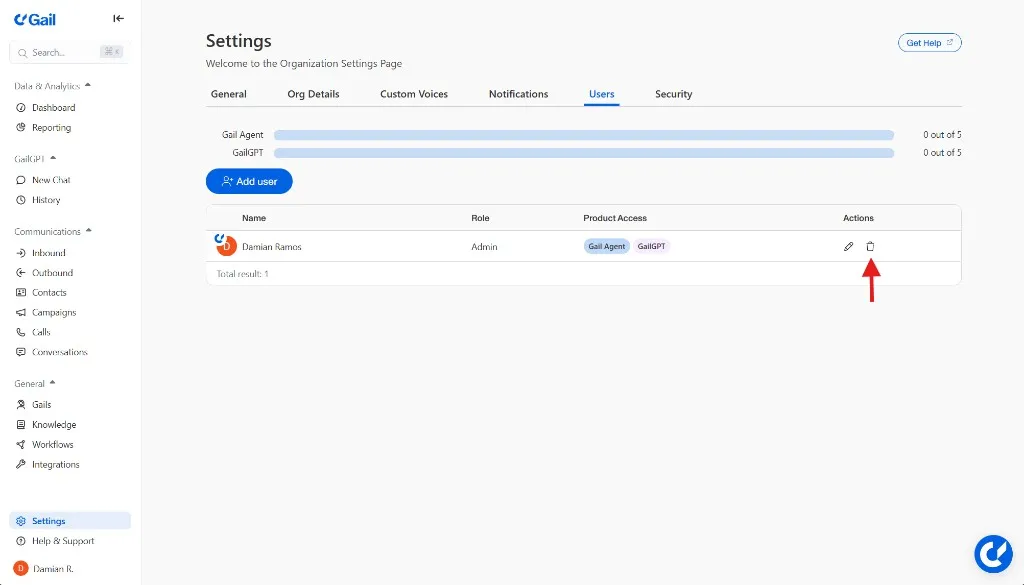
  2. Click the menu
  3. Select Remove from team
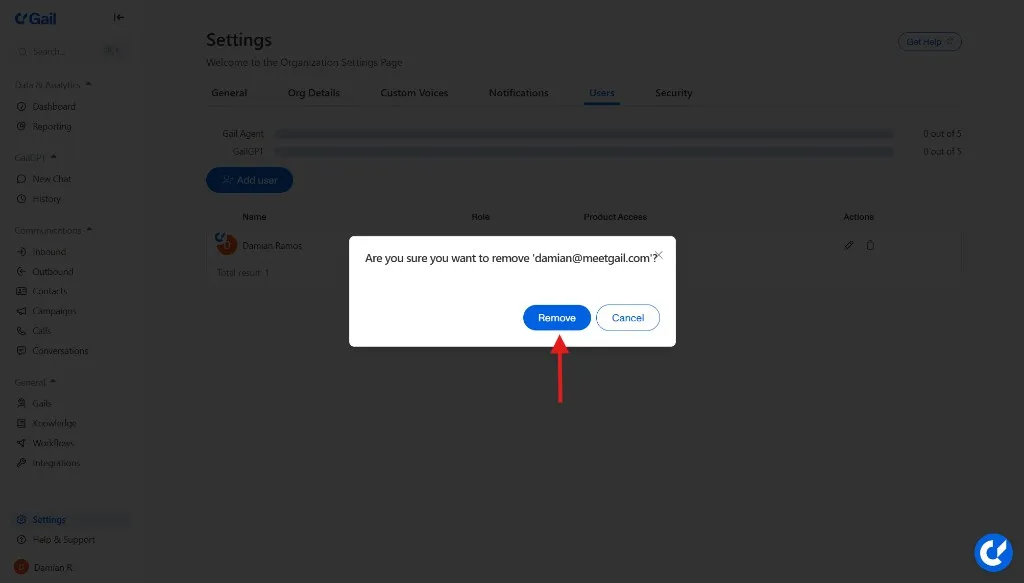
  4. Confirm removal

Removed team members lose access immediately. Any agents or content they created remains in the workspace.

Workspace Settings

Workspace Name

Update your workspace name:

  1. Go to SettingsWorkspace
  2. Edit the name
  3. Save changes

Workspace URL

Your workspace URL (e.g., acme.app.meetgail.com) can be customized on paid plans.

Single Sign-On (SSO)

SSO is available on Enterprise plans.

Supported Providers

  • Okta
  • Azure AD
  • Google Workspace
  • OneLogin
  • Custom SAML 2.0

Configuring SSO

  1. Go to SettingsSecuritySSO
  2. Select your identity provider
  3. Enter configuration details
  4. Test the connection
  5. Enable SSO

SSO Enforcement

Once enabled, you can:

  • Require SSO for all team members
  • Allow SSO + password authentication
  • Set session timeout policies

Audit Log

Track team activity:

EventUserTimestamp
Invited jane@example.comjohn@example.comJan 15, 10:30 AM
Changed role to Adminjohn@example.comJan 15, 10:35 AM
Removed bob@example.comjohn@example.comJan 14, 2:15 PM

Access the full audit log at SettingsAudit Log.

Best Practices

Principle of Least Privilege

Give team members only the access they need:

  • Analysts don’t need edit access
  • Not everyone needs admin rights
  • Review permissions quarterly

Offboarding

When team members leave:

  1. Remove them from the workspace immediately
  2. Review any agents they created
  3. Update any shared credentials
  4. Check the audit log for recent activity

Multi-Factor Authentication

Require MFA for added security:

  1. Go to SettingsSecurity
  2. Enable Require MFA
  3. Team members must set up MFA at next login

Next Steps