
Data Extraction
What is Data Extraction?
Tell Gail what information you want to collect from calls, and it will automatically capture those details for you. Instead of listening back through recordings or taking manual notes, the data you need is already organized and ready to use.
Key Benefits
- No more hunting through call recordings for specific details
- Automatic capture of callback times, policy interests, and budget ranges
- Instant access to organized customer information
- Consistent data collection across all calls
Data extraction is live and begins working immediately after you save your script. Gail will collect these details from every call for your records.
Getting Started
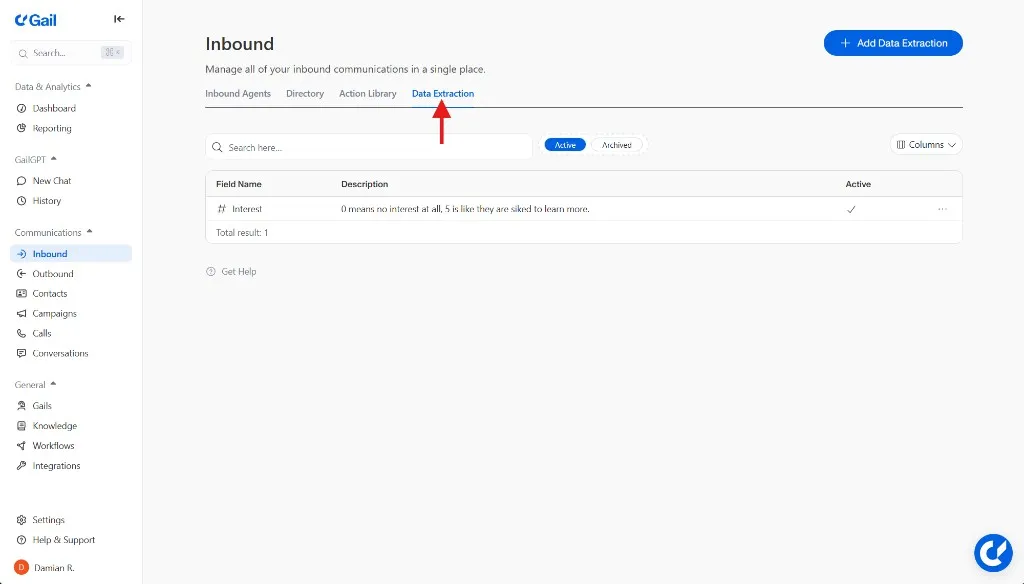
Step 1: Access Data Extraction
Open Communications > Inbound, then select the Data Extraction tab.
You can also add extraction fields while editing a script, on the Script & Actions step.
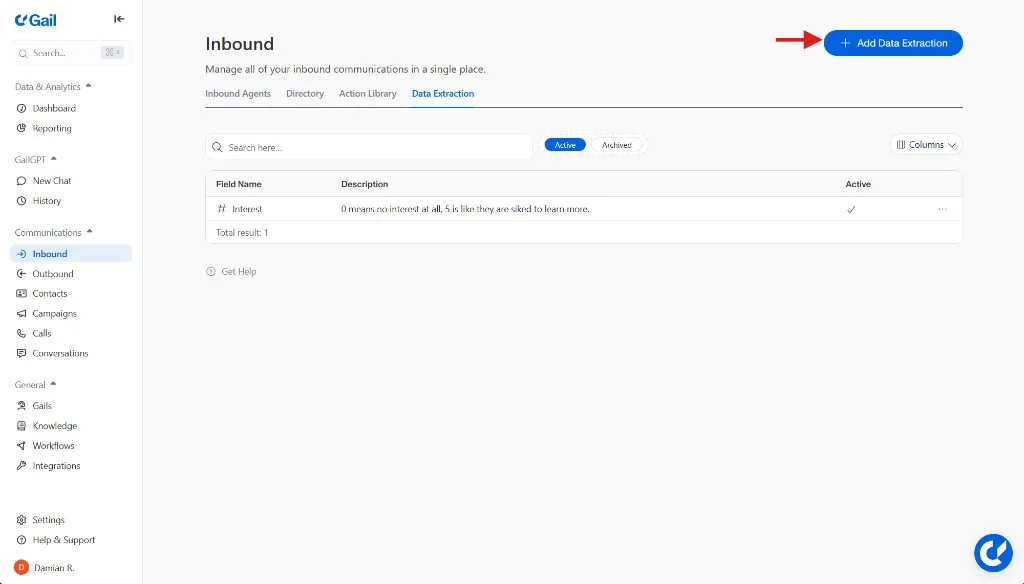
Step 2: Add Your First Detail to Track
Click the “Add Data Extraction” button to create a new detail.
Step 3: Configure What to Track
The dialog will appear with three required settings:
1. Select the Information Type
Choose the type that matches the data you want to collect:
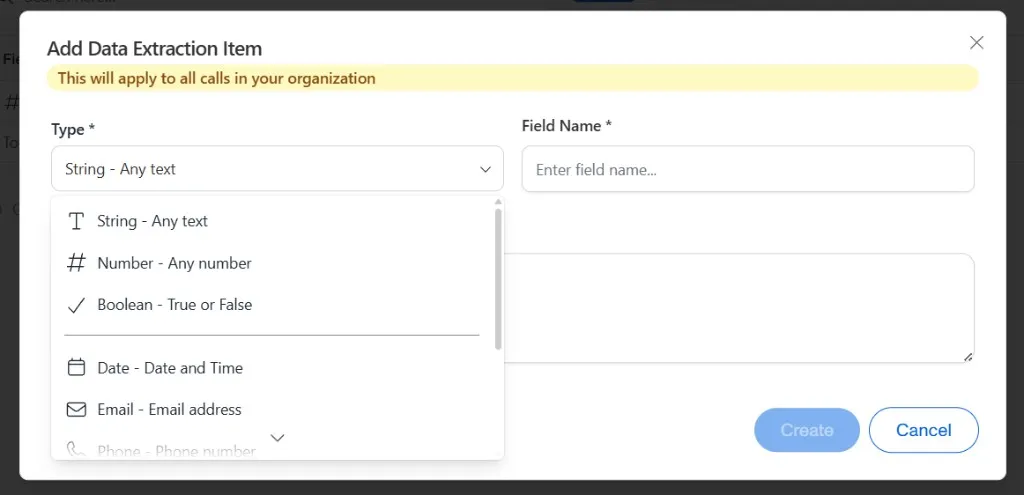
For details with limited options (like “Caller Type”), use Enum to ensure consistency across all calls.
2. Name What You’re Tracking
Enter a clear, descriptive name (e.g., Policy Type, Budget Range, Interest Level)
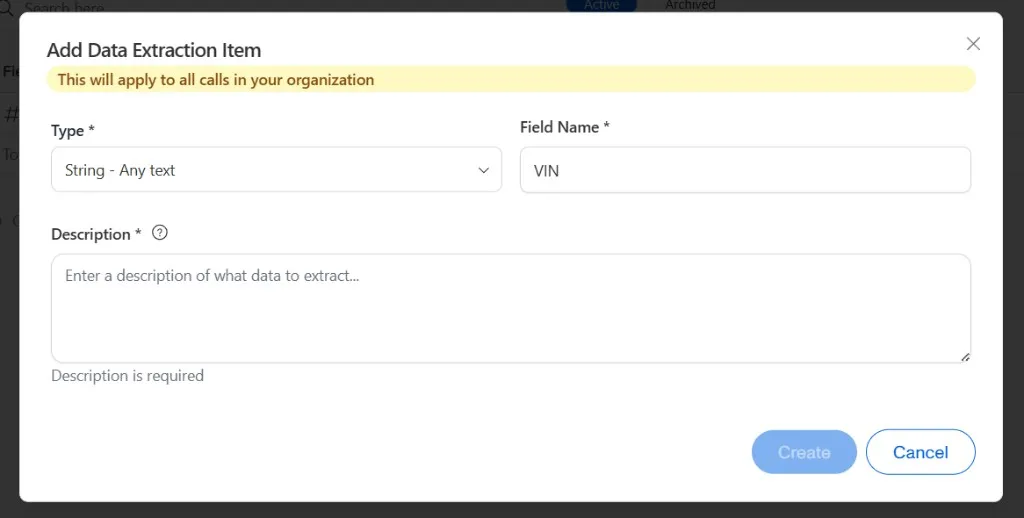
Examples:
- Contact Phone Number
- Policy Type
- Interest Level
- Budget Range
3. Give Gail Instructions
Tell Gail how to collect this information in the Description box. Be specific about what to ask or what to listen for during the call.
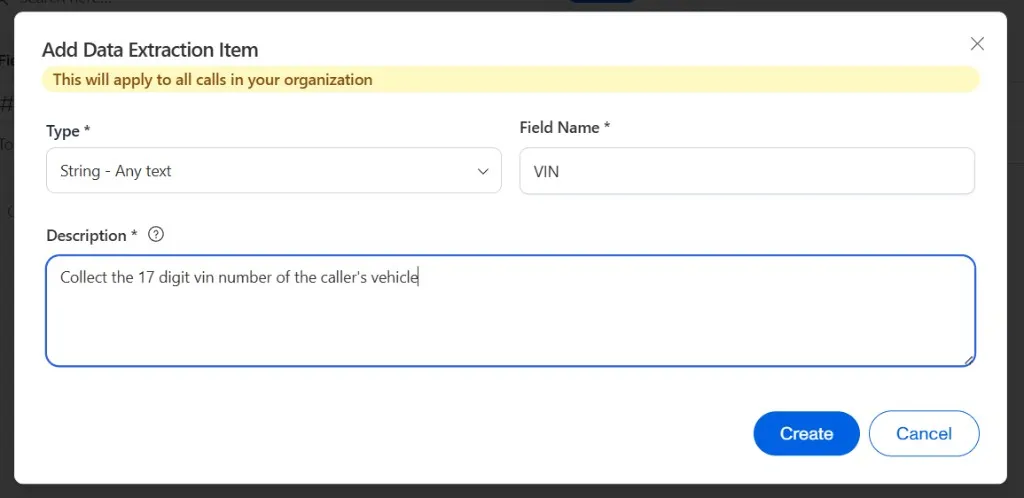
Example Instructions:
- “Ask the caller to rate their interest from 0-5, where 0 is not interested and 5 is very interested”
- “Note what type of insurance they’re calling about (Auto, Home, Life, etc.)”
- “Collect the caller’s budget range for their coverage”
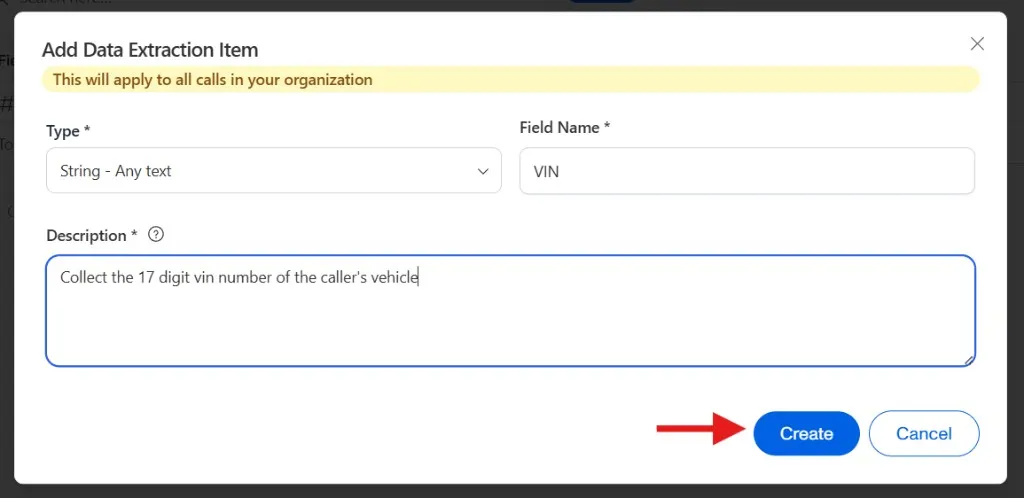
Step 4: Save Your Detail
Click “Create” to add the detail to your tracking list. Gail will now collect this information from every inbound call.
Recommended Information to Collect
Based on industry best practices, here are the essential details to track from your insurance calls:
📞 Caller & Contact Information
- Caller Name - Full name for identification and personalization
- Contact Phone Number - For follow-up communications
- Contact Email Address - For digital communications
- Policy Holder Name - To verify authorization
🎯 Call Intent & Routing
- Caller Type - Current Client, New Prospect, or Mortgage Company
- Inquiry Type - New Quote, Cancellation, Claim, Policy Change, or General
- Type of Coverage - Auto, Home, Life, Health, or Commercial
- Product/Service Mentioned - Specific products discussed
💼 New Business & Quotes
- Desired Coverage Type - Vehicle, Home, Business, Life, or Health
- Personal/Business Policy - For proper agent assignment
- Desired Coverage Limits - Initial quote parameters
- Property Address - For home insurance quotes
- Property Occupancy Type - Primary, Secondary, or Rental
📋 Existing Policy Management
- Policy Number - Unique policy identifier
- Effective/Expiration Dates - Coverage period
- Premium Amount - Cost and payment status
- Change Request Type - Add vehicle, update address, increase limits
🔧 Claims Management
- Claim Number - Existing claim identifier
- Reason for Claim - Nature of the incident
- Home Claim Nature - Water, Fire, Theft, or Storm damage
❌ Policy Cancellation
- Cancellation Reason - Price, Service, Found Better Coverage, or No Longer Needed
📊 Call Performance
- Sentiment - Positive, Neutral, or Negative tone
- Action Items - Required follow-up tasks
- Resolution Status - Whether the issue was resolved
Managing What You Collect
Once created, your tracked details appear in the Data Extraction table where you can:
- View all active information types with their instructions
- Edit instructions by clicking on the detail name
- Filter by Script or Organization level
- Archive unused details to keep your list organized
Best Practices
✅ Do:
- Start with 5-10 essential details and expand gradually
- Use clear, consistent naming
- Write detailed instructions for Gail so it knows exactly what to collect
- Review collected data regularly to refine your instructions
- Group related information logically
❌ Don’t:
- Create duplicate details with similar purposes
- Use vague instructions that could capture multiple types of information
- Overwhelm the system with too many details initially
- Forget to test new details with actual calls
Tips for Success
Start Simple: Begin with the most critical information you need from every call
- Use predefined lists - For details with limited options (like Caller Type), use Enum to ensure consistency
- Test and Refine - Monitor the collected information and adjust your instructions to Gail for better accuracy
- Train Your Team - Ensure everyone understands what information is being captured automatically
Example Configurations
Here are some examples of what to track and how to instruct Gail:
Example 1: Caller Type
Example 2: Interest Level
Example 3: Contact Phone Number
Example 4: Policy Number
Viewing Collected Information
All collected information is available in:
- Call Logs - View details captured from each individual call
- Integrations - Send collected information to your CRM or other systems
Learn more about viewing your data in Call Logs.
Next Steps
- Set up Actions to guide conversation flow
- Learn about creating your first Gail in First Gail
- Explore Integrations to sync collected information with your systems