
Post-Call & Mid-Call SMS
Post-Call & Mid-Call SMS
Gail can automatically send follow-up text messages to customers during or after a call. This powerful feature allows you to instantly deliver appointment links, quote forms, resources, and other information without manual intervention.
Understanding the Two SMS Types
There are two ways to configure automated SMS in Gail, depending on when and how you want the message to be triggered:
Mid-Call SMS
Mid-call SMS messages are sent during an active conversation when specific conditions are met. These are configured within an Action or Scenario in your script.
Use mid-call SMS when:
- You want to send information during the conversation itself
- The trigger is based on a specific conversational scenario (e.g., “When the customer asks about our hours”)
- You need real-time delivery while the customer is still on the line
Common actions:
- Sending a link while discussing it on the call
- Providing resources the customer is asking about
- Sharing an appointment scheduler during scheduling discussions
Post-Call SMS
Post-call SMS messages are sent after the call has ended. These are configured outside of Actions, in a dedicated section at the bottom of your script.
Use post-call SMS when:
- You want to send a follow-up after the conversation concludes
- The trigger is based on general call outcomes or topics discussed
- You want to provide summary information or next steps
Common use cases:
- Sending appointment confirmations after booking
- Delivering quote forms or estimates discussed during the call
- Providing follow-up resources or documentation
- Sending satisfaction surveys
Both mid-call and post-call SMS require you to first create text templates. Make sure you have templates ready before setting up these automated messages.
Prerequisites
Before setting up automated SMS, you must:
- Be approved for SMS messaging - If you haven’t already, apply for SMS approval
- Create text templates - Follow the SMS & Text Messaging guide to create templates
Without SMS approval and text templates, you won’t be able to configure automated SMS features.
Setting Up Post-Call SMS
Post-call SMS is the most common type of automated messaging. Here’s how to set it up:
Step 1: Navigate to Your Script
Go to the script where you want to add post-call SMS functionality.
For Outbound Campaigns:
- Click Outreach in the left-hand navigation
- Select the Scripts tab
- Open the campaign script you want to edit
For Inbound Calls:
- Click Inbound in the left-hand navigation (under Communications)
- Stay on the Scripts tab
- Open the script you want to edit (for example, Business Hours or After Hours)
- Stay on Script & Actions, the first step of the script editor
Step 2: Locate the Post-Call SMS Section
Scroll to the bottom of the script page.
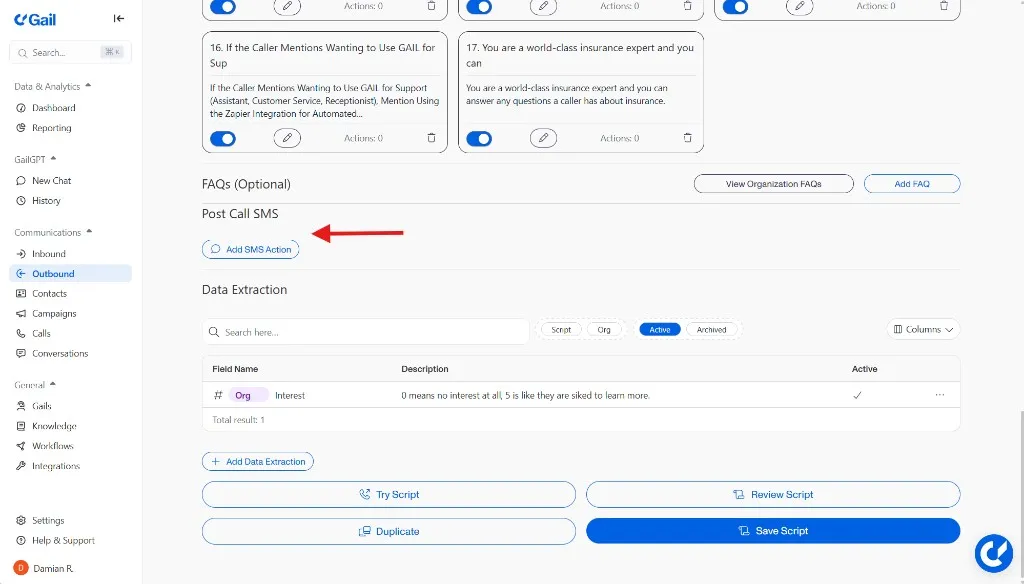
You’ll find a section labeled Post Call SMS below your Actions and other script configurations.
Step 3: Add a Post-Call SMS
Click the Add SMS Action button in the Post Call SMS section.
Two fields will appear:
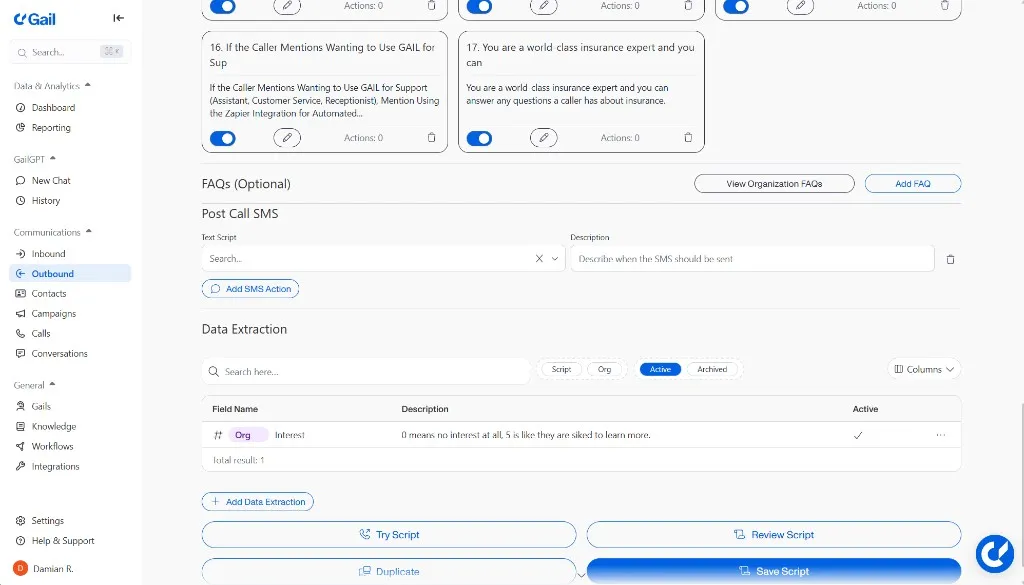
Text Script
Use the dropdown menu to select which SMS template should be sent.
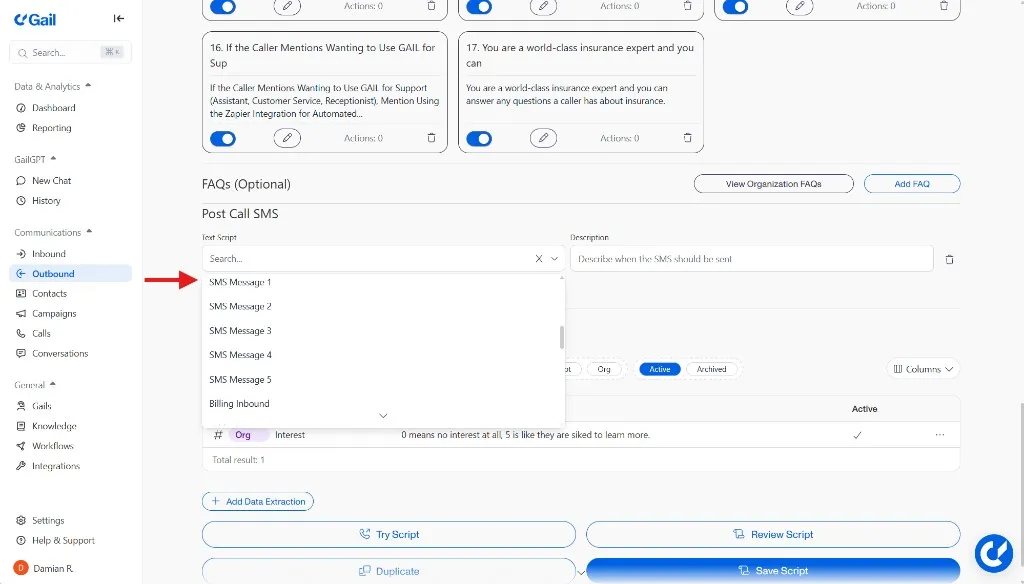
- Choose from your existing text templates
- The template will be sent exactly as configured, including any personalization variables
Description
Type a clear description of when this SMS should be triggered.
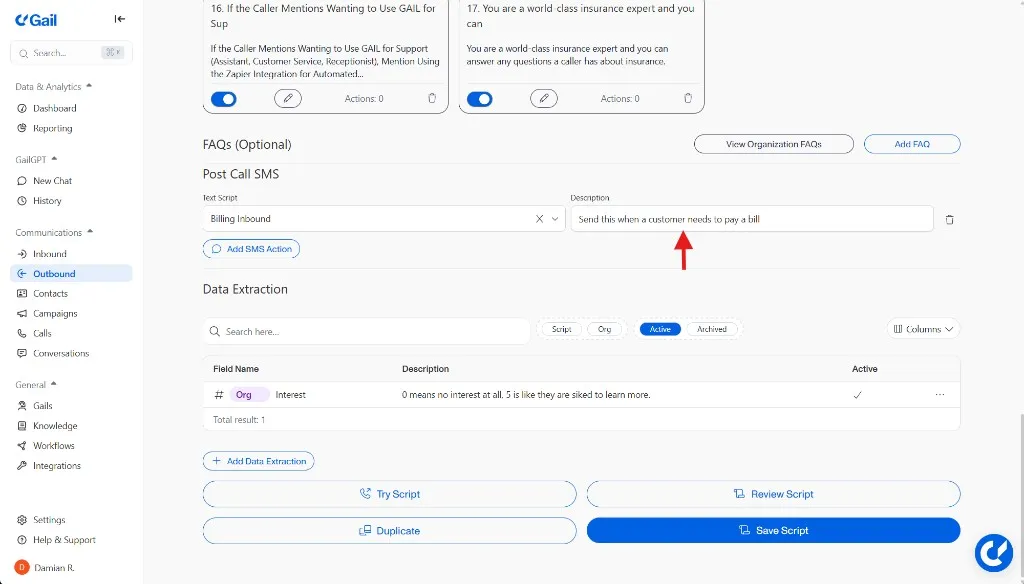
This description tells Gail’s AI when to send this message based on the conversation content.
Example descriptions:
Be specific in your descriptions. The more clearly you describe the trigger condition, the more accurately Gail will know when to send the SMS.
Step 4: Add Multiple Post-Call SMS (Optional)
You can configure multiple post-call SMS actions for different scenarios:
- Click Add SMS Action again to create additional post-call SMS entries
- Select different text scripts for different trigger conditions
- Write unique descriptions for each scenario
Example configuration with multiple post-call SMS:
Step 5: Save Your Script
Once you’ve configured all your post-call SMS actions:
- Save the action if it is still open
- Save the script. On inbound scripts, use Save draft or Publish at the top of the editor
Your post-call SMS is now active! Gail will automatically send the configured text messages when the defined conditions are met during calls.
Setting Up Mid-Call SMS
Mid-call SMS is configured differently because it’s tied to specific conversational scenarios within your script.
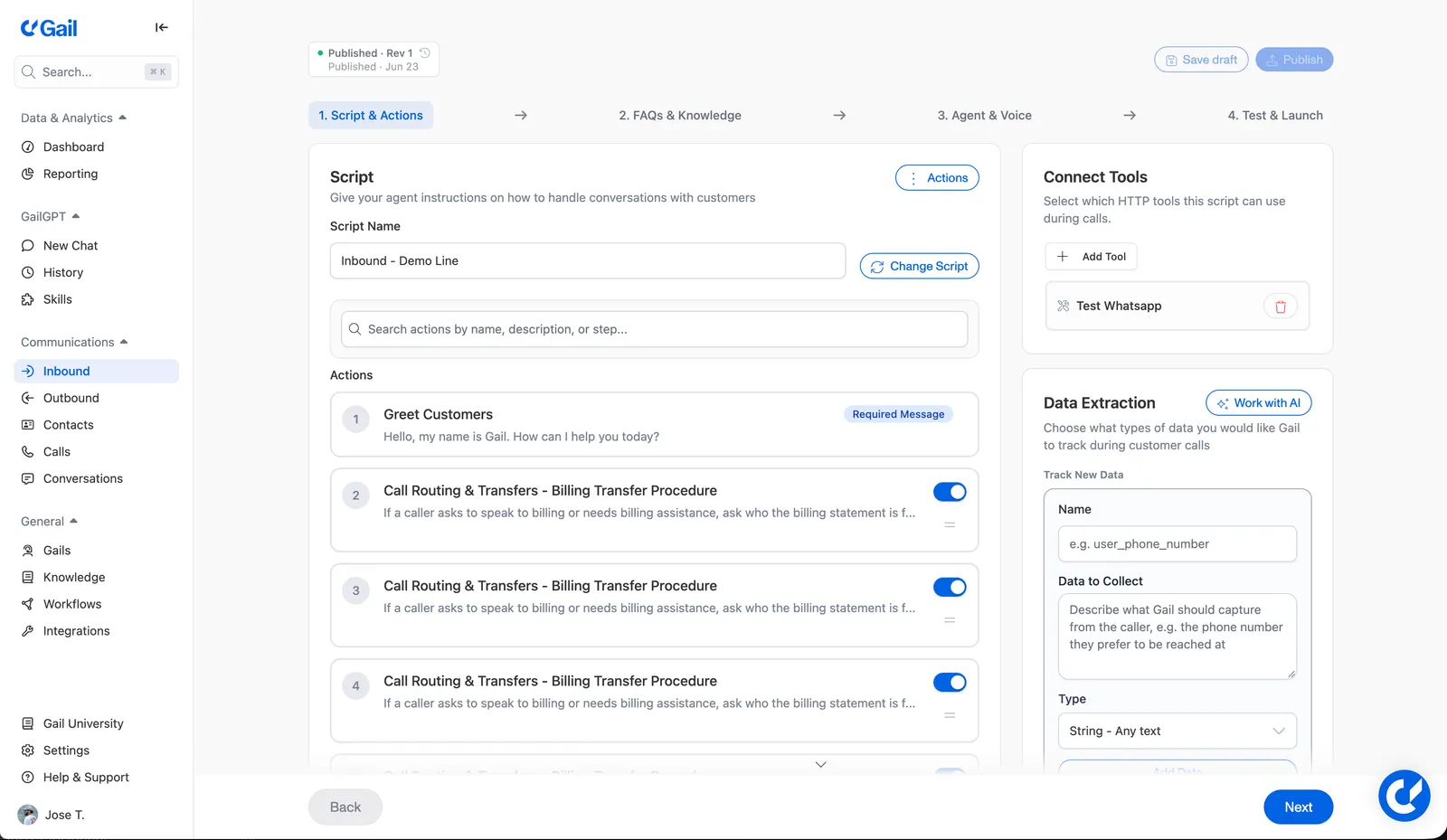
Step 1: Navigate to Your Script
Follow the same navigation steps as post-call SMS:
- Outreach > Scripts for outbound campaigns
- Communications > Inbound > Scripts > open a script > Script & Actions for inbound calls
Step 2: Create or Edit an Action
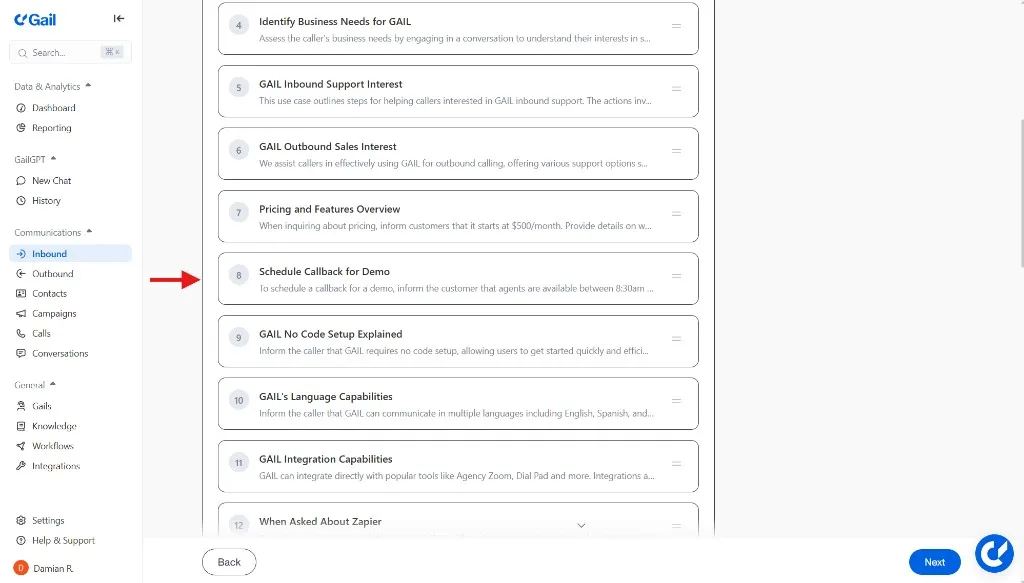
Mid-call SMS must be configured inside an Action or Scenario:
- Scroll to the Action you want to add Mid-call SMS to in your script
- Or Create a new Action
Step 3: Configure the Action
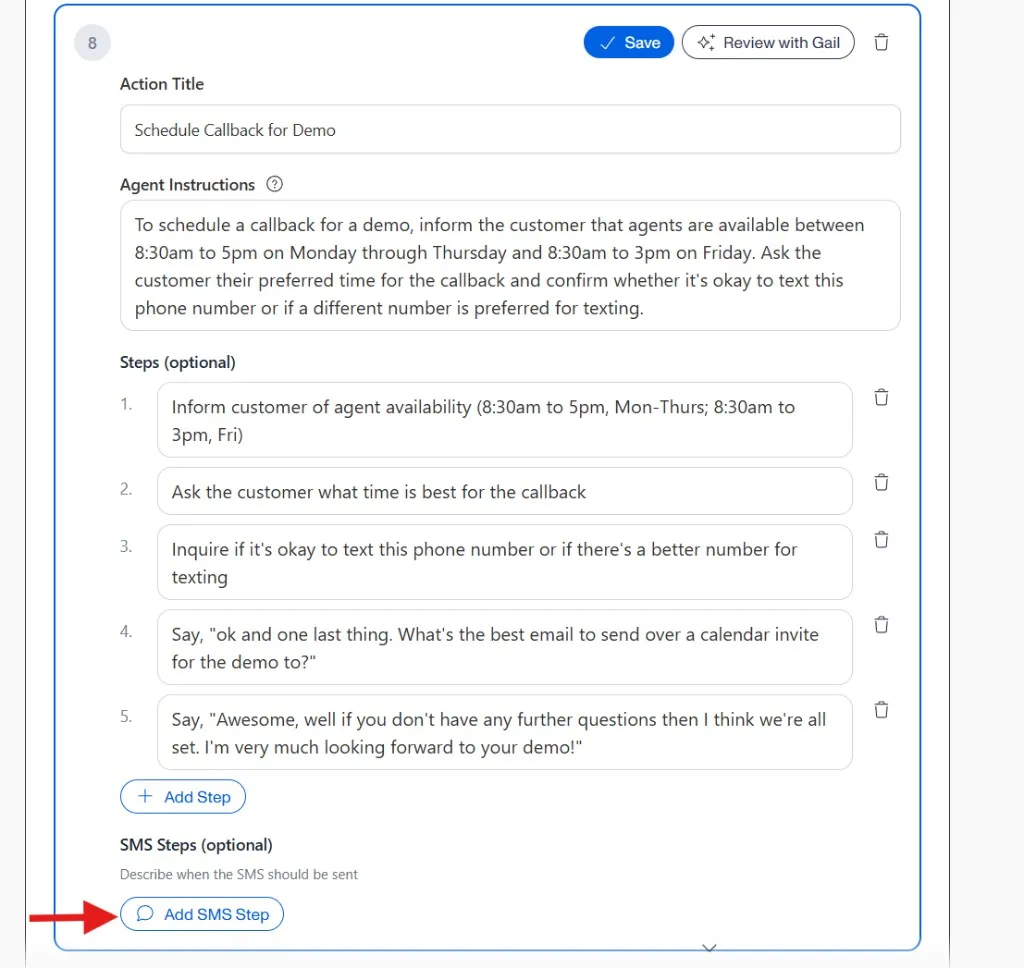
Within the Action configuration, you’ll define:
- Use Case Name: What this scenario is for (e.g., “Appointment Scheduling”)
- Objective: When this action applies or when it should be triggered
- Steps: What Gail should do (transfer, collect info, etc.)
Step 4: Add Mid-Call SMS Action
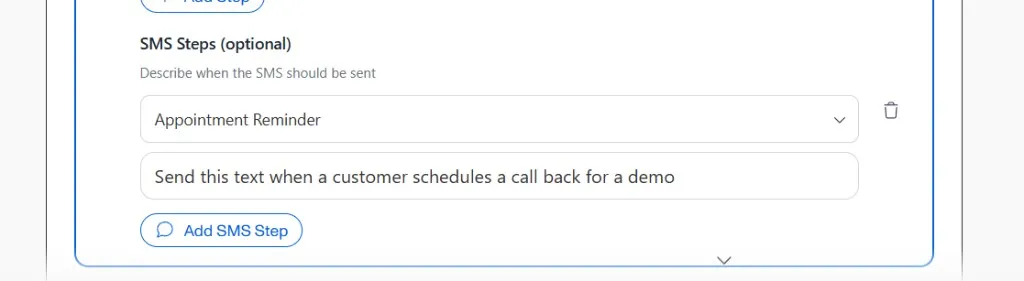
Within the Action’s settings, look for SMS or messaging options:
- Add the SMS step within the Use Case
- Select the text template to send
- Describe when Gail should send this during the conversation
Step 5: Save Your Action and Script
- Save the Action configuration by clicking the blue checkmark
- Save the overall script
The mid-call SMS will now trigger when customers enter this conversational scenario during their call.
Best Practices
Writing Effective Trigger Descriptions
Your trigger descriptions are critical for post-call SMS to work correctly.
Good descriptions:
- ✅ “When the customer asks about adding users to their account”
- ✅ “If payment information is discussed during the call”
- ✅ “After scheduling any type of appointment”
- ✅ “When the customer requests information about coverage options”
Poor descriptions:
- ❌ “Add user info” (too vague)
- ❌ “Send sometimes” (not specific enough)
- ❌ “Payment” (lacks context)
- ❌ “Info” (too broad)
Template Selection
Choose templates that match the conversation context:
- Keep messages relevant to what was discussed on the call
- Ensure templates include appropriate personalization variables
- Test templates before using them in automated SMS workflows
Timing Considerations
Post-Call SMS:
- Sent after the call ends
- Ideal for summaries, confirmations, and follow-up resources
- Doesn’t interrupt the conversation flow
Mid-Call SMS:
- Sent while the customer is on the line
- Best for real-time information sharing
- Allows customer to reference the link or info during the call
Testing Your Setup
Before relying on automated SMS in production:
- Test calls: Make test calls to trigger your SMS configurations
- Verify delivery: Confirm that messages are sent at the right time
- Check content: Ensure templates populate correctly with customer data
- Review triggers: Confirm that trigger conditions work as expected
Multiple SMS Messages
Be cautious about sending too many messages from a single call:
- Limit to 2-3 automated SMS per call maximum
- Ensure each message serves a distinct purpose
- Avoid overwhelming customers with texts
Monitoring Automated SMS
Call Logs
After calls with automated SMS:
- Navigate to Calls
- Review individual call records
- Check which SMS messages were triggered
- Verify successful delivery
SMS Conversations
To review the messages sent:
- Navigate to Conversations
- See full message threads and customer responses
Troubleshooting
SMS Not Sending
If your automated SMS isn’t working:
Check SMS approval status
- Verify you’re approved for SMS messaging
- Confirm your approval is active
Verify text template exists
- Ensure the selected template hasn’t been deleted
- Check that the template is properly configured
Review trigger description
- Make sure the description clearly defines when to send
- Test with more specific or different wording
Confirm script is saved
- Verify you saved the script after adding SMS actions
- Check that you’re using the correct (active) script version
Wrong Template Sent
If the incorrect template is being sent:
- Review your trigger descriptions for overlap
- Ensure each trigger is specific and distinct
- Consider reordering or consolidating SMS actions
- Test with sample scenarios to identify conflicts
Mid-Call SMS Not Triggering
If mid-call SMS isn’t working within Actions:
- Verify the Action is properly configured
- Confirm the SMS step is enabled within the Use Case
- Test that the Action itself is being triggered
- Check that the selected template exists
Customers Not Receiving Messages
If SMS delivery is failing:
- Verify customer phone numbers are in correct format
- Check for blocks or opt-outs
- Review SMS compliance and approval status
- Confirm no rate limiting is occurring
Examples
Example 1: Insurance Quote Follow-Up (Post-Call)
Script Type: Outbound Sales Campaign
Post-Call SMS Configuration:
Template Content:
Example 2: Appointment Confirmation (Post-Call)
Script Type: Inbound Receptionist
Post-Call SMS Configuration:
Template Content:
Example 3: Resource Sharing (Mid-Call)
Script Type: Inbound Support
Use Case: Product Information Request
Mid-Call SMS Action: Send product guide while discussing features
Template Content:
Example 4: Payment Portal Access (Post-Call)
Script Type: Inbound Billing
Post-Call SMS Configuration:
Template Content:
Related Resources
Now that you understand automated SMS setup, explore these related topics:
- SMS & Text Messaging - Create and manage text templates
- Actions - Configure conversational scenarios for mid-call SMS
- Creating Campaigns - Set up outbound campaigns with automated SMS
- Applying for SMS Approval - Get approved for SMS messaging
- Call Logs - Monitor automated SMS delivery and performance