
Directory
What is the Directory?
The Directory is where you add all your internal agency contacts (employees, ring groups, call centers, and even external carriers) so Gail can transfer callers to the correct destination.
Important: Ensure no directory contact has its incoming calls forwarded to Gail or to any line that eventually routes back to Gail. If a line inadvertently loops back, your callers may experience an endless transfer cycle.
Contact Types
When adding a new contact to the Directory, you will choose one of the following Contact Types:
Individual
Use this for specific people such as sales agents, support representatives, or any single employee.
Example: John Smith, Sales Agent
Main Department Line
Use this for whole departments (e.g., Sales Department, Support Department), ring groups, or carrier lines.
Example: Sales Department, Allstate Billing Department
Transfer Logic
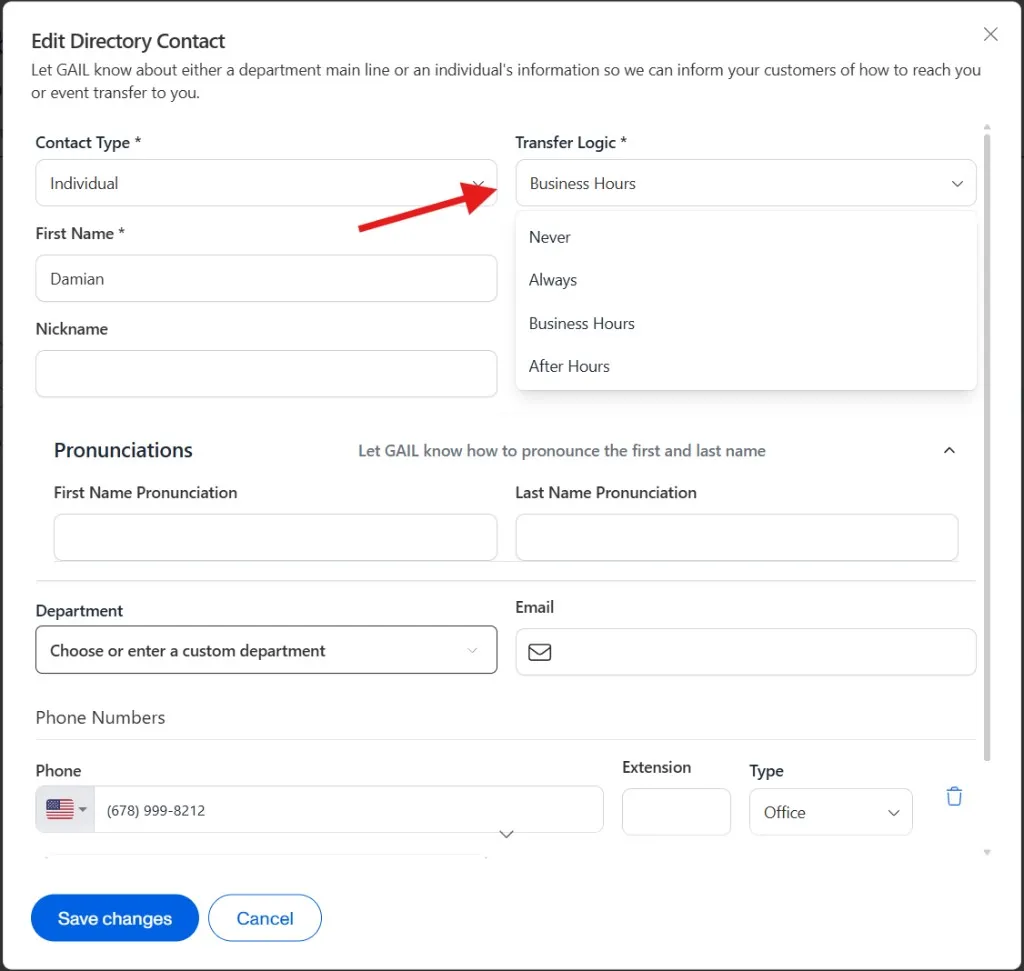
You must also select Transfer Logic for each contact. This determines when Gail can transfer the call:
Adding a New Contact
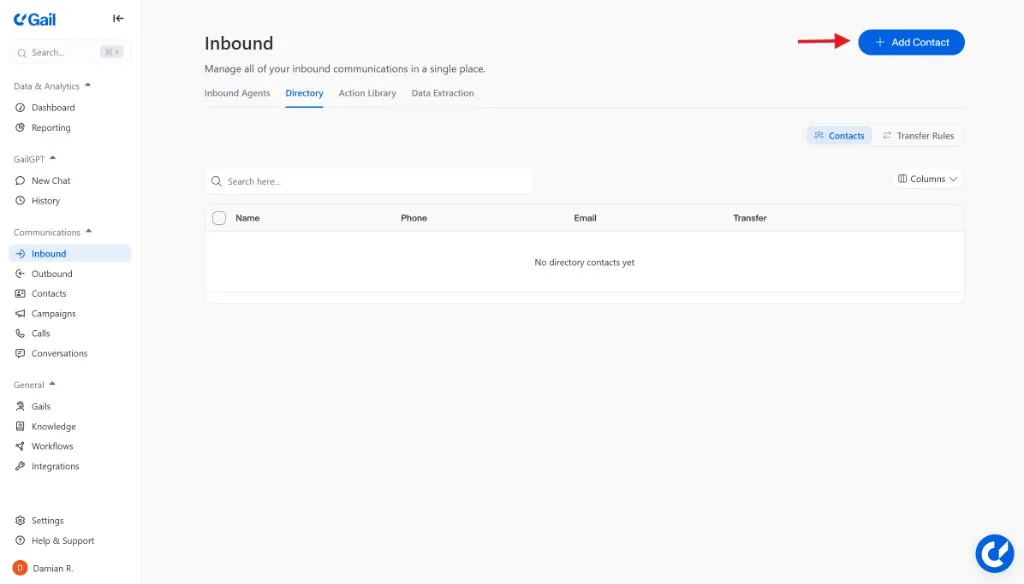
Step 1: Open Inbound from the left sidebar
- In the left-hand menu, open Communications and click Inbound
- Open the Directory tab
- Click Add Contact
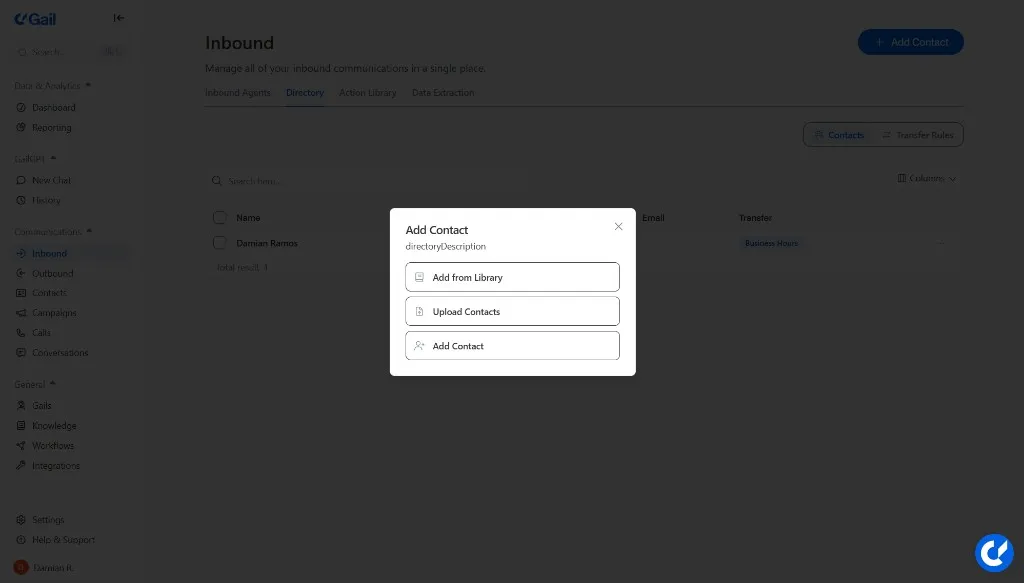
A pop-up will appear allowing you to:
- Add from Library: Use the directory library to quickly add third-party carriers
- Upload Contacts: Bulk upload your internal contacts via a CSV or Excel file
- Add Contact: Manually add an individual contact to the directory
Step 2: Fill Out Contact Details
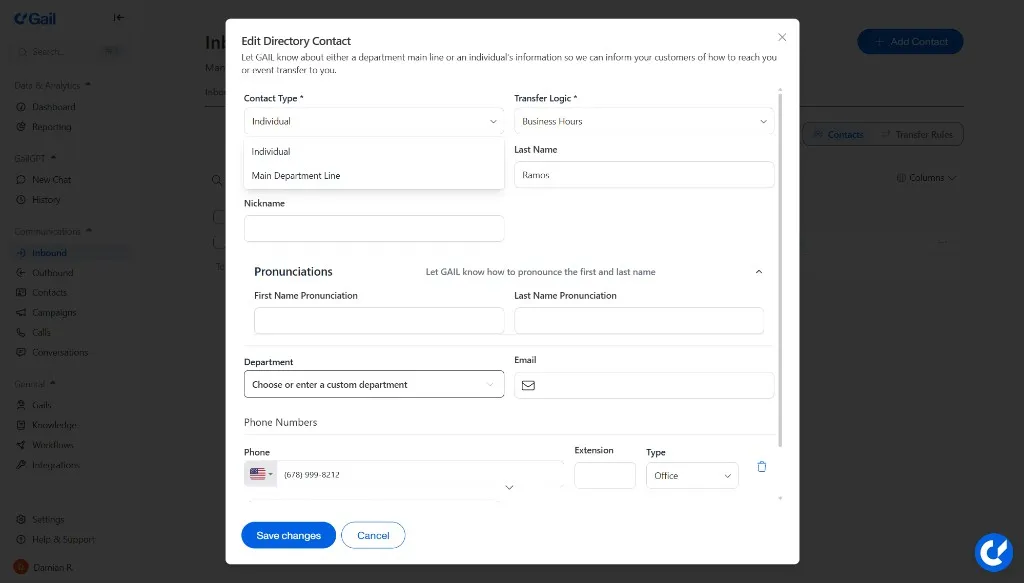
Contact Type
- Choose Individual if you are adding a single employee
- Choose Main Department Line if you are adding a department or carrier line
Transfer Logic
Select from Business Hours, After Hours, Always, or Never, based on availability.
Name Fields
For Individuals:
- Enter the person’s First Name and Last Name
For Departments:
- Enter the name of the department or carrier line in the Department field
Nickname (Optional)
Use this field if the contact is commonly known by a nickname. Gail can reference it during transfers.
Pronunciations (Optional)
Provide phonetic pronunciations if a person’s name is hard to pronounce or spelled in an unusual way.
Example:
- First Name Pronunciation: “lee-ZAYT”
- Last Name Pronunciation: “gar-SEE-a”
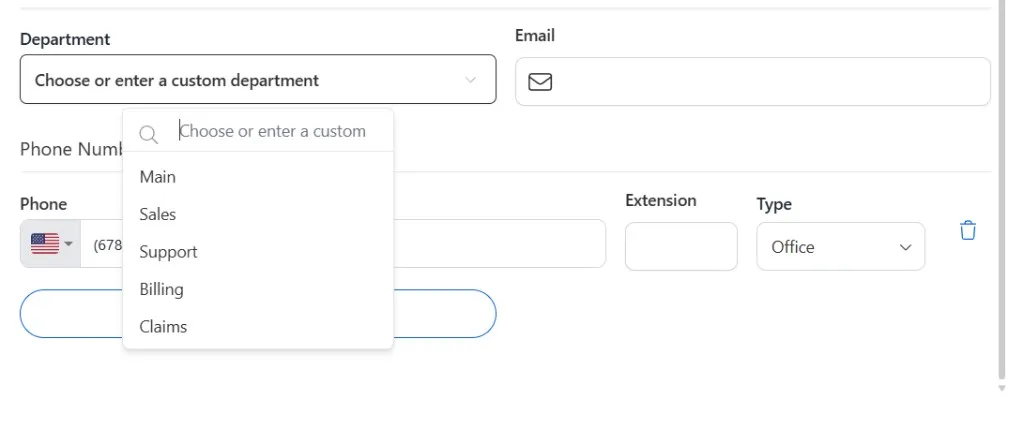
Department
- If you are entering an employee under a specific department, select the relevant department or create a new one
- For a carrier or ring group, you can label it accordingly (e.g., Billing Department)
Email (Optional)
If relevant, add an email for reference or for Gail to share if a caller needs it.
Phone Number
Enter the primary phone number.
- Extension (if applicable) can help direct the call once the main line answers
- Type: Choose from Office, Mobile, Fax, etc.
Double-check your phone number format to avoid the “Phone number is not valid” error.
Step 3: Save Your Contact
Once all required fields are filled out, click Add Directory Contact. The new contact should now appear in your Directory list.
Using the Directory Library (for Carriers)
For common third-party carrier numbers, you can use the Directory Library to quickly add them to your Directory:
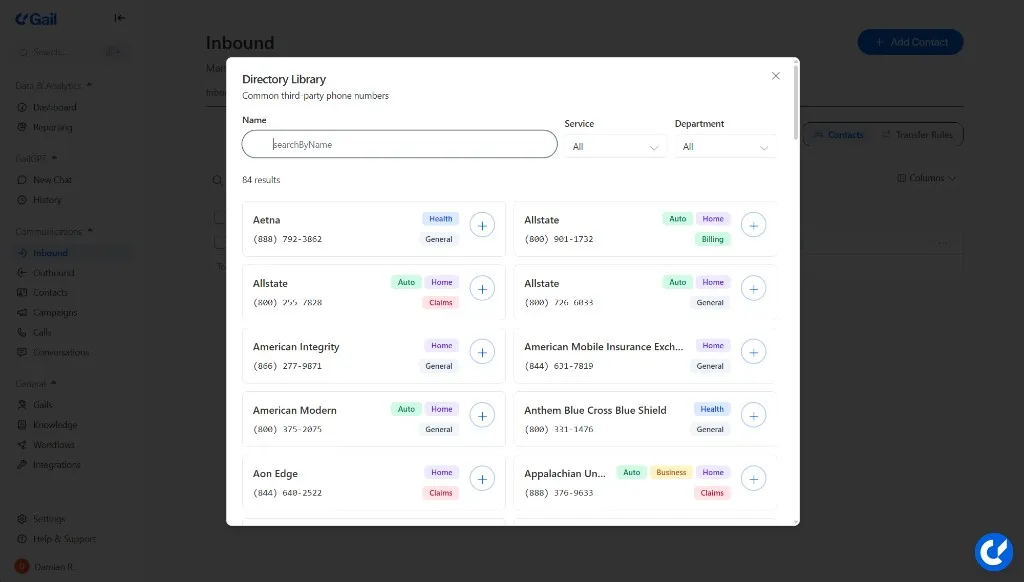
How to Add from Library
- Click Add Contact in the Directory section
- A pop-up window will display a list of ways to add contacts, select Add from Library
- A pop-up window will display a list of carriers (e.g., Aetna, Allstate, American Integrity, etc.)
- Each carrier may have multiple departments, such as Claims, Billing, or General
- Click the + button next to a specific department to add it
- Set the Transfer Logic
- The contact should now appear in your directory
If a carrier you frequently work with is not listed, you can add them manually via Add Contact.
Best Practices
⚠️ No Loops
Avoid forwarding Directory lines back to Gail. This can cause an infinite loop if Gail tries to transfer to a line that reroutes to Gail.
✅ Accurate Names
Use clear names or department titles (e.g., “Claims Department” vs. “Claims”) so Gail can better inform callers during the transfer.
⏰ Correct Transfer Logic
Make sure your contacts have the right Transfer Logic (Business Hours, Always, etc.) so Gail does not attempt an unavailable line.
🧪 Test & Update
Occasionally test your Directory by making a call to ensure each entry still routes correctly and no lines have changed or closed.
📚 Use the Library
If you work with multiple carriers, the Directory Library can be a huge time-saver for adding well-known numbers quickly.
Advanced Time-Based Transfers
The Directory’s Transfer Logic options (Business Hours, After Hours, Always, Never) provide basic scheduling for when contacts are available. However, they don’t support more granular time-based rules like “transfer to John until 2 PM, then switch to Sarah.”
When You Need More Flexibility
If you need to handle time-sensitive transfer logic, such as staff members who are only available until a specific time each day, you can create an Action to achieve this.
How to Set Up Time-Based Routing with Actions
Actions allow you to define conditional logic based on the current time:
Open the Script
Go to Communications > Inbound > Scripts, then open the inbound script where callers might request a specific person or department. Stay on Script & Actions.
Create a New Action
Click Actions on the Script & Actions step, then add or enable the transfer action
Define the Objective
Set the Action to trigger when a caller asks for a specific person or department
Example Scenarios
Half-Day Coverage:
- John is available Mon-Fri until 2 PM
- After 2 PM, calls route to Sarah or voicemail
Rotating On-Call:
- Morning shift: Transfer to Team A
- Evening shift: Transfer to Team B
- Night/Weekend: Transfer to on-call line
Lunch Break Handling:
- Before noon: Transfer to direct line
- 12 PM - 1 PM: Route to alternate or offer callback
- After 1 PM: Resume normal transfer
By creating a dedicated handling for each staff member or department requiring time-sensitive transfer logic, you can make Gail a more adaptable receptionist without the limitations of the basic Transfer Logic settings.
For more information on configuring time-based scenarios, see Holiday Hours for seasonal scheduling and Actions for detailed conditional logic setup.
Quick Reference
Common Scenarios
Adding an Employee
Adding a Department
Adding a 24/7 Carrier Line
Adding an On-Call Contact
Troubleshooting
”Phone number is not valid” error
Double-check the phone number format. Ensure you’re using a standard format like (555) 123-4567 or +1-555-123-4567.
Callers experiencing endless transfers
Check if any Directory contact has its incoming calls forwarded back to Gail. Remove any call forwarding rules that create loops.
Contact not available when expected
Verify the Transfer Logic setting matches when you want the contact to be available. Check that your business hours are set correctly.
Next Steps
- Set up Actions to define when to transfer calls
- Learn about creating your first Gail in First Gail