
Creating SMS Campaigns
SMS campaigns allow you to send automated text messages to a chosen contact list. Whether you’re sending appointment reminders, payment notifications, or marketing messages, text campaigns provide an efficient way to reach contacts at scale.
Before creating SMS campaigns, ensure you have SMS approval and have created at least one text template.
How It Works
SMS campaigns work by:
- Selecting a text template - Choose a pre-written message from your template library
- Choosing a contact list - Select which contacts will receive the message
- Launching the campaign - Send messages automatically to all contacts in the list
Creating Your First SMS Campaign
Follow these steps to set up and launch an SMS campaign.
1. Navigate to Campaigns
From the left-hand menu in your Gail dashboard, click Campaigns.
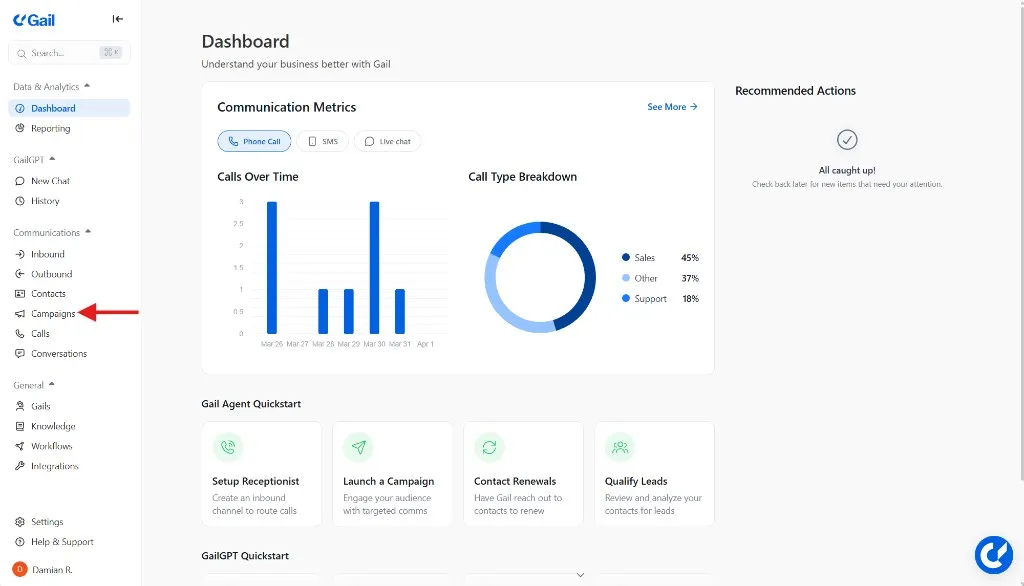
This will take you to the campaigns overview where you can see all your active and past campaigns.
2. Create a New Campaign
In the Campaigns tab, click the New Campaign button in the top right corner.
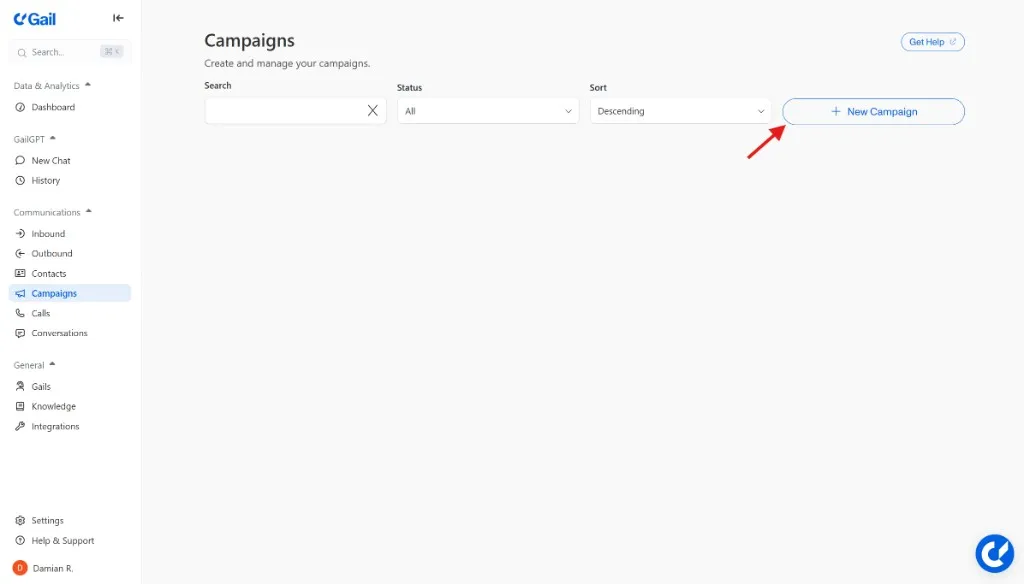
A campaign creation form will appear where you’ll configure your SMS campaign settings.
3. Enter Campaign Details
Fill out the following required fields:
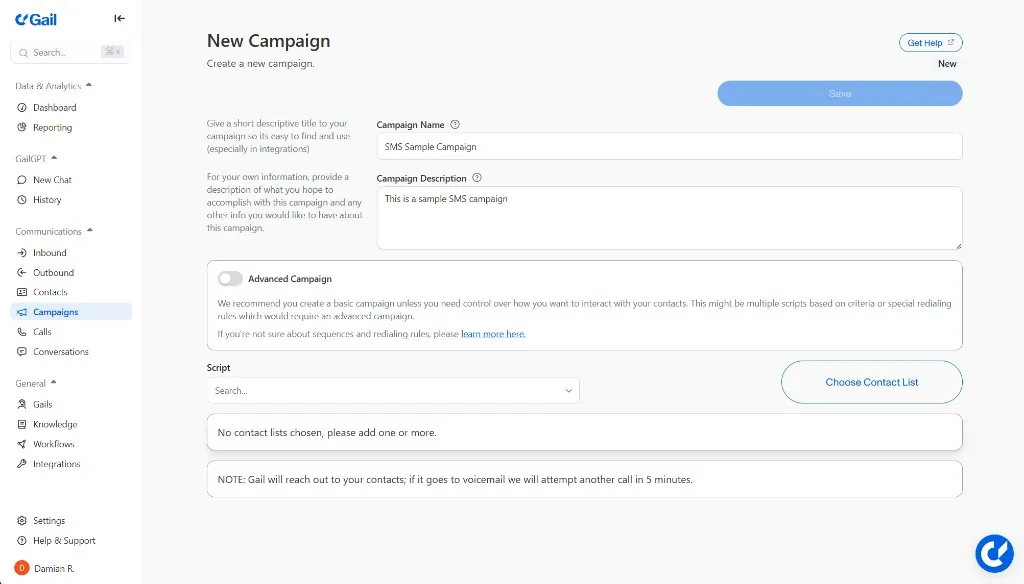
Campaign Name
Enter a short, descriptive title with a minimum of 5 characters.
Best Practices for Campaign Names:
- Be specific about the purpose (e.g., “Q1 Payment Reminders”)
- Include the date or period (e.g., “March Appointment Confirmations”)
- Use consistent naming conventions for easy sorting
- Avoid generic names like “SMS Campaign 1”
Examples:
- “Insurance Renewal Reminders - February 2026”
- “Appointment Confirmations - Week of Jan 27”
- “Policy Update Notifications - Winter Campaign”
Campaign Description
Add a description of what the campaign will do and its intended purpose.
This helps you and your team understand the campaign’s goals when reviewing it later. Include details like:
- Target audience
- Expected outcomes
- Campaign timing or context
- Any special notes or requirements
Example Description:
4. Select Your Script
In the Script dropdown menu, choose the text template you want to use for this campaign.
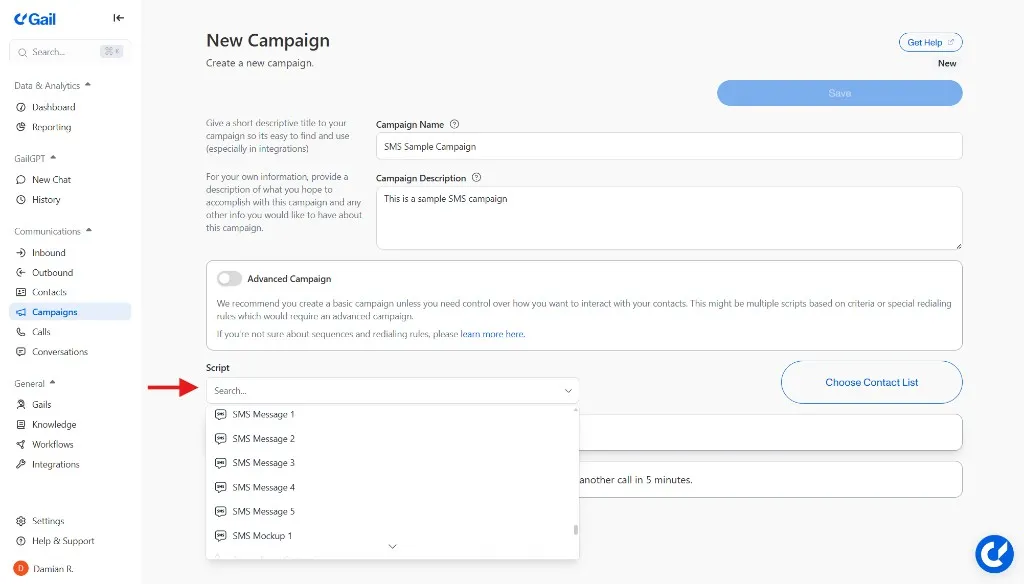
Templates are distinguished by icons:
- 📞 Call scripts are marked with a telephone icon
- 💬 Text scripts are marked with an SMS icon
Make sure to select a text script (💬) for your SMS campaign.
If you don’t see the template you need:
- Navigate to Outreach → Text Templates
- Create a new text template
- Return to your campaign and select the newly created template
5. Choose a Contact List
Click the Choose Contact List button.
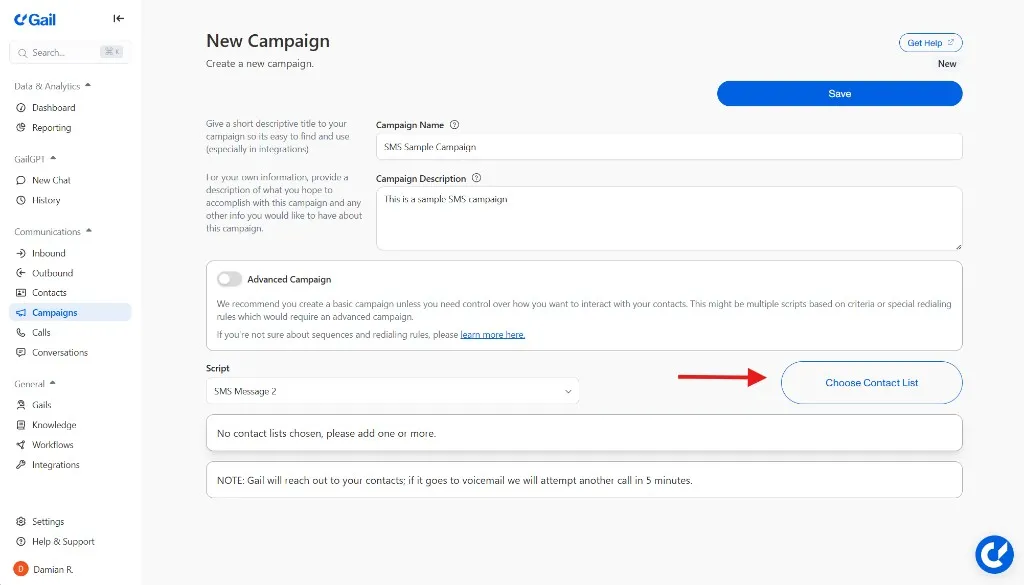
A modal will appear showing your available contact lists. Select the list that contains the contacts you want to reach with this campaign.
Contact List Considerations:
- Ensure contacts have opted in to receive SMS messages
- Verify that phone numbers are properly formatted
- Check that any variables used in your template (like
@FirstName) have corresponding data in the contact records - Consider segmenting large lists for better targeting
Only send SMS messages to contacts who have explicitly opted in to receive text communications. Sending unsolicited messages may violate TCPA regulations and result in penalties.
6. Review Campaign Settings
Before launching, review all your campaign settings:
7. Save and Launch
Once all fields are complete and reviewed:
- Click Save at the top right to save your campaign configuration
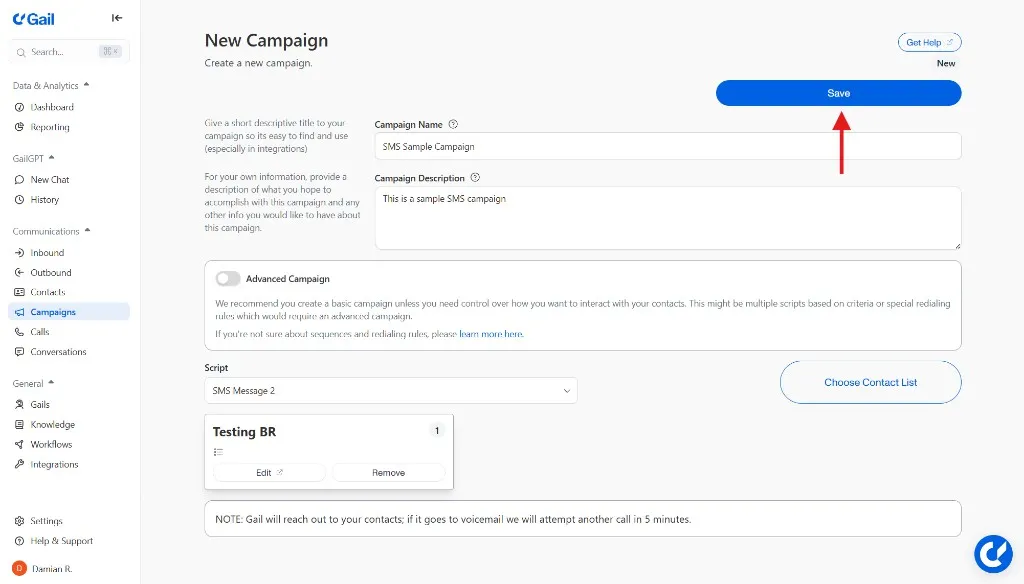
- Your campaign is now ready to launch
- Click the Start button to begin sending messages
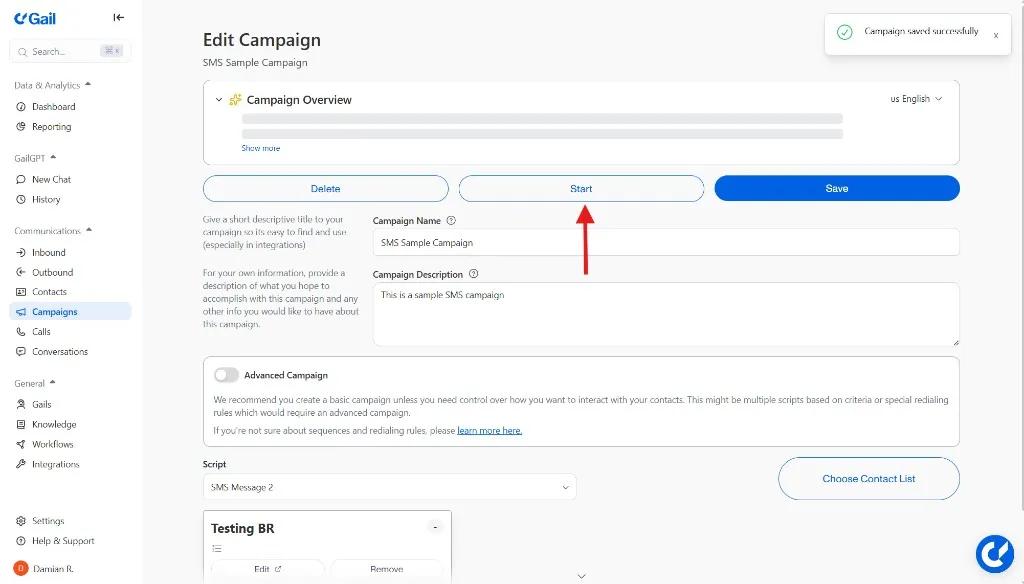
Your SMS campaign is now running! Gail will send text messages to your selected contacts according to your chosen template.
Campaign Types and Use Cases
SMS campaigns work well for various business scenarios:
Appointment Reminders
Send automated reminders before scheduled appointments:
- Timing: 24-48 hours before appointment
- Include: Date, time, location, confirmation option
- Example: “Hi John, reminder: Your insurance review is tomorrow at 2 PM. Reply CONFIRM or call (555) 123-4567.”
Payment Reminders
Notify contacts about upcoming or overdue payments:
- Timing: 7 days before due date, then on due date
- Include: Amount due, due date, payment link
- Example: “Your $150 policy payment is due Jan 31. Pay now: [link]. Questions? Call us at (555) 123-4567.”
Event Invitations
Invite customers to events or webinars:
- Timing: 2-3 weeks before event, then reminder 1 day before
- Include: Event details, RSVP link, date/time
- Example: “You’re invited! Join our Customer Appreciation Event on Feb 15. RSVP: [link]“
Follow-Up Messages
Send follow-ups after calls or meetings:
- Timing: Within 24 hours of the interaction
- Include: Summary, promised resources, next steps
- Example: “Thanks for speaking with us today! Here’s the info we discussed: [link]. Reply with questions.”
Renewal Notifications
Alert contacts about upcoming policy or subscription renewals:
- Timing: 30, 14, and 3 days before renewal
- Include: Renewal date, current coverage, review options
- Example: “Your insurance policy renews in 14 days. Review your coverage options: [link]“
Monitoring Campaign Performance
After launching your campaign, track its performance through the campaigns dashboard.
Campaign Status
Your campaign can have different statuses:
- Draft - Created but not yet launched
- Active - Currently sending messages
- Stopped - Manually ended early
- Archived - Campaign has been archived
Viewing Results
To view detailed campaign results:
- Navigate to Conversations in the left sidebar
- Click into individual conversations and review messages
- Gauge performance based on reply rates and customer sentiments
Managing Active Campaigns
Stopping a Campaign
If you need to stop a campaign:
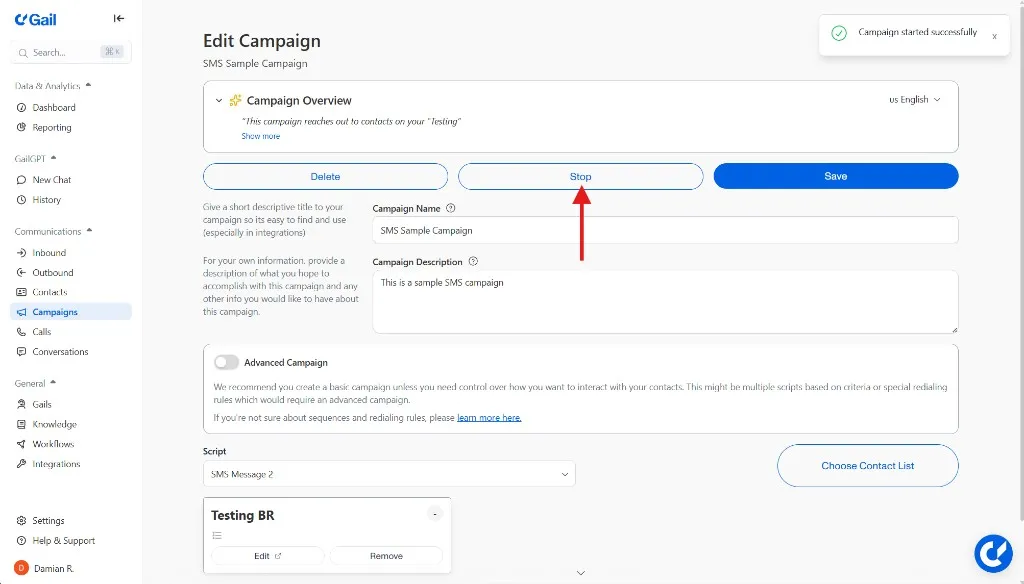
- Open the campaign from your campaigns list
- Click Stop Campaign
- Messages in queue will be stopped
- If you start the campaign, it will start from the beginning again
Common reasons to stop:
- Need to update the message template
- Contact list needs revision
- Responding to feedback or concerns
- Testing or troubleshooting issues
Stopping a campaign cannot be undone. Unsent messages will remain unsent.
Best Practices
Test Before Sending
Always test your campaign before launching to a full list:
- Create a test contact list with your own phone number
- Run the campaign to the test list
- Verify the message appears correctly
- Check that all links work
- Confirm variables populate properly
- Review timing and delivery
Timing Matters
Send messages at appropriate times:
- Business hours: 9 AM - 7 PM in the contact’s time zone
- Avoid weekends: Unless appropriate for your industry
- Consider urgency: More urgent messages can be sent closer to deadlines
- Respect preferences: Honor contact communication preferences
Keep Messages Clear and Actionable
Structure your SMS messages for maximum impact:
- Lead with purpose: State why you’re texting in the first sentence
- Be concise: Get to the point quickly
- Include a clear CTA: Tell contacts what action to take
- Provide options: Give contacts ways to respond or get help
- Sign your messages: Always identify your business
Monitor and Respond
Stay engaged with your campaign:
- Check conversations regularly
- Respond promptly to replies if necessary
- Track opt-out requests and honor them immediately
- Act on feedback from contacts to improve future campaigns
Maintain Compliance
Follow SMS regulations and best practices:
- ✅ Only text contacts who opted in
- ✅ Include your business name in messages
- ✅ Provide clear opt-out instructions
- ✅ Honor opt-out requests immediately
- ✅ Keep records of consent
- ✅ Send messages during appropriate hours
- ❌ Don’t send unsolicited messages
- ❌ Don’t text without proper consent
- ❌ Don’t ignore opt-out requests
Violating SMS compliance regulations can result in fines up to $1,500 per message and damage your SMS sending reputation. Always follow TCPA guidelines.
Troubleshooting
Campaign Won’t Start
If your campaign won’t launch:
- Check SMS approval status - Ensure your account is approved for SMS
- Verify contact list - Confirm the list has contacts with valid phone numbers
- Review template selection - Make sure you selected a text script (💬), not a call script (📞)
Low Delivery Rates
If many messages are failing to deliver:
- Verify phone numbers - Ensure numbers are formatted correctly
- Check for disconnected numbers - Remove inactive numbers from your list
- Review carrier filtering - Messages may be blocked by carrier spam filters
- Simplify message content - Remove excessive links or spam-like language
High Opt-Out Rates
If many contacts are opting out:
- Review message frequency - You may be texting too often
- Check message relevance - Ensure content is valuable to recipients
- Verify consent - Make sure contacts actually opted in to texts
- Improve targeting - Segment lists for more relevant messaging
- Review tone - Ensure messages aren’t too aggressive or salesy
Variables Not Populating
If contact variables aren’t working:
- Check variable names - Ensure they match your contact data fields exactly
- Verify contact data - Confirm contacts have data in those fields
- Review template syntax - Variables must use the
@symbol - Test with complete records - Use contacts with all fields populated
Next Steps
Now that you understand SMS campaigns, explore related topics:
- SMS & Text Messaging - Create and manage text templates
- Managing Contacts - Organize your contact lists
- Sequences - Combine SMS and voice calls in multi-step flows
- SMS Approval - Apply for or manage your SMS approval status
- Outbound Campaigns Overview - Learn about all campaign types