
SMS & Text Messaging
Text templates allow you to create and save reusable SMS messages for your outreach campaigns. Once you’ve been approved for SMS messaging, you can build a library of templates to streamline your text-based communications with contacts.
Before you can create text templates, you must first apply for SMS approval. This ensures compliance with carrier regulations and spam prevention policies.
What Are Text Templates?
Text templates are pre-written SMS messages that can be:
- Reused across multiple campaigns and contacts
- Personalized with contact-specific variables
- Customized with links, forms, and appointment schedulers
- Saved in your template library for quick access
Common templates include:
- Appointment reminders and confirmations
- Payment and renewal reminders
- Follow-up messages after calls
- Marketing campaigns and promotions
- Event invitations and updates
- Customer satisfaction surveys
Creating a Text Template
Follow these steps to create your first text template.
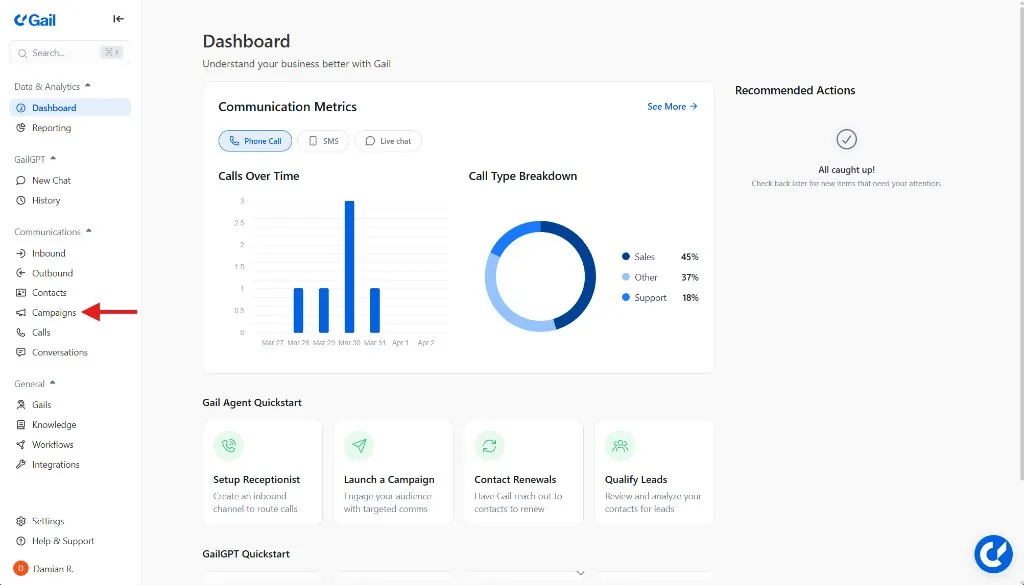
1. Navigate to Outbound
From the left-hand navigation menu, click Outbound.
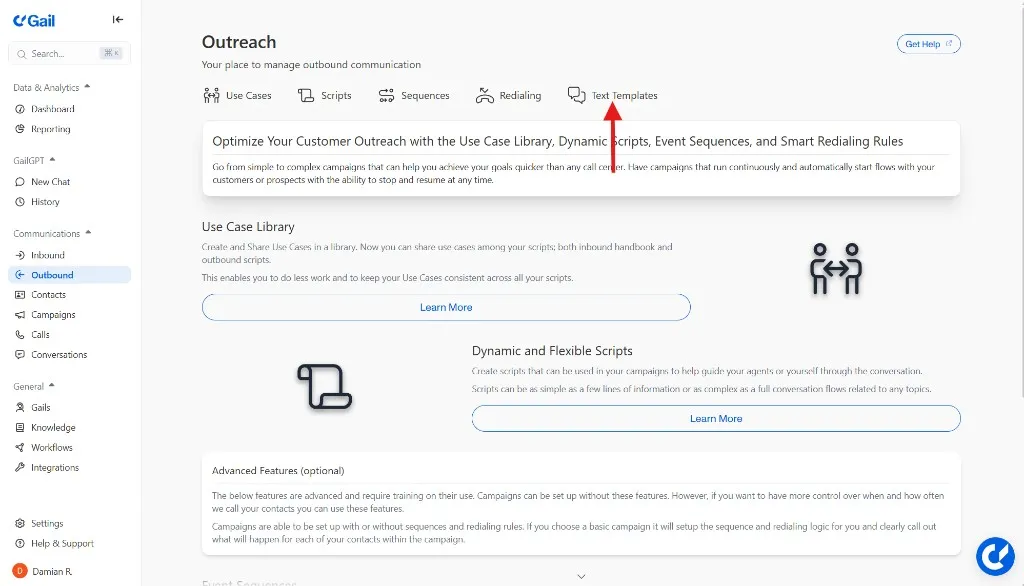
2. Open Text Templates
At the top of the Outbound page, select Text Templates.
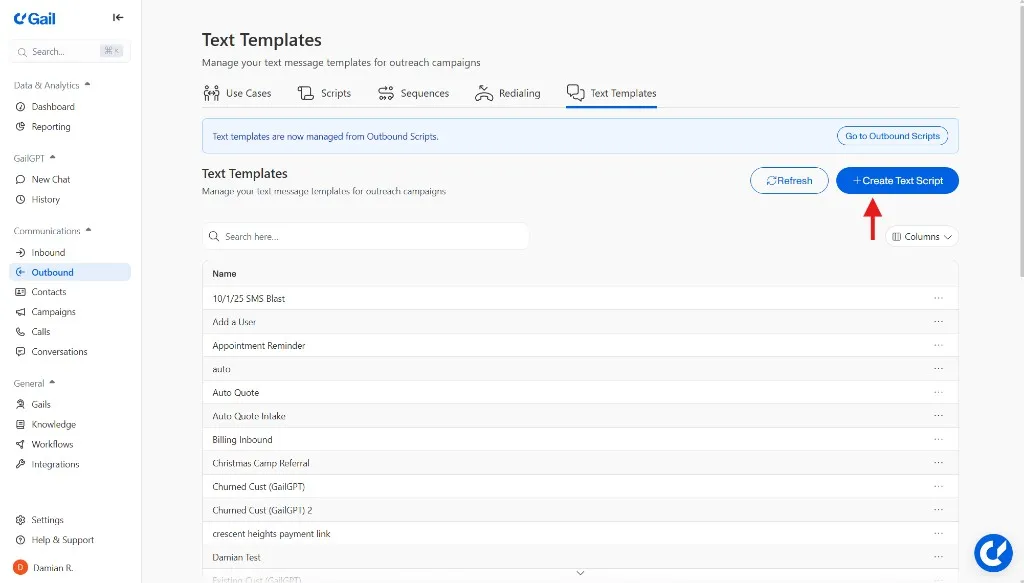
You’ll see your library of existing templates (if any). From here you can create new templates, edit existing ones, or delete templates you no longer need.
3. Create a New Text Script
Click the Create Text Script button in the top-right corner.
A dialog box will appear where you can configure your template.
4. Enter Template Details
Configure your template with the following information:
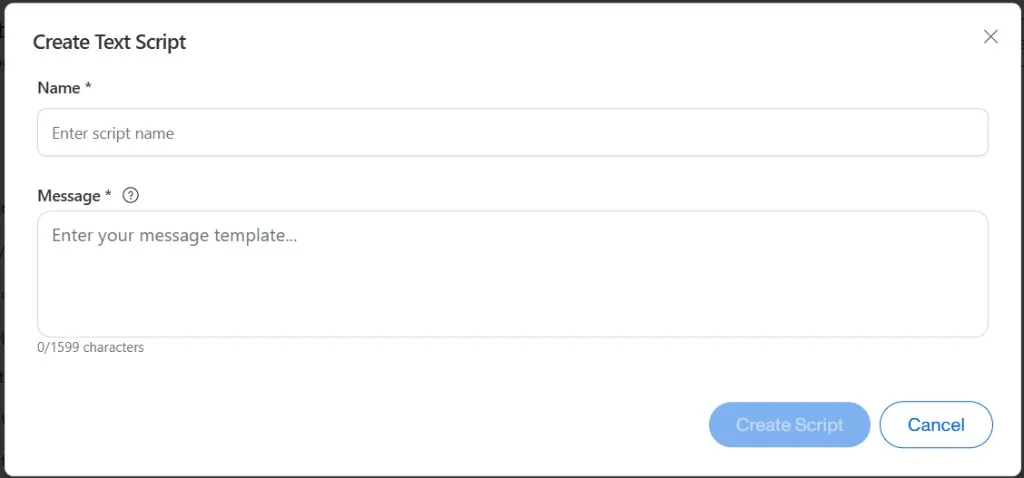
Name
Enter a descriptive name for your template.
The template name is for internal visibility only and will not be shown to contacts when the text is sent.
Best Practices for Naming:
- Use clear, descriptive names that indicate the template’s purpose
- Include the campaign type or use case (e.g., “Appointment Reminder - Insurance Review”)
- Add version numbers if you’re testing variations (e.g., “Payment Reminder v2”)
Message
Type the message you want to send to contacts.
Message Capabilities:
- Maximum length of 1,599 characters
- Include links to websites, forms, or appointment schedulers
- Add personalization variables using the
@symbol - Use line breaks for better readability
Example Message:
5. Using Variables for Personalization
Variables allow you to automatically insert contact-specific information into your messages.
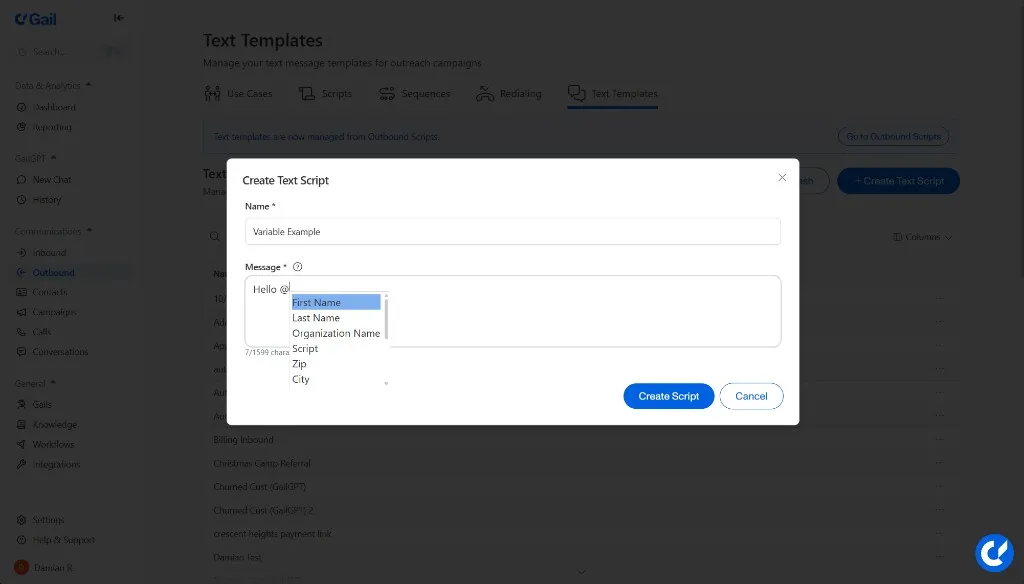
To add a variable:
- Type
@in the message field - Select from available variables in the dropdown
- Common variables include:
@FirstName- Contact’s first name@LastName- Contact’s last name@CompanyName- Company or organization name- Custom fields from your contact data
When using variables, ensure the data exists in your contact records. If a variable field is empty, it may appear blank or show the variable name in the sent message.
6. Save Your Template
When you’re finished configuring your template, click the Create Script button.
Your new template will appear in the Text Templates list and is now ready to be used in outreach campaigns.
Managing Text Templates
Viewing Templates
All your text templates are displayed in the Text Templates section under Outreach.
Editing Templates
To edit an existing template:
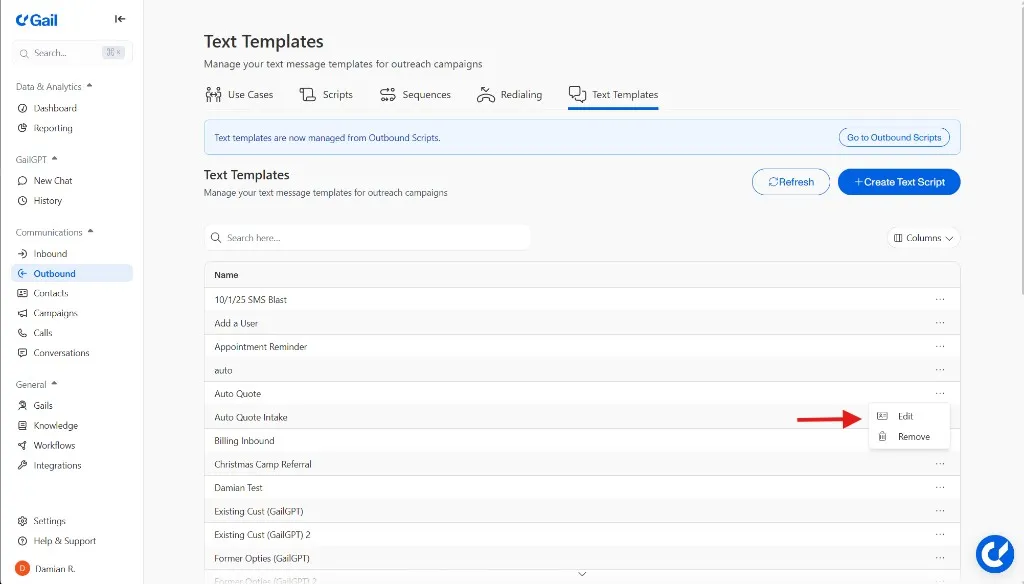
- Click on the template from the list
- Make your changes to the name or message
- Click Save Changes
Changes to a template will only affect future messages. Previously sent messages or queued messages will not be updated.
Deleting Templates
To remove a template you no longer need:
- Click the three dots menu next to the template
- Select Delete
- Confirm the deletion
Deleted templates cannot be recovered. If a campaign is actively using a deleted template, you’ll need to select a different template for that campaign.
Using Templates in Campaigns
Once created, text templates can be used in your outbound campaigns:
- When creating or editing a campaign, select the script with the SMS icon
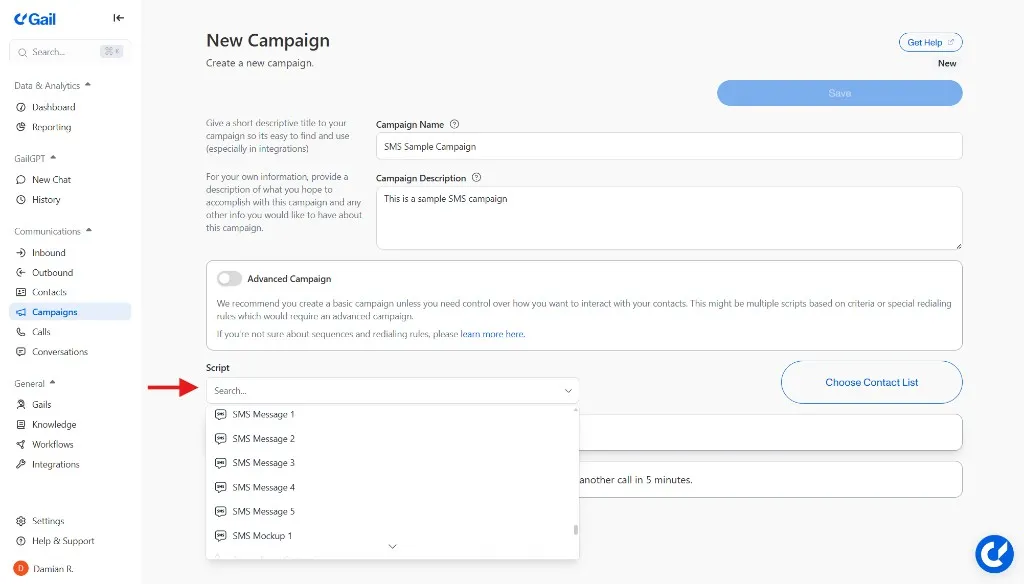
- Choose Use Template in the message configuration
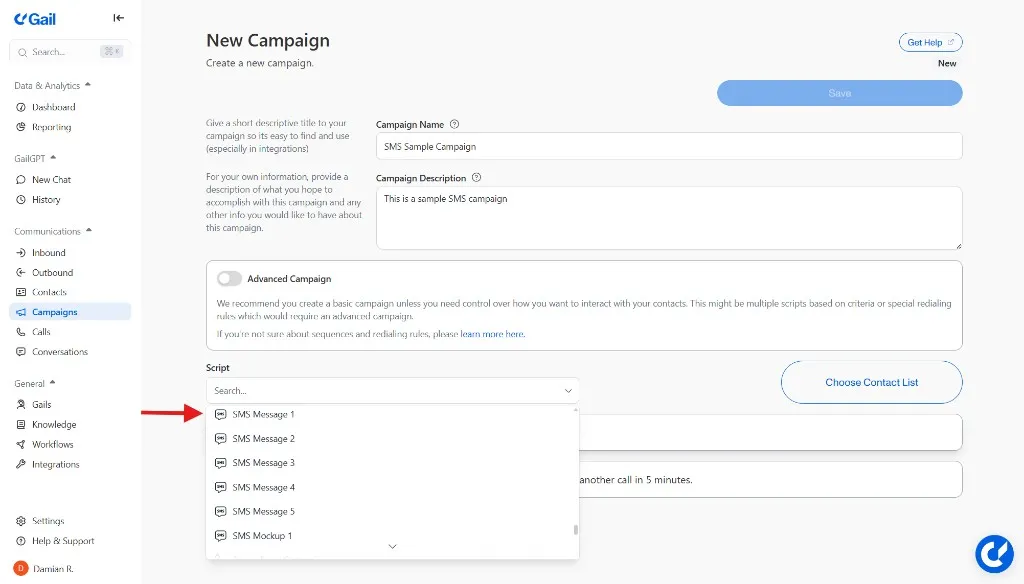
- Enter a campaign name
- Enter a campaign description
- Select your contact list
- Save the campaign settings
Best Practices
Keep Messages Concise
While you have up to 1,599 characters, shorter messages tend to perform better:
- Aim for 160-320 characters when possible
- Get to the point quickly
- Use clear calls-to-action
Include Clear Identification
Always identify who is sending the message:
- Include your company name
- State the purpose of the message upfront
- Provide context if this is a follow-up
Provide an Easy Response Path
Make it simple for contacts to take action:
- Include clickable links for complex actions
- Offer simple reply options (e.g., “Reply YES to confirm”)
- Provide a phone number for questions
- Include opt-out instructions
Test Before Sending
Before using a template in a large campaign:
- Send test messages to yourself and team members
- Check that links work correctly
- Verify that variables populate properly
Respect Compliance Requirements
Text messaging is heavily regulated. Follow these guidelines:
- Only text contacts who have opted in to SMS communications
- Include your business name in every message
- Provide clear opt-out instructions
- Honor opt-out requests immediately
- Don’t send messages outside of appropriate hours
- Avoid excessive messaging frequency
Failure to comply with SMS regulations can result in significant fines and may jeopardize your SMS approval status. Always follow TCPA and carrier guidelines.
Template Examples
Appointment Reminder
Payment Reminder
Event Invitation
Follow-Up After Call
Troubleshooting
Template Variables Not Populating
If variables aren’t filling in correctly:
- Verify the field names match your contact data exactly
- Check that the contact record has data in that field
- Test with a contact that has complete information
- Review variable syntax (must include
@symbol)
Messages Being Truncated
If messages are cut off:
- Check the character count (1,599 max)
- Note that some special characters count as multiple characters
- URLs may be shortened automatically by carriers
- Consider splitting into multiple templates if needed
Links Not Working
If clickable links aren’t functioning:
- Ensure URLs include
https://orhttp:// - Test links in a browser before including in templates
- Use URL shorteners for long links
- Check that landing pages are mobile-friendly
Low Response Rates
If contacts aren’t engaging with your messages:
- Review message clarity and call-to-action
- Test different messaging times
- Ensure the offer or information is relevant
- Shorten the message length
- Try A/B testing different template variations
Next Steps
Now that you understand text templates, explore these related topics:
- Creating Campaigns - Set up outbound campaigns using your text templates
- Managing Contacts - Organize contact lists for targeted messaging
- Sequences - Create multi-step outreach flows combining calls and texts
- Applying for SMS Approval - Get approved for SMS messaging if you haven’t already