
Conversation History
All of your conversations with GailGPT are automatically saved so you can reference them later, share with teammates, or continue where you left off.
Viewing Your Conversation History
To access your conversation history:
- Click “History” in the left sidebar under the GailGPT section
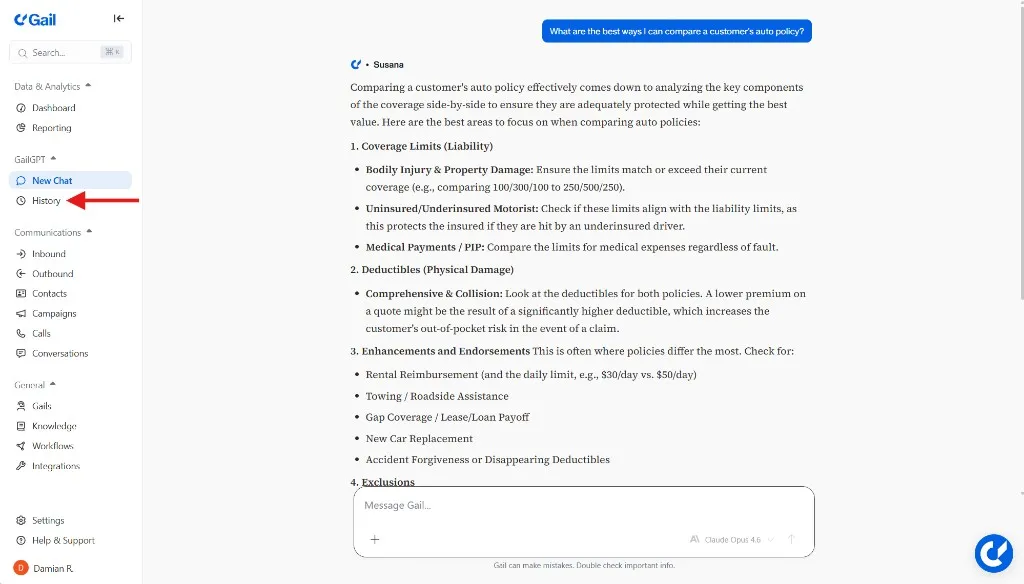
-
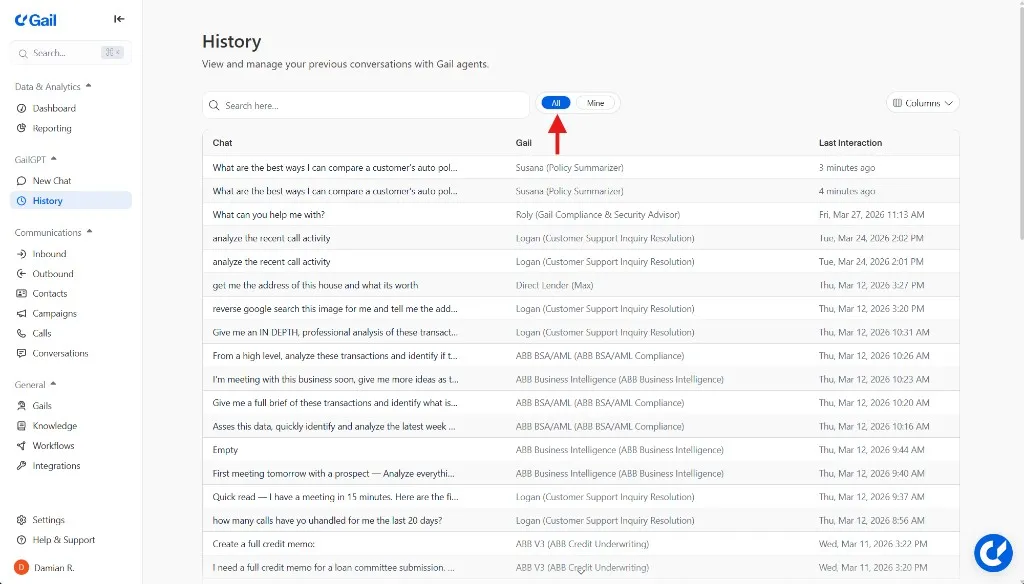
Choose your view:
- All - See all conversations from your entire team
- Mine - View only your personal conversations
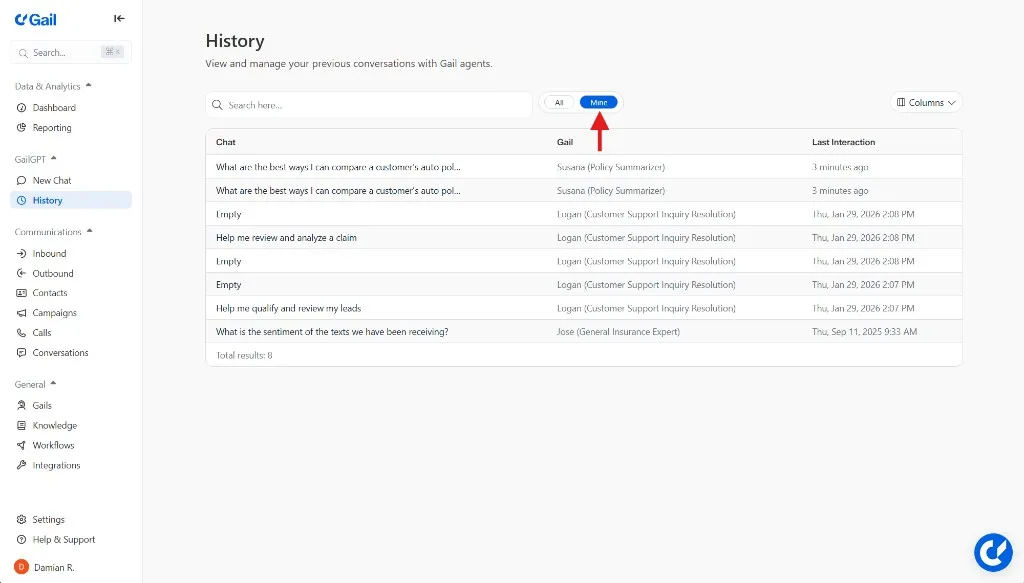
Your conversation history appears as a list with timestamps of the last message sent, showing the first message or title of each conversation. Click any conversation to open the full thread.
Understanding the Two Views
All Conversations
The “All” tab shows every conversation that your team has had with GailGPT:
- Team visibility - See what questions your colleagues are asking
- Knowledge sharing - Learn from how others use GailGPT
- Collaboration - Pick up where a teammate left off on a topic
- Quality assurance - Review how GailGPT is responding across the team
Permissions: You can only see conversations from users within your organization. Your data remains private and secure.
My Conversations
The “Mine” tab filters to show only your personal conversations:
- Quick access - Find your recent chats faster
- Personal workflow - Focus on your own context and questions
Searching Conversation History
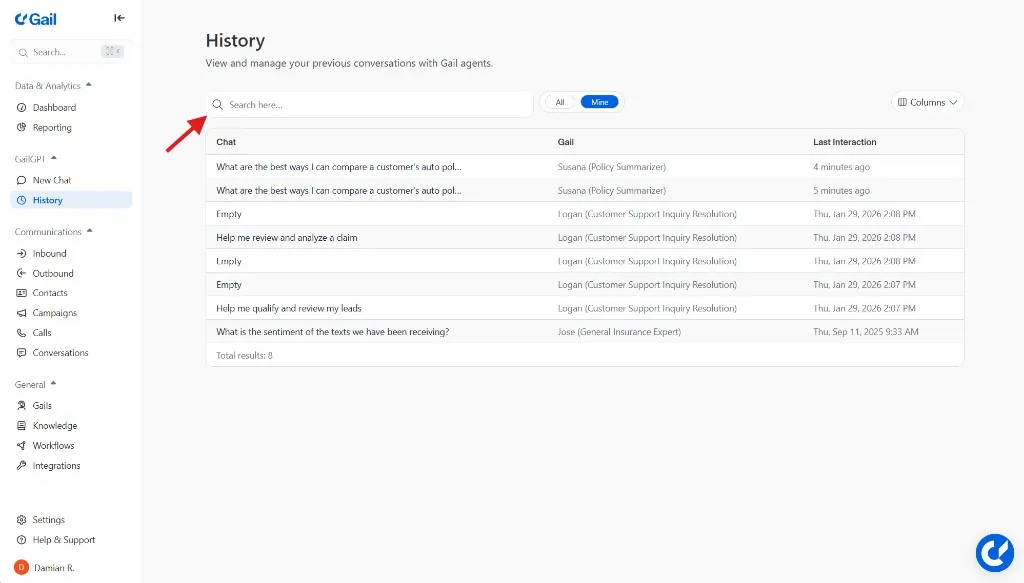
Use the search bar to quickly find specific conversations:
Search Tips
Search works across chat titles: The search looks through chat titles, so you can find conversations by keywords mentioned anywhere in the title.
Use filters: Combine search with the “All” or “Mine” toggle to narrow down results to specific conversations.
Managing Conversations
Continuing a Conversation
To pick up where you left off:
- Click on any conversation in your history
- The full chat thread will open
- Start typing at the bottom to continue the conversation
GailGPT remembers the context of the entire conversation, so you can ask follow-up questions naturally.
Privacy & Data Retention
Who Can See Conversations?
Troubleshooting
I can’t find a conversation
- Check if you’re in “Mine” view when you should be in “All”
- Use search with keywords from the conversation
A conversation shows incorrect information
- Update your knowledge base with correct information
- Note the conversation and review training data
- Contact support if the issue persists