
Check
The Check node looks at a set of conditions in order and returns one label, such
as APPROVED, NEEDS_REVIEW, or DECLINED. It gives a workflow a single,
clear conclusion that later steps, reports, and dashboards can all read.
When to use it
- You want one clear verdict after several earlier steps (a score, a status, a lookup) have run.
- You want that verdict to show up in run history and reporting so anyone can see what the workflow decided.
- You need a final result to hand back from a Sub Graph.
Check does not branch the workflow, it only produces a label. If you need the run to follow different paths, use Conditional instead.
Inputs
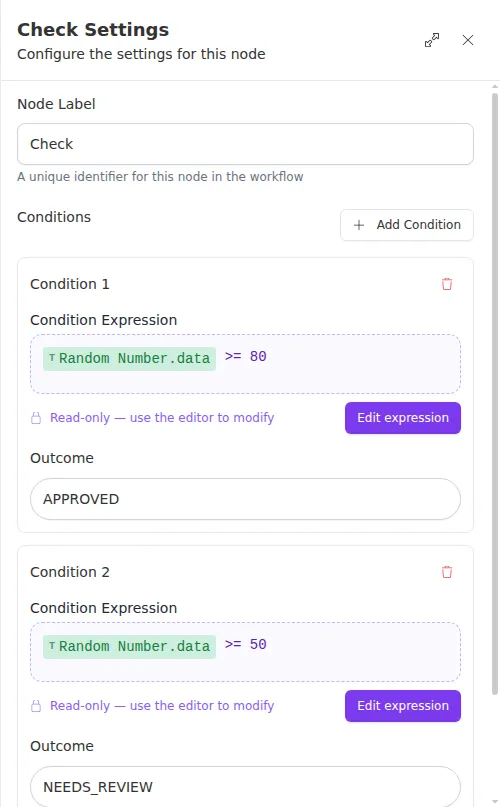
Conditions and outcomes are paired by position: the first condition maps to the first outcome, the second to the second, and so on. Conditions are written as expressions that read values from earlier steps.
Outputs
Example
An agency runs a workflow that reviews inbound quote requests. Earlier steps have already scored the applicant’s risk and confirmed their documents are complete. A Check node turns those results into one decision for Sarah Chen’s request:
- If risk score is 80 or higher and documents are complete, outcome is
APPROVED. - If risk score is 50 or higher, outcome is
NEEDS_REVIEW. - Otherwise, the default outcome is
DECLINED.
Because Check evaluates conditions top to bottom and stops at the first match, list the strictest condition first. The chosen label then appears in the run’s history and can be read by any step that follows.
All conditions are evaluated when the node runs. If a condition points at a value that does not exist (for example, a step that was skipped), the run stops with an error, even if an earlier condition already matched. Make sure every value a condition reads is actually available by the time Check runs.