
Business Hours
Setting Your Business Hours (CRITICAL!)
This is perhaps the most important step for Gail to function correctly as your receptionist. Without accurate business hours, Gail won’t know when to use your “during business hours” script versus your “after-hours” script, and crucial functionality will be impacted.
- Go to the Knowledge tab on the left sidebar
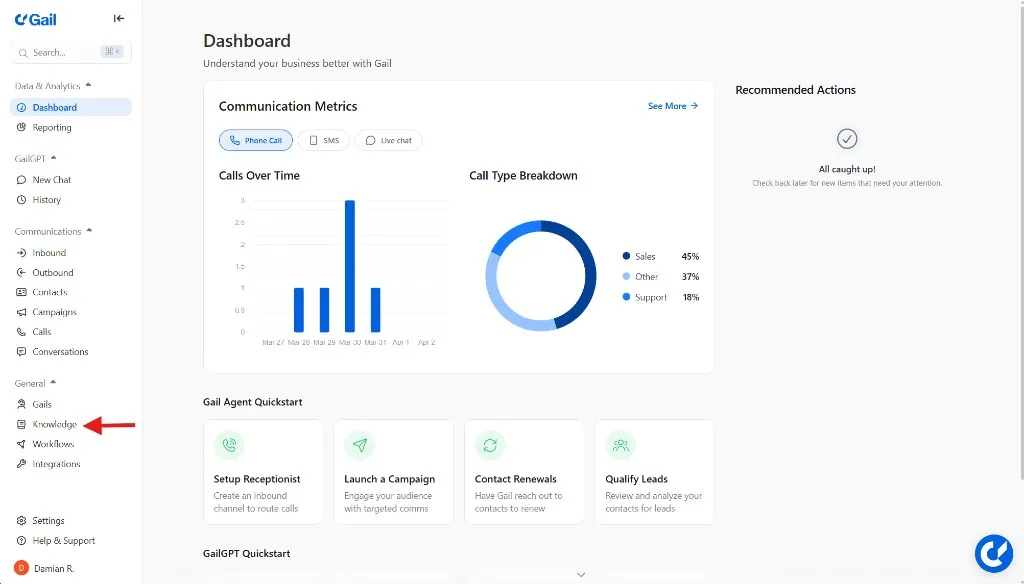
- Select the Business Hours Tab: Click the Business Hours tab next to the Files tab
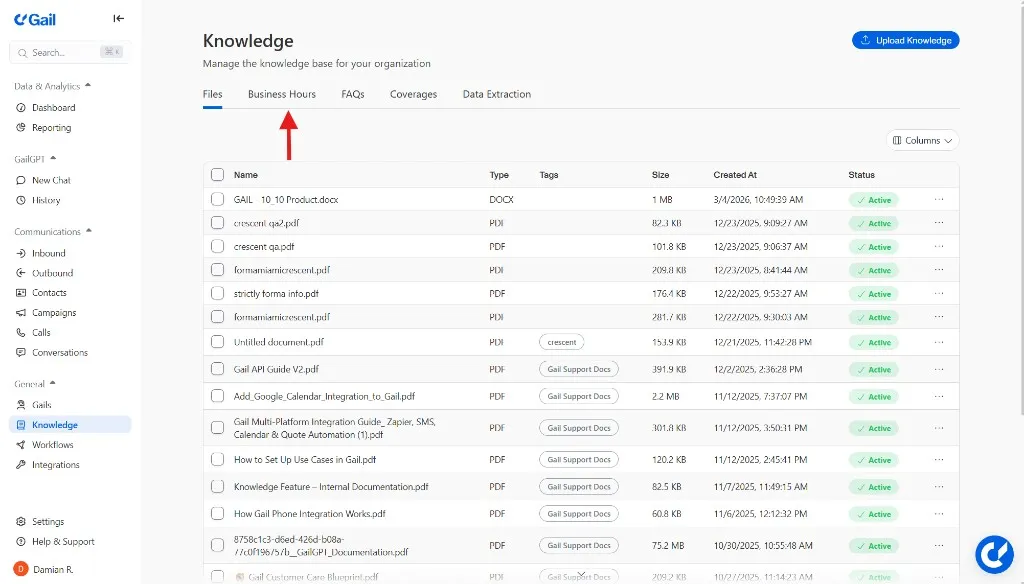
- Set Your Business Hours: Clearly define your operating days and times, ensuring the correct timezone is selected
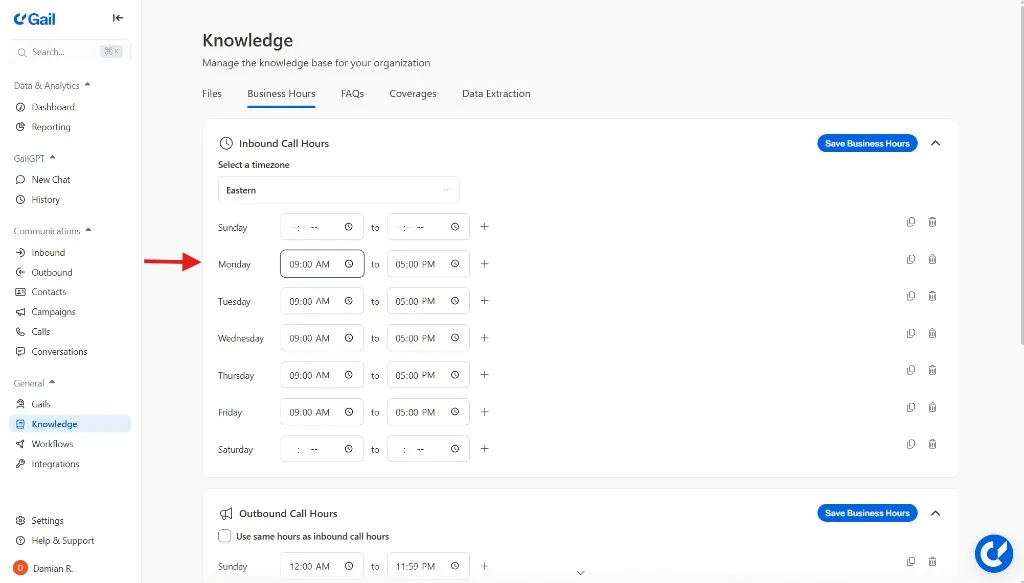
- Update Holiday Hours: Don’t forget to use the Holiday Editor to mark specific days your business will be closed
Why Accurate Business Hours Are NON-NEGOTIABLE
- Correct Script Execution: Gail relies on your business hours to decide how it should respond to inquiries
- Intelligent Transfers: If a caller asks to be transferred to an internal contact, Gail will check your business hours. If your business hours are not set or are inaccurate, Gail won’t know if it’s appropriate to attempt a transfer to a directory contact. She might try to transfer someone after hours, or tell someone the office is closed when it’s actually open, leading to frustrated callers and missed connections
- Accurate Information: Gail uses business hours to answer direct questions like “What time do you close today?” If this isn’t updated, her answers will be incorrect
Setting your Outbound Call Hours
Setting your Outbound call hours is crucial to ensuring that Gail calls your clients within the proper TCPA compliant call hours. Gail will go off these hours based on the time zone selected for your Business Hours
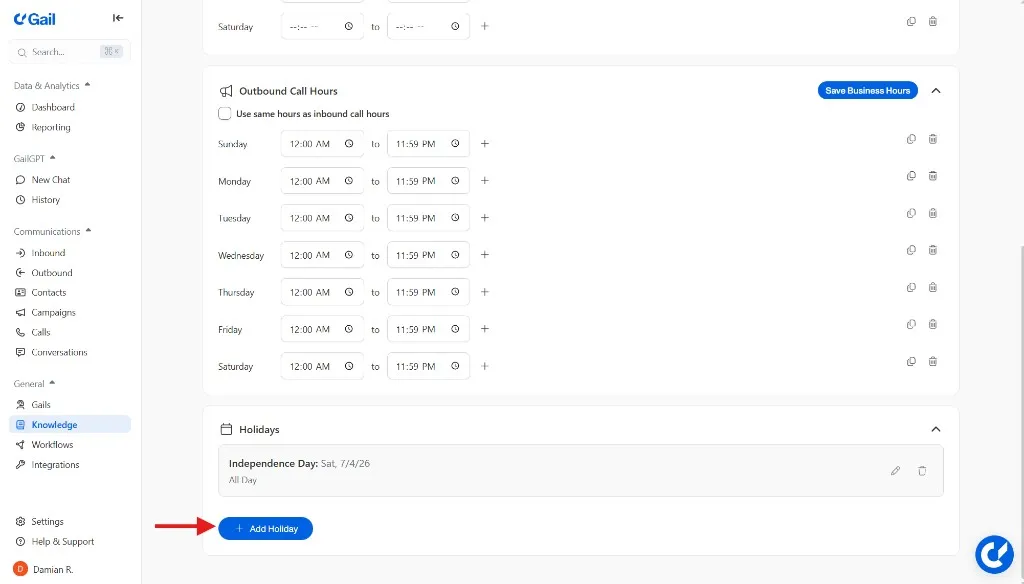
- Go to the Outbound Call Hours section underneath the Business Hours section
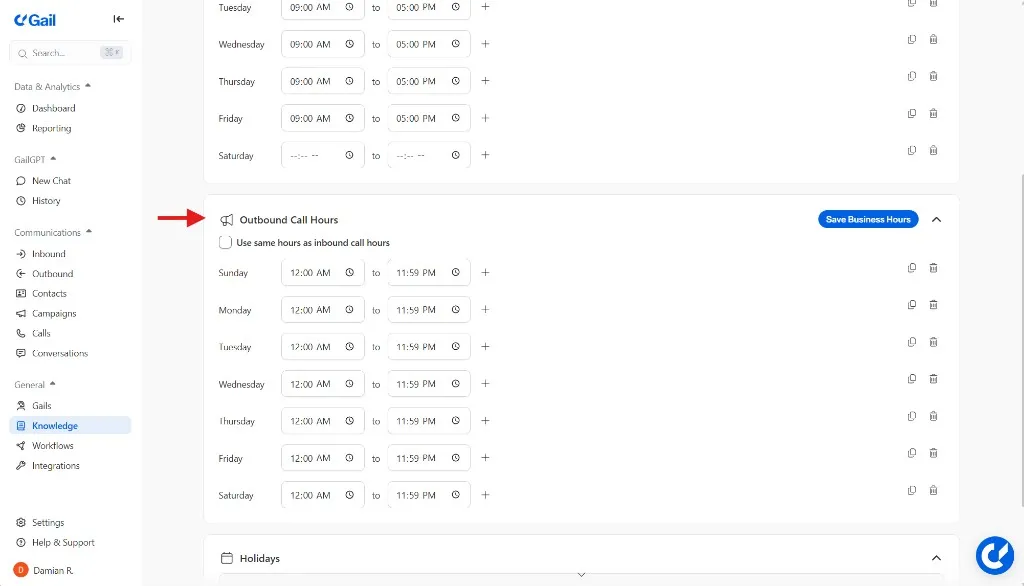
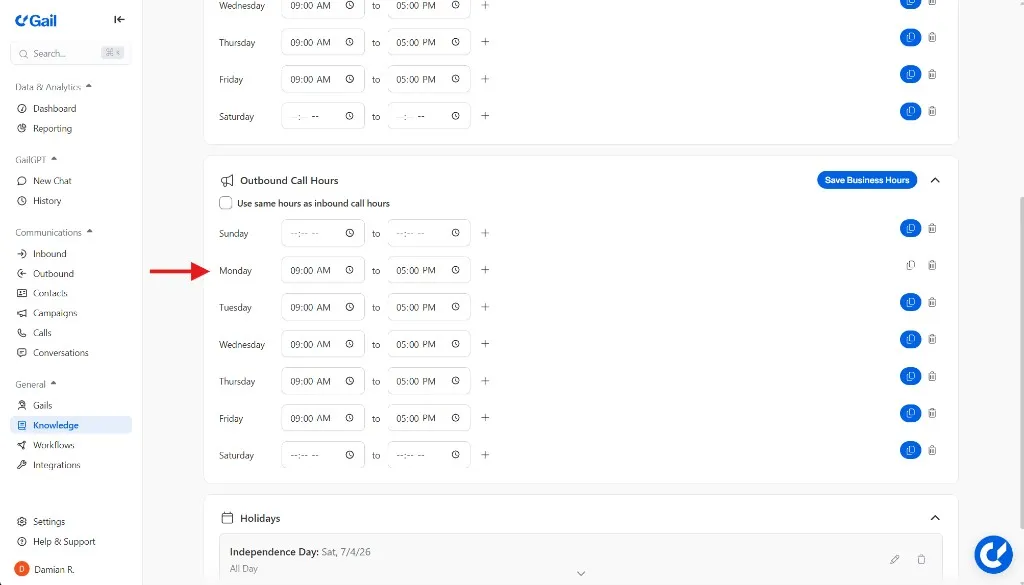
- Set your Outbound Call Hours: Adjust the times to the hours that you would like Gail to call out to your clients
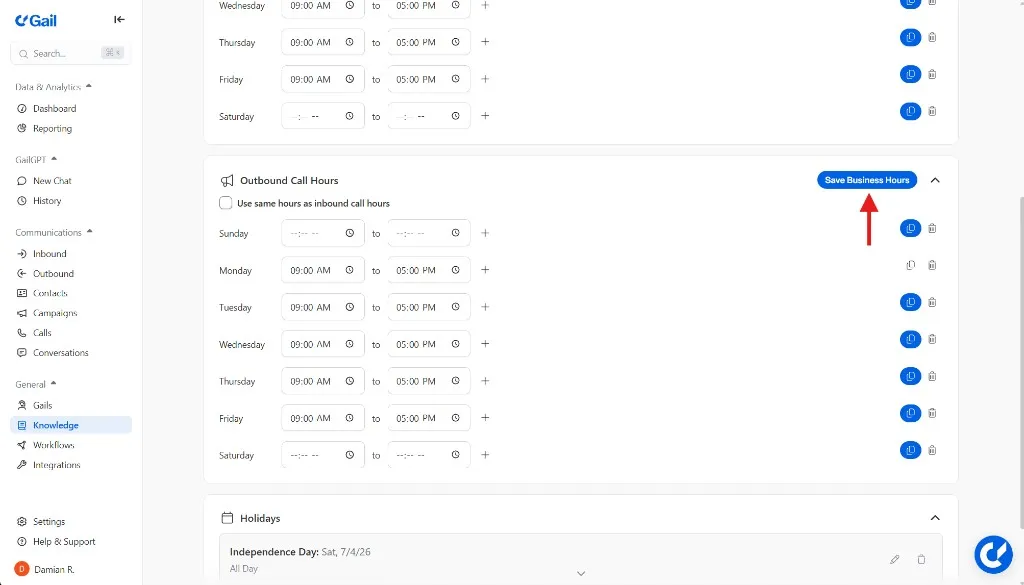
- Save your Hours: Click the Save button so that Gail will only make outbound calls based on the hours you’ve set
Always ensure your business hours are current, and remember to update them for holidays and special events!