
Create Text File
The Create Text File node takes content you supply and saves it as a file the rest of the workflow can use. It handles plain text, like a note or a small report, as well as binary files such as a PDF or an image. Later steps can attach the file to an email, upload it, or read it back in.
When to use it
- You want to assemble a short document or summary during a run and send it on.
- You need to turn data the workflow already has into a file another step expects.
- You are producing a small, fixed file rather than a spreadsheet built from a list of records (for that, use Create CSV).
Inputs
Any of these can be written as an expression so the file adapts to earlier steps.
Outputs
The node either produces the file or reports a problem, so you can route the run if something goes wrong.
Example
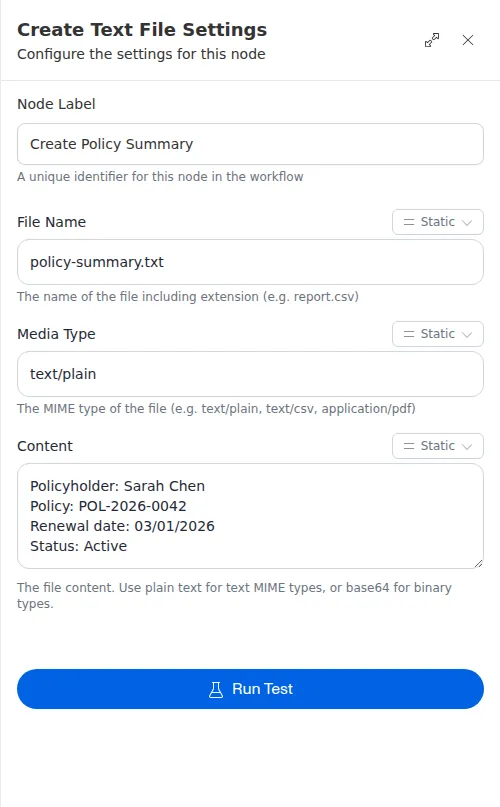
An agency workflow pulls together a short summary for Sarah Chen’s renewal:
policyholder name, policy number, renewal date, and status. A Create Text File
node saves that summary as policy-summary.txt, and a later
Send Email step attaches it
to the message that goes out to her.
The media type has to match the content. For plain text files the content is taken as-is, but for binary types like a PDF the content must be properly encoded. If it is not, the node reports a problem instead of saving a broken file, so follow it with a step that checks the result before relying on the file downstream.