
Testing & Debugging
Before you rely on a workflow, you want to see it work. Two features help: a step-through debugger that lets you walk a run node by node, stop where you choose, and stand in for a node’s result, and run history that shows what happened during any run. Together they turn “I think this works” into “I watched it work.”
Stepping through a run
The debugger starts a run and pauses it before the first step. From there you can advance one step at a time, or let it run to the end. Each time it pauses, you can see what is about to happen and what just happened.
Start a session
Pick a workflow and start a debug session. The run pauses at the very beginning, before anything has happened.
Step forward
Advance by one step. That step runs, then the session pauses again before the next one, so you can inspect the result.
What you can see at each pause
Debugging runs a workflow for real. Steps that send messages, place calls, or write to other systems will actually do those things while you step through. Use test data, or a workflow set up for testing, if you do not want real effects.
A paused session does not stay open forever. If you leave it idle for a while (about 15 minutes), it ends on its own. Taking any action keeps it going.
Stopping at a chosen node
Stepping one node at a time gets slow in a long workflow. Instead, place a breakpoint on the node you care about and run the session: it runs everything before that node, then pauses just before it, so you can inspect the input it is about to use.
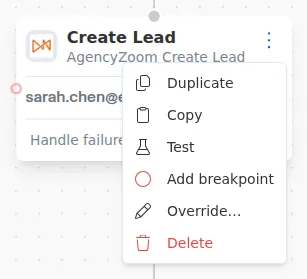
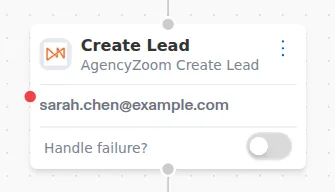
To place one, open the node’s menu (the three dots on the node) and choose Add breakpoint. A red dot on the node’s left edge marks it. Choose Remove breakpoint from the same menu to take it off.
- Breakpoints belong to the workflow, not to one session. Place them before you start a session, and they are still there the next time you debug.
- Everyone in your organization debugging the same workflow shares the same set of breakpoints.
- You can place a breakpoint while a session is paused. It takes effect from the next time the session moves on.
- A breakpoint works on nodes inside a Sub Graph or For Each too. Inside a For Each, it pauses on every pass through the loop.
- The Start node cannot carry a breakpoint, since a session already begins there.
Pausing when a node fails
If a node cannot run while you are debugging, the session pauses at that node and shows what went wrong, instead of failing somewhere you cannot see. This happens when:
- an expression in the node’s settings cannot be worked out, such as a reference to a value that is not there,
- a value the node received breaks one of its rules, or
- the node itself fails, for example an outside service keeps returning errors after its retries.
This pause happens even when you let the session run to the end. What moving on does depends on why the node stopped:
- An expression or a rule problem. The run follows the node’s failure path, or fails if the node has none. An override you add at this pause is not used, so fix the node’s settings, or add the override before your next session.
- The node itself failed. If you just move on, the whole run fails, even when the node has a failure path. You can stand in for the node’s result first instead: add an override while the session is paused, then move on.
A node that runs and reports a failure it was built to report, like an HTTP Request that gets a “not found” answer, does not pause the session. It follows its failure path as normal, because that is the workflow doing its job.
Standing in for a node
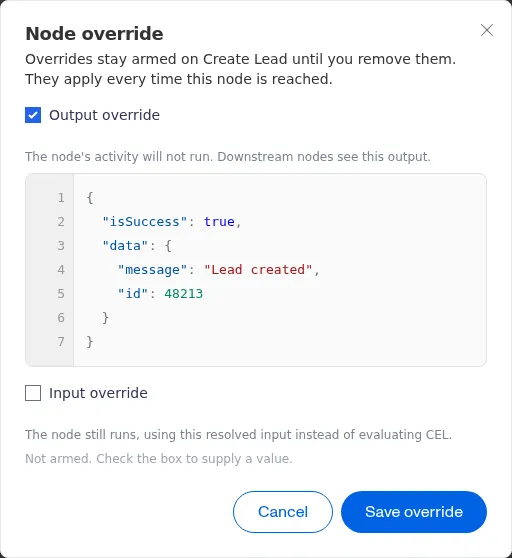
An override lets you supply a value in place of what a node would produce or use, so you can test the rest of a workflow without the node’s real effects. There are two kinds:
If a node has both, the output override wins and the node does not run.
To add one, open the node’s menu and choose Override…. Tick Output
override or Input override, type the value, and press Save override.
The output box starts from the shape of the node’s result, so you only change the
values. For a node that can fail, the result carries isSuccess (true or
false) next to its data.
Some useful ways to use them:
- Skip a side effect. Put an output override on a Send SMS or Outbound Call node to test what happens after it without contacting anyone.
- Test a failure path. On a node that can fail, supply an output that says it failed, and the run takes the failure path without a real failure.
- Skip a wait. An output override on a Delay skips the wait entirely.
- Recover from a failed node. When a session has paused because the node itself failed (not because of an expression or a rule problem), add an override and move on. An output override uses your value and carries on; an input override runs the node again with your value.
Like breakpoints, overrides belong to the workflow and are shared across your organization. They stay in place, applying every time the node is reached (including every pass through a loop) until you remove them. They only apply while debugging; a normal run never uses them.
An input override on a failed node runs the node again each time you move on, including its real effects. Remove the override when you are done.
Overrides are stored as you typed them. Do not put a password or other secret value in an override.
Reusing a result from a past run
Instead of typing an output override by hand, you can copy it from a run that already happened. Run the workflow for real once, then fill a node’s output override from that run, and debug the steps after it as often as you like without calling outside services again.
- You can copy from any past run of the workflow in your organization, whether it was a debug session or a normal run.
- The value copied is the node’s last result in that run. For a node inside a loop, that is the result from the final pass.
- A result that reported a failure can be copied too, which is a handy way to replay a failure path.
- To refresh the value, copy it again from a newer run.
A few results cannot be copied: from a node that never ran in that run, from a node that produces no result (like a Delay), or a result too large to keep in the run’s history. The run you copy from must also have finished; a session that is still paused cannot be copied from yet.
Following a run’s progress
Every run, whether you started it by hand or it was triggered, builds up a history as it goes: a timeline of events you can follow in real time. It records when the run started, when each step started and finished, which path a Conditional took, and when the run completed or was cancelled.
This is how you check on a run without stepping through it. You can watch a live run move along, or open a finished run to see everything that happened and in what order. If a step failed, the history shows where.
If a step produces a very large output, its entry in the history is shortened so the timeline stays quick to load. This only affects what the history displays; the full value is still passed on to the next step as normal.