
SFTP Download
The Download node pulls one file off a remote SFTP server and into your workflow, so a later step, such as an agent or an upload, can work with it. You point it at a file by its full path on the server.
When to use it
- You want to bring a file from an SFTP server into the run to analyze or parse it.
- You listed a directory and now want to download one or more of the results.
- You need a file from a server to hand to another step later in the workflow.
Inputs
The password or key must reference a workflow Secret. Any field can be a fixed value or an expression that reads from an earlier step, such as a file path from a List Directory result.
Outputs
Example
Each morning a carrier leaves a monthly summary on Chen Insurance Group’s SFTP
server. A workflow uses Download to pull /outbound/reports/monthly_summary.csv
into the run, then hands the file to an Agent
step that summarizes the key metrics and flags anything unusual.
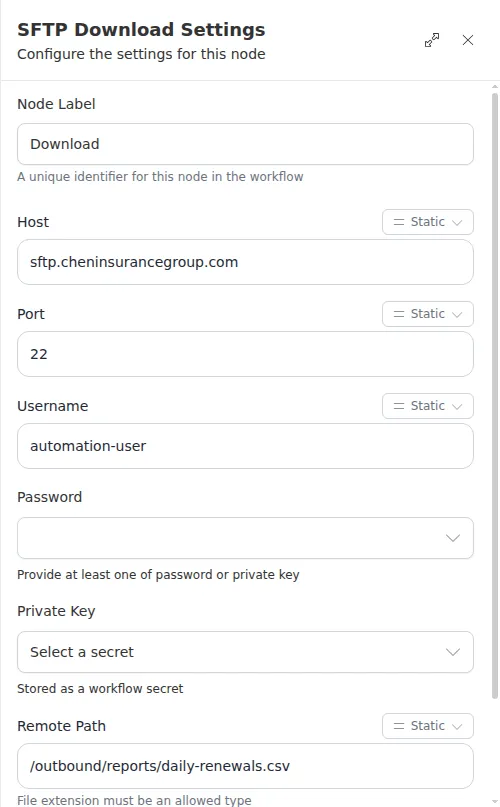
Downloads are limited to common file types (such as PDF, spreadsheets, documents, text, CSV, and images) and to files of 250 MB or less. A path with an unsupported extension is rejected before the download runs.