
SFTP List Directory
The List Directory node looks inside a directory on a remote SFTP server and hands back the files and folders it finds, with optional filters on name and date. It is the starting point for any workflow that picks files up off a server.
When to use it
- You want to see what files are waiting in a directory before downloading them.
- You need only files that match a pattern, such as
*.csv, or a date window. - You want to loop over the results and download each file in turn.
Inputs
The password or key must reference a workflow Secret. Any field can be a fixed value or an expression that reads from an earlier step.
Outputs
Example
A carrier drops daily CSV reports onto an SFTP server for Chen Insurance Group. A
workflow uses List Directory to find the *.csv files in /outbound/reports
sorted newest first, then loops over the results with a
For Each step to download and
process each report.
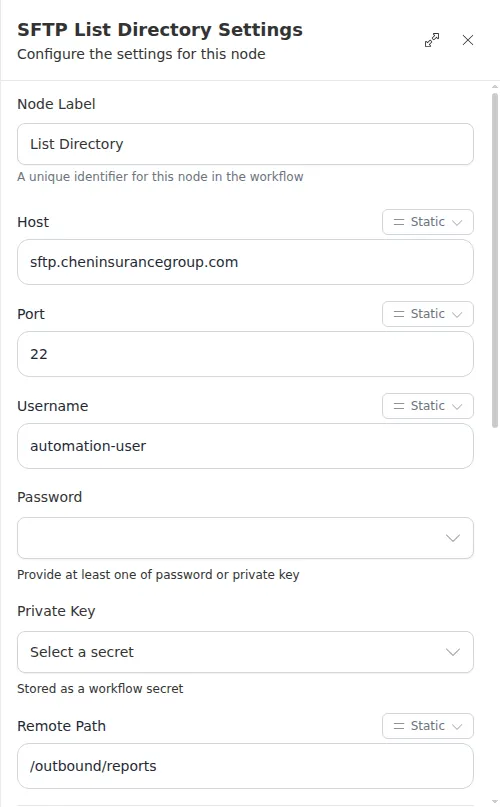
The password or private key must be stored as a workflow Secret and referenced from the node - a plain-text credential is rejected when you publish. Provide whichever one your server accepts.