
Google Drive Upload File
The Upload File node saves a file from your workflow into a Google Drive folder. If no file with that name is in the folder it creates a new one; if one already matches, it replaces the contents in place while keeping the same link and history.
When to use it
- You produced a file in the run and want to store it in a shared Drive folder.
- You want to keep a single file up to date, replacing it rather than piling up copies.
- You moved a file in from somewhere else (a download or an agent) and want it in Drive.
Inputs
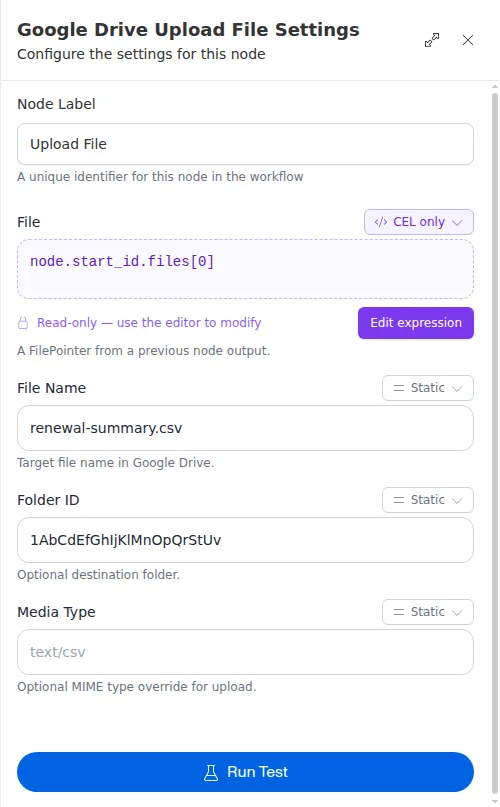
Any field can be a fixed value or an expression that reads from an earlier step.
Outputs
Example
A workflow builds a fresh renewals summary for Chen Insurance Group each month and
saves it to Drive with Upload File under the name renewals-summary.csv in the
team’s reports folder. Because the name stays the same, each run replaces last
month’s file in place, so the shared link the team bookmarked always points at the
latest version.
Upload matches on the file name within the folder. If two files in that folder already share the name you gave, the node refuses to guess which one to replace and reports a problem instead - so keep names unique within a folder.