
Document Analysis
The Document Analysis node looks through uploaded files to check whether the documents you require are there, such as a proof of insurance or a driver’s license, and reads specific details off them where you ask. You describe what to look for in plain terms rather than writing instructions, and the node reports what it found, how sure it is, and the values it pulled out.
When to use it
- You need to confirm a submission includes every required document before the workflow moves on.
- You want to pull specific values off a document, like a coverage amount or an expiration date, without reading it by hand.
- You are automating intake, where uploads arrive in different orders and you need to sort and verify them consistently.
Inputs
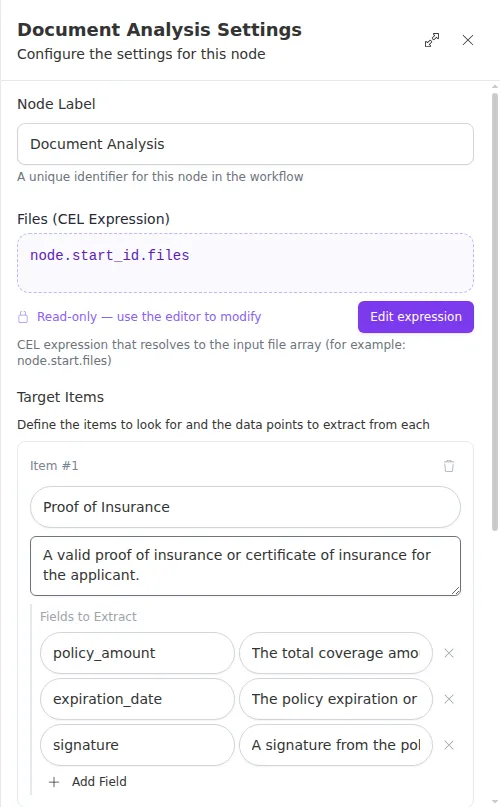
For each target item you can list one or more fields to extract, each with a name and a description of what to find on the document.
Outputs
Example
A new commercial client uploads a proof of insurance and a driver’s license during onboarding. A Document Analysis node is configured with two target items. The first, “Proof of Insurance,” asks for the coverage amount, the expiration date, and a signature. The second, “Driver’s License,” asks for the expiration date. The node reports that both documents were found, pulls the coverage amount and dates, and flags that all requested fields were present, so a Conditional step can send a complete submission straight through and route an incomplete one back for follow-up.
The descriptions do the heavy lifting. Spell out what each document and field looks like in plain terms, and branch on both whether the document was found and how confident the match is, not just one of them. A found document with a low confidence is worth a second look.