
Google Sheets Append Rows
The Append Rows node adds new rows to the bottom of a spreadsheet tab. You give it rows made of named fields, and it lines each field up with the matching column by header name, so you do not have to worry about column order.
When to use it
- You want to log the result of a run to a spreadsheet your team watches.
- You are building up a running list, one or several rows at a time.
- You want to hand structured data to a sheet without minding column order.
Inputs
Any field can be a fixed value or an expression that reads from an earlier step. Field names are matched to headers without regard to case; fields that match no column are ignored, and columns with no matching field are left blank.
Outputs
Example
Chen Insurance Group tracks inbound leads in a Google Sheet with columns for name,
email, and state. When a new lead comes in, a workflow uses Append Rows to add a
row - { "Name": "Marcus Johnson", "Email": "marcus@example.com", "State": "FL" } -
to the “Leads” tab. Because rows match on header name, the fields land in the right
columns no matter how the sheet is arranged.
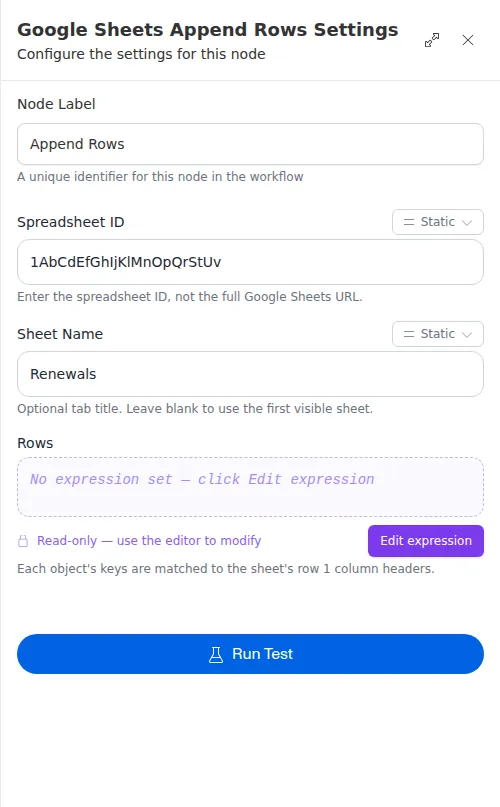
The tab needs a header row in row 1, and rows match to those headers by name. If you name a specific tab and later rename it in Sheets, the saved workflow will break - leave the tab blank to always target the first tab, or update the workflow after renaming.