
AgencyZoom Update Task
The Update Task node changes an existing task in AgencyZoom by its id. It is a partial update: it only touches the fields you set and leaves the rest alone. You can also set the task’s status to open or done.
When to use it
- You want to change a task’s title, due time, assignee, or notes.
- You want to reassign a task or reschedule it as a run progresses.
- You want to change other fields and mark the task done in the same step.
Inputs
Only the task id is required; set only the fields you want to change. Any field can be a fixed value or an expression that reads from an earlier step.
Outputs
On success the node returns a confirmation that the task was updated.
Example
A customer asks to move a call, so a workflow uses Update Task with the task’s id to change only its due time to the new slot, leaving the title, assignee, and notes as they were. Because it is a partial update, nothing else on the task changes.
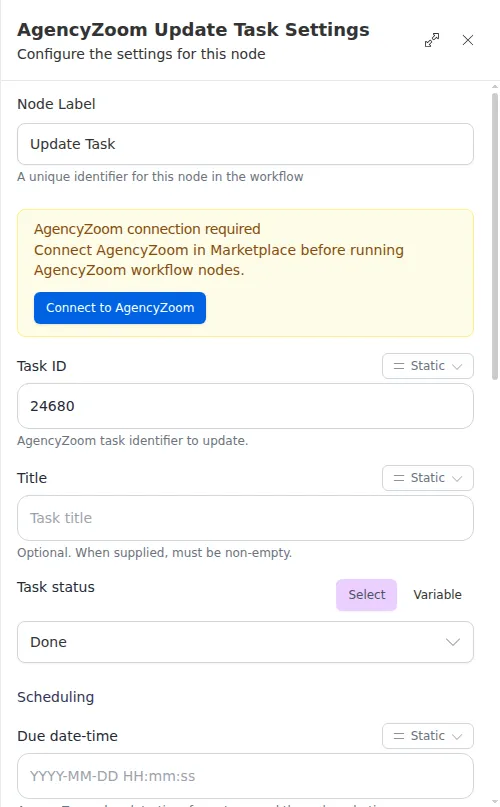
Update Task only touches the fields you set, so it is safe for small changes. To simply mark a task done, prefer Complete Task - it records who completed it and when. Use a status of done here only when you are already changing other fields in the same step.